
We’ve all been there. You spend days perfecting a presentation, hit send on the email, and then… crickets. Or worse, you get a reply saying, "The file is too big to download," or "I can't open this on my computer." Emailing PowerPoint files feels like a relic from a bygone era, and for good reason. It's a recipe for frustration.
The solution is to stop thinking about your presentation as a file to be attached and start treating it as a live, professional link. Moving your PPT online is the single best way to avoid these headaches for good.
Why Sharing PPT Files Is Holding You Back
Let's be blunt: the old way of sharing presentations is broken. Every time you attach a .pptx file to an email, you're creating friction and introducing a dozen things that can go wrong. You lose all control the second you hit "send," and you're essentially hoping for the best.
This isn't just a minor inconvenience; it's a workflow filled with uncertainty that can undermine your professional image.
The Pitfalls of Traditional Sharing
The problems run much deeper than just big file sizes. Remember that important proposal you sent out last week? Did you find yourself wondering if they even had PowerPoint installed? Or if your carefully chosen brand fonts would show up as a jumbled mess on their end? These are the little doubts that create major problems.
This outdated process is plagued with issues:
- Version Control Chaos: We've all seen it: a folder filled with files like
Proposal_v3_final_final_forreal.pptx. When multiple people are emailing edits back and forth, it's almost impossible to know which version is the right one. - Zero Analytics: You're flying blind. You have no idea if your presentation was ever opened, how long they looked at it, or which slides resonated the most.
- Major Security Risks: Once that file is in someone's inbox, it's out of your hands. It can be downloaded, shared, and forwarded to anyone without your permission.
- Terrible Mobile Experience: Let's face it, most people check their email on their phones first. Trying to open and navigate a hefty PowerPoint file on a small screen is an awful experience.
The core problem is that a static file wasn't designed for the dynamic, multi-device world we operate in today. A live link, however, is built for it.
Switching from attachments to live links is a fundamental upgrade in how you present your work. Here’s a quick look at why it’s so much better.
Old vs New Ways of Sharing Presentations
| Feature | Traditional Sharing (Email) | Modern Online Sharing (Live Link) |
|---|---|---|
| Accessibility | Requires specific software (PowerPoint) | Opens instantly in any web browser |
| File Size | Limited by email provider (often 25MB) | No limit; link is just a few bytes |
| Version Control | Chaotic; multiple file versions exist | Always shows the latest version, instantly |
| Security | None; once sent, control is lost | Granular permissions, password protection |
| Analytics | None; you can't track engagement | Detailed insights on views, duration, etc. |
| Mobile Viewing | Poor; difficult to open and navigate | Flawless; responsive and easy to view |
The difference is night and day. A live link gives you the control, security, and professional polish that an email attachment simply can't match.
The Shift Away from PowerPoint
This friction is exactly why the presentation software market is evolving. We're seeing a massive trend away from clunky desktop tools and toward agile, web-first platforms. In fact, PowerPoint's market share has dropped to just 22.75%, falling behind newer, more intuitive tools.
This isn't just a fad. It shows a clear demand for solutions that prioritize seamless sharing and accessibility. You can dig into more of this data in Visme's research on presentation software trends.
For freelancers, agencies, and small businesses, the takeaway is simple. Moving your PPT online isn’t just about convenience—it’s about safeguarding your work, delivering a superior experience, and looking like a pro every single time.
Getting Your Presentation Ready for the Web
Before you push your presentation live, a few pre-flight checks are in order. Taking a couple of minutes to optimize your file now will save your audience a lot of headaches later. It’s the difference between a presentation that looks sharp and loads instantly on any device, and one that sputters and stalls—especially on a shaky mobile connection.
Think of it as prepping your presentation for its big online debut.
The idea is simple: hunt down and eliminate anything that could cause a hiccup for your viewers. This usually means tackling the usual suspects like massive image files and broken video links before they ever become a problem.
Tame Your Visuals
High-resolution images are, without a doubt, the number one reason for slow-loading presentations. Those beautiful, crisp photos look fantastic on your computer, but they can bring a web browser to its knees. The trick is to strike the right balance between quality and file size.
I've found you can often compress images by 50-70% using built-in PowerPoint features or free online tools, and nobody will ever notice the difference.
- For important visuals like charts and logos: Use a "lossless" compression setting. It keeps every detail sharp while still shrinking the file.
- For background or decorative images: You can be more aggressive with compression here. A little bit of quality loss is usually invisible to the naked eye.
Just this one step can make a massive difference in how quickly your presentation loads, particularly for anyone viewing it on a phone.
A slow-loading presentation is a presentation that doesn't get seen. A mere one-second delay can lead to a 7% reduction in conversions. Don't let giant images kill your message before it even has a chance.
Lock Down Your Fonts and Media
Another landmine I see all the time is font trouble. You might have a gorgeous custom font that perfectly matches your brand, but if your viewer doesn't have it installed on their device, their browser will swap in a default font—and your carefully crafted layout will fall apart.
The safest bet is to stick with web-safe fonts that are already on virtually every computer and phone.
- Safe choices include: Arial, Helvetica, Times New Roman, Georgia, and Verdana.
- If you absolutely must use a custom font: Your best option is to save the final version as a PDF. This embeds the fonts directly into the file, preserving your design perfectly.
Finally, do a quick run-through of all your media. Click on every embedded YouTube video and play every audio clip to make sure the links aren't broken or set to private. Nothing looks more unprofessional than a big "Video Unavailable" error in the middle of a slide. Getting these little details right ensures a smooth, reliable experience for every single person who clicks your link.
Choosing the Right Format for Your Online PPT
Let's be honest, just uploading a raw .pptx file to the web is a bad move. It’s bulky, slow, and forces your audience to have specific software just to see your work. That's a huge barrier. To make your presentation accessible and professional, you first need to get it into a format that actually works on the web.
This isn't just a technical step; it's about creating a smooth, hassle-free experience for your viewers. The two most common and reliable formats for sharing a PPT online are PDF and HTML. Each has its own strengths, and the best choice really boils down to what you're trying to accomplish.
The Stability of PDF
Think of a PDF as a perfect, high-fidelity snapshot of your presentation. When you convert to PDF, everything is locked in place—your fonts, your images, the exact spacing of every element. Nothing will shift or break, no matter what device someone uses to open it.
This level of consistency makes PDF the gold standard for any document where visual integrity is paramount. It’s the right call for:
- Proposals and Reports: You can be confident that clients and stakeholders are seeing exactly what you intended, with no weird formatting glitches.
- Print-Ready Documents: The format keeps everything crisp and high-resolution, perfect for documents that might end up on paper.
- Static Content: It's the ideal choice when your slides don't need animations or other interactive bells and whistles.
Creating one is straightforward. Just use the "Save As" or "Export" function in PowerPoint and choose PDF. It's a quick way to package your work into a polished, final document.
The Interactivity of HTML
While PDF is the king of static content, HTML is all about interactivity and seamless embedding. Converting your presentation to HTML essentially turns it into a self-contained mini-website. This format can preserve dynamic elements like clickable links and even some transitions, making it feel much more alive.
The real magic of HTML is its native web compatibility. You can embed an HTML presentation directly into a blog post or webpage, letting it sit right alongside your other content. No downloads, no new tabs. When weighing your options, a detailed presentation software comparison can be incredibly helpful for seeing which tools offer the best export features for your needs.
Think of it this way: a PDF is like a framed picture, perfect and unchanging. An HTML version is like an interactive gallery, able to engage the viewer directly within their browser.
So, how do you decide? It's a strategic choice. If you're sending a final version of a financial report, PDF provides the security and consistency you need. But if you want to embed a dynamic portfolio piece right on your website, HTML is definitely the way to go.
And as you start juggling these different file versions, having a solid file management system becomes key. Exploring a powerful Google Drive alternative can make keeping all your formats organized a lot easier. Ultimately, taking a moment to convert your PPT is the foundational step to sharing it like a pro.
How to Get a Shareable Link for Your PPT in Seconds
You’ve done the hard work of converting your presentation into a web-friendly PDF or HTML file. The good news? The rest is easy. You're just a few clicks away from a clean, professional link that anyone can open on any device—no special software required.
This is where a dedicated hosting platform like Hostmora comes in. Forget about fiddling with web hosting, server settings, or security certificates. All you need is your final presentation file, and you’re ready to go live.
Think about it: you're an agency about to send a crucial proposal to a new client. You’ve saved it as a high-quality PDF to make sure your branding and formatting are perfect. Now, all that’s left is a simple drag-and-drop.
The Drag-and-Drop Workflow
The whole point is to get your presentation online in under a minute. There’s no complicated setup because all the technical heavy lifting happens behind the scenes.
This kind of speed is essential. With over 1.2 billion Microsoft Office users worldwide, countless presentations are created every single day. The shift to remote work has only accelerated the need for quick, dependable sharing solutions. A simple upload process isn't just a convenience; it's a necessity. If you're curious, Indezine has some fascinating data on the global impact of PowerPoint.
The best way to prepare your file for the web follows a clear path from its original format to something universally viewable.
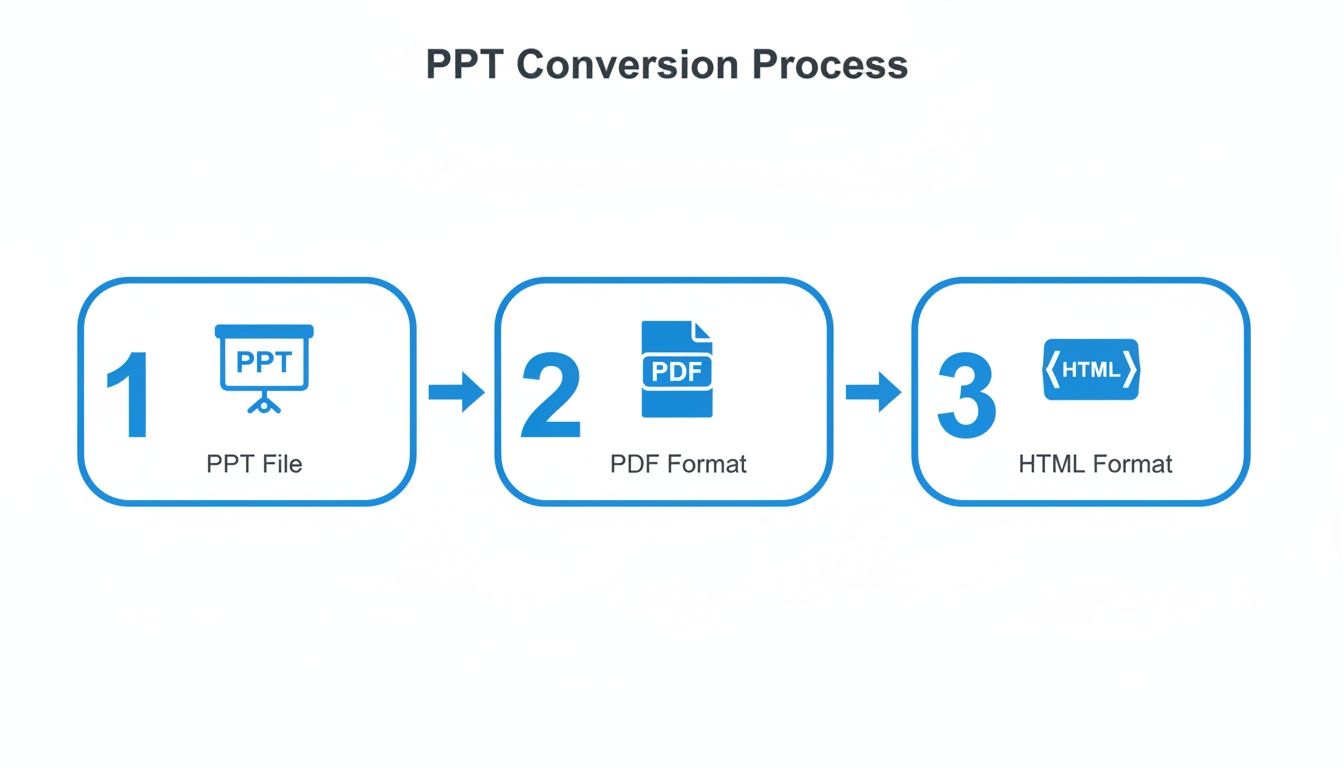
This is the tried-and-true method for getting your slides ready for easy online sharing.
Once you upload your file, the platform instantly handles the rest, giving you the professional infrastructure you need.
- SSL Security: Your link is automatically secured with HTTPS, which protects your data and gives your audience peace of mind.
- Global Distribution: Your presentation is cached on a global network, meaning it will load fast for viewers anywhere in the world.
- Instant Link Generation: The moment the upload finishes, a clean, shareable URL is ready for you.
The real magic is what you don't have to do. There's no code, no servers, and no configuration. You provide the content, and the platform delivers the professional, secure link.
Grab Your Link and Go
With your presentation now live on the web, sharing is a breeze. You can copy the link and paste it into an email, a direct message, or your favorite collaboration tool. If you plan to share your PPT online via business cards or printed flyers, you can even generate a QR code with a single click.
Want to take it a step further? Connect a custom domain for a more branded experience. A generic link can become something sleek like proposal.youragency.com, instantly reinforcing your professional image.
You can get started right now and turn your PowerPoint into a link with Hostmora. The entire process is built for simplicity and speed.
Taking Control of Your Online Presentation

Alright, you’ve got a live link to your presentation. Now what? The next step is all about managing who gets to see your work and how they interact with it. Simply having a link isn't enough, especially when you're dealing with sensitive material.
Think about it. If you’re a freelancer sending a confidential proposal or an executive sharing internal reports, a public link that anyone can open is a non-starter. You need to lock it down.
Add a Layer of Security with a Password
The easiest and most direct way to protect your presentation is to slap a password on it. This simple feature transforms your link from a public billboard into a private room, accessible only to people with the key. It's the perfect way to maintain confidentiality without resorting to clunky, oversized email attachments.
Let's say you just finished a pitch deck filled with proprietary market data. Instead of crossing your fingers and hoping the link doesn't get forwarded, you can protect it with a password. Share the link with your client, then send them the password separately. Problem solved. You can rest easy knowing your hard work isn't floating around for anyone to find.
Pro Tip: When you share a password-protected link, never send the password in the same message. Email the link, but text or use a secure messaging app to send the password. This small habit makes a huge difference in security—if one account gets compromised, the attacker doesn't get both the lock and the key.
Seamlessly Embed Your Presentation
Sometimes, you don't just want to send a link; you want to display your presentation right on your own turf, like a company blog or your online portfolio. That's where embedding shines. Instead of making people click away and open a new tab, you can nest the presentation directly on your webpage.
This creates a much smoother experience, keeping your audience right where you want them. Most hosting platforms will give you a simple <iframe> code snippet. You just copy that code and paste it into your website’s HTML. It's a surprisingly simple way to add a dynamic, professional touch to your site. Many of the same ideas apply to other file types, too, which we cover in our guide on how to convert a PDF to a shareable link.
Smart Strategies for Links and QR Codes
Let’s be honest, not all links look professional. A long, auto-generated URL with a jumble of letters and numbers can look messy, especially in a marketing campaign. Using a URL shortener or a custom domain helps you create a branded, memorable link that’s clean and easy to share.
This ties directly into how you use QR codes. A QR code is a brilliant tool for print materials—think business cards, conference banners, or product packaging. But putting one in an email or a social media post? Not so much. People are already on a device where a simple click is far more direct.
The key is choosing the right tool for the context. Use a clean, clickable link for digital channels and a QR code for physical ones. It's all about making it as easy as possible for your audience to see what you've created.
Getting Your Presentation Found by Search Engines and AI
Once you publish your presentation, it becomes a living digital asset. But for that asset to do any good, people—and now, AI—have to be able to find it. A little optimization here goes a long way and can seriously expand your reach.
Simply putting your PPT online won't cut it. You have to give search engines like Google clues about what your presentation covers. If you're using a platform like Hostmora, this is actually pretty easy. You can set a clear, descriptive page title and a compelling meta description right in the publishing settings.
Optimizing for Search Engines
Put yourself in the shoes of someone who needs your information. What would they type into Google? Those are the keywords that should be front and center in your title and description.
For example, instead of a generic title like "Q3 Report," try something specific like "Q3 Financial Performance Report for SaaS Startups." That small change is a huge signal to Google, helping it match your content with the right people.
To really get the most out of your online presentation, it helps to understand how modern search is evolving. Thinking about an artificial intelligence search optimization strategy can help your content get noticed by the sophisticated algorithms that now power search and discovery. This ensures your hard work doesn’t just get buried on a server somewhere; it actively brings people to your content.
Preparing for an AI-Powered Web
Beyond classic search engines, there’s a whole new audience you need to think about: AI models. Tools like ChatGPT, Claude, and Gemini have become the go-to research tools for millions of people. Making your presentation "AI-friendly" simply means making its content easily readable and accessible for these systems.
This has massive implications for anyone sharing academic research, public reports, or technical documentation. An AI model can summarize your key findings, cite your data, and introduce your work to a huge new audience, but only if it can find and parse your link.
An AI-friendly link is just a direct, public URL to content that's structured for easy parsing. By hosting your presentation this way, you’re essentially feeding your insights directly into the world’s new knowledge engines.
This isn't a small trend; it's a massive shift. The digital infrastructure we're all a part of is staggering. As of October 2025, the number of internet users hit 6.04 billion, and with ChatGPT alone pulling in 800 million weekly users, the potential for getting your content discovered is off the charts. You can dive deeper into these numbers in We Are Social's latest digital report.
Ultimately, taking a few minutes to optimize your presentation for both human search and AI connects your work to a much bigger digital strategy. It’s how you turn a simple slideshow into a powerful, discoverable resource that keeps working for you long after you click "publish."
Common Questions About Sharing a PPT Online
Taking your presentation from a desktop file to a live link can definitely bring up a few questions. Let's walk through a couple of the most common ones I hear, so you can share your work with total confidence.
Will My Animations Work Online?
This is probably the number one question people ask. The short answer is: it depends on how you share it.
If you convert your PowerPoint to a different format, like a PDF or a series of images, those slick, slide-by-slide animations won't make the jump. Those features are native to PowerPoint itself. If keeping them is non-negotiable, your best bet is to export the presentation as a video file or a more complex HTML5 package.
For most business and academic situations, though, converting your presentation to a PDF is the gold standard. It locks in your layout, fonts, and images perfectly, guaranteeing that what you see is what your audience gets, no matter what device they're using.
Can I Update My Presentation After Sharing?
Absolutely, and this is where sharing a link becomes a game-changer.
Imagine sending out a link to a big report and then noticing a typo. Instead of having to email everyone a "v2" attachment, a platform like Hostmora lets you just upload the corrected file. The link you originally shared stays exactly the same, but it will automatically display the new, updated version. It's a lifesaver for version control.
Ready to stop wrestling with email attachments and start sharing polished, professional links? Hostmora can turn your files into secure, shareable web pages in just a few clicks. Get your free link now!