

Getting your website online doesn't have to be complicated. In fact, the fastest way to upload HTML files today is with a simple drag-and-drop tool that instantly gives you a live, shareable URL. This approach completely bypasses the old-school technical hurdles of FTP clients and handles everything from file hosting to security certificates for you.
From Your Desktop to the World: How Uploading HTML Files Works
Taking your project from a local folder to a public website used to be a real chore. It meant dealing with server configurations, juggling credentials, and manually pushing files one by one. Thankfully, things have changed. Now, the process is as easy as moving a file into a cloud drive. You just drag your project—whether it's a single HTML file or a whole folder with CSS, JavaScript, and images—into a web interface, and you're done.
This modern approach hides all the complex backend work. When you upload your files, the platform automatically does the heavy lifting:
- Assigns server space without you having to configure a thing.
- Generates a unique, secure URL for your new site.
- Distributes your files across a global network so they load quickly for everyone.
- Secures your site with an SSL certificate, giving you that "HTTPS" lock icon.
This shift has been a game-changer, especially for freelancers, agencies, and small businesses who need to get content live without a dedicated IT team. Of course, a big part of the process is understanding how to choose a web hosting provider that fits your style—whether you prefer this new automated way or more traditional methods.
The Evolution of Web Publishing
As the web grew, so did the demand for easier publishing tools. Back in the early 2010s, being able to quickly upload HTML files was a huge deal for creators who didn't have big budgets. You can see this change reflected in browser trends. In 2009, Internet Explorer owned 39.4% of the market, but by 2015, Chrome had rocketed to 63.3%. This forced developers to build for faster, more capable browsers and created a massive need for no-fuss hosting solutions.

An interface like this strips away all the complexity, offering a clear path that takes the mystery out of going live. It's a visual promise: "Your site, online, right now."
Modern Publishing vs Traditional FTP: A Quick Comparison
To really appreciate how far we've come, it helps to see the old way and the new way side-by-side. The difference is night and day.
| Feature | Modern Drag-and-Drop | Traditional FTP/cPanel |
|---|---|---|
| Ease of Use | Intuitive, visual, no training needed. | Requires software (like FileZilla) and understanding server paths. |
| Speed | Instantaneous. Files are live in seconds. | Slower. Involves connecting, navigating folders, and waiting for transfers. |
| Security | Managed for you (HTTPS by default). | Often requires manual SSL setup and managing credentials securely. |
| Technical Skill | None. If you can use a mouse, you can publish. | Basic to intermediate. You need to know what FTP, SSH, and root directories are. |
Simply put, modern platforms are built for speed and simplicity. You're no longer a server administrator; you're just a creator focused on your work.
The goal is to remove every barrier between having an idea and sharing it with the world. If you can save a file on your computer, you should be able to publish it just as easily.
This core philosophy is what sets today's tools apart. Instead of getting bogged down in technical settings, you get to focus on what actually matters: your project's content and design. If you want to see just how easy it is, our guide on how to host a static website for free is a great place to start.
Getting Your Files Ready for a Smooth Upload
Before you even think about uploading anything, let's talk about what happens on your own computer first. Spending a few minutes organizing your project locally is probably the single best thing you can do to avoid headaches later. A clean file structure isn't just for neat freaks; it's the bedrock of a website that actually works, with no broken images or missing styles. Trust me, a messy project folder is a recipe for a frustrating afternoon.
Think of your local project folder as the blueprint for your live site. Web servers are picky—they expect things to be in a certain order. The most important rule of all? Every website needs a front door, and on the web, that door is always called index.html.
The All-Important `index.html` File
Your project's main folder, what we call the root directory, absolutely must have a file named index.html. When someone types in your website's address, the server immediately looks for that specific file to show them. If it can't find it—or if you've named it something else like home.html or main.page—the server just gives up, and your visitor gets an ugly error.
This isn't a suggestion; it's just how the web works. Whether you're building a simple one-page site or a complex application, index.html is your welcome mat. For bigger sites, it's your homepage, the starting point from which every other page is linked.
How to Organize Your Assets Like a Pro
Your site is more than just HTML, right? You've got stylesheets, JavaScript files, and images that make it come to life. Just dumping all of them into the root folder is a surefire way to create a mess. A much cleaner, more professional approach is to give each type of asset its own dedicated folder.
Here’s a simple, battle-tested structure that I use all the time:
- /css/ for all your
.cssfiles. - /js/ for any
.jsJavaScript files. - /images/ for your
.jpg,.png,.svg, and other media.
Organizing your project this way makes it infinitely easier to manage. Need to tweak a font size? You know exactly where to find your CSS. More importantly, it makes linking everything together in your HTML a breeze.
The screenshot below from the fantastic MDN Web Docs shows this exact setup. Notice how index.html sits at the top level while all the supporting files are tucked away in their own folders.
This is the gold standard. It keeps your content (index.html) separate from your styling (styles) and your functionality (scripts), which is key for building sites that are easy to update and scale.
Pro Tip: Always, and I mean always, use relative paths to link your assets. A relative path tells the browser where to find a file starting from the current file's location. For example, to link an image from your
index.html, you’d write<img src="./images/photo.jpg">, not the full path from your computer likeC:\Users\YourName\Documents\project\images\photo.jpg.
Using relative paths is crucial because once you upload your files, the server has no idea where C:\Users\YourName\ is. It only understands the structure of the project folder you gave it. This one tip will save you from a world of "image not found" errors.
Finally, here's the best way to get it all online: zip it up. Instead of trying to drag and drop a dozen different files and folders, compress your entire project folder into a single ZIP archive. Platforms like Hostmora are built to handle this perfectly. You upload one file, it unpacks everything, and your site is live—with your file structure completely intact. It's faster, more reliable, and just plain smarter.
Practical Ways to Get Your HTML Online
Alright, with your files organized, it's time to actually get them on the web. This is the fun part, and thankfully, modern hosting has made uploading HTML files ridiculously easy. We'll walk through three common methods, each perfect for different project sizes—from a one-page online resume to a full-blown portfolio site.
The beauty of these methods is the simple drag-and-drop interface. What used to be a technical headache is now something you can do in less than a minute.
The Single File Drop: For Simple Pages
Let's start with the most basic scenario: you've got a single index.html file. This is pretty common for things like landing pages, "coming soon" announcements, or a simple online business card. There's no fancy folder structure—just one file holding all your content, styles, and maybe some JavaScript.
For this, the process is as simple as it sounds. You just drag that lone index.html file into the upload area. The platform immediately processes it, gets it live, and gives you a shareable link. It's the web equivalent of AirDropping a file. This is your go-to for speed when you don't have any external assets to worry about.
Uploading a Full Project Folder
But what about a more realistic project? Most websites are more than just one file. You'll likely have separate folders for your CSS, images, and scripts, just like we talked about earlier. A typical structure might look like this:
index.html/css/styles.css/images/logo.png/js/scripts.js
Uploading these individually would be a nightmare. Instead, you can just drag and drop the entire project folder. If your main folder is called my-website, just drop that whole thing into the uploader. A smart platform like Hostmora keeps your file structure intact. Your index.html page will still find ./css/styles.css without a problem because the folder hierarchy is preserved on the server just as it was on your computer.
This method is a game-changer. It respects your project's relative paths, meaning you don't have to go back and fix broken links or missing images. If it worked locally, it'll work online.
The ZIP Archive: The Most Reliable Method
For maximum reliability, especially with bigger projects, the ZIP archive is the way to go. Bundling your entire project into a single .zip file has a few key advantages. It guarantees all files are transferred as one solid package, which eliminates the risk of a file getting missed during a drag-and-drop. This is how pros deploy static sites.
There’s just one golden rule: your index.html file must be at the root level inside the ZIP file. Don't make the common mistake of zipping the folder that contains your project. Instead, open your project folder, select all the files and subfolders inside it, and then compress them. This ensures the server can find index.html right away.
This simple workflow makes for a perfect upload every time.
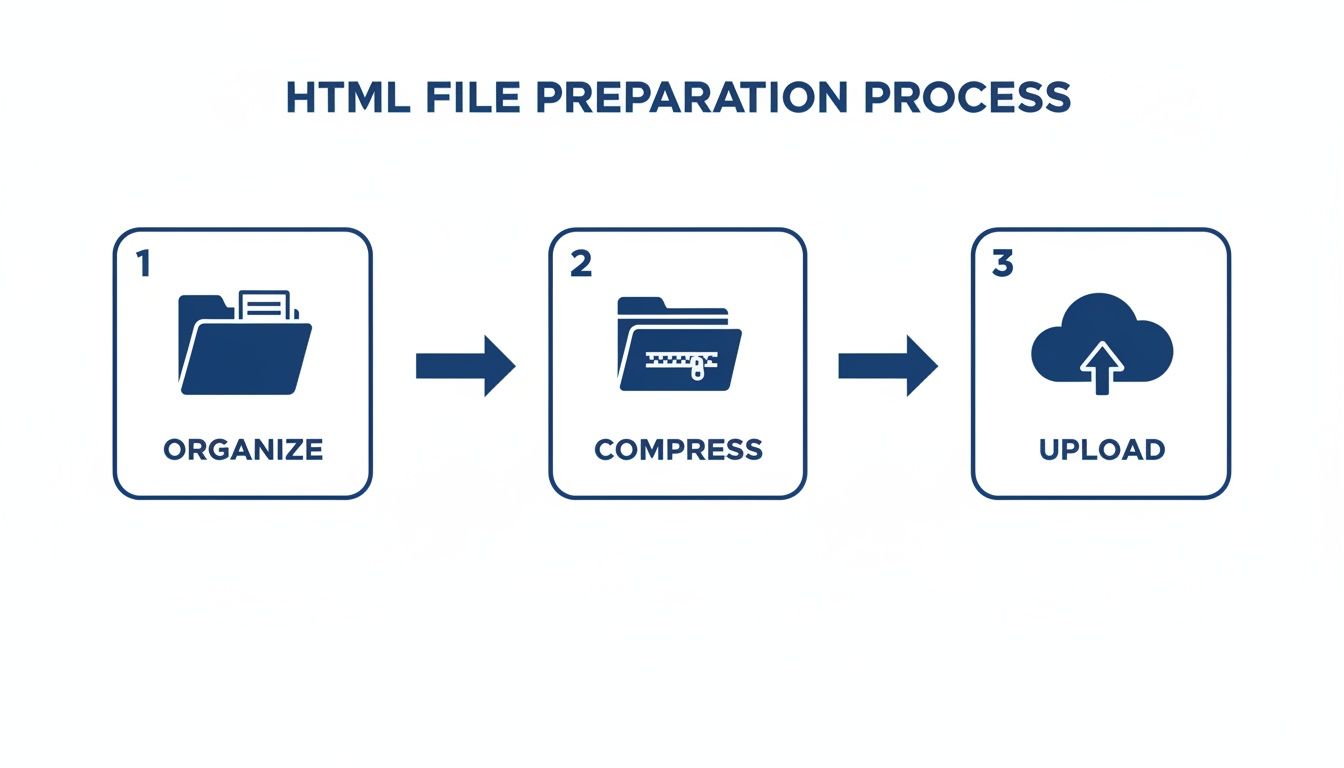
The diagram breaks it down: organize your local files, compress them, and upload. That’s it. This workflow gives you a clean, predictable deployment every time you publish. It’s a technique that's useful across various platforms, not just this one. In fact, if you want to see how this compares to other services, you can learn more about Firebase website hosting in our detailed guide.
Optimizing Your Site for Global Speed and Performance
Getting your website live is a fantastic first step, but don't pop the champagne just yet. After uploading your HTML files, the next question you have to ask is, "Is it fast?" Performance is everything. A slow-loading site is one of the quickest ways to send a potential customer or reader clicking away for good.
Thankfully, modern hosting platforms are built to handle this for you, often without you needing to do a thing. Once you upload your project, a powerful, automated system kicks in to make sure your site is incredibly fast for every single visitor, no matter where they are in the world. This completely removes the headache of server management and lets you stay focused on what you do best: creating great content.
The Secret Sauce: A Global CDN
The key to achieving this worldwide speed is a Content Delivery Network (CDN). Just think of a CDN as a global network of servers, all holding a copy of your website. When you upload your HTML project to a service like Hostmora, it isn’t just parked on a single server in one city. Instead, it gets automatically distributed to dozens of "edge" locations across the globe.
So, what does this actually mean for your visitors? It means someone in London trying to view your site doesn't have to fetch the data from a server in California. The CDN is smart enough to serve your website from a nearby server in Europe, which dramatically reduces latency—that tiny but crucial delay it takes for data to travel.
This smart distribution makes a huge difference:
- Faster Load Times: With data traveling shorter distances, your pages load almost instantly.
- Improved Reliability: If one server in the network has an issue, traffic is automatically sent to the next closest one. Your site stays online, no problem.
- Better User Experience: A snappy, responsive site feels professional and keeps people engaged.
Automatic Performance Boosts Under the Hood
Beyond the CDN, today’s platforms layer on several other performance tricks automatically. These are the kinds of technical optimizations that used to require a web developer and specialized tools, but now they just happen.
For instance, we all know large images can kill a website's speed. A good platform will automatically compress your images when you upload them, shrinking the file size without any visible drop in quality. It also performs code minification—a process that strips out unnecessary characters like spaces and comments from your HTML, CSS, and JavaScript files. The files become smaller and download faster.
Your job is to create. The platform's job is to make it fast. This division of labor is what makes modern web publishing so powerful—you handle the what, and the infrastructure handles the how.
We can't ignore the impact of our mobile-first world, either. The massive growth in mobile browsing has made fast performance an absolute necessity. A 2024 report showed that mobile devices now drive 65.3% of all web traffic—a huge leap in just a few years. This trend is directly tied to uploading HTML files, as businesses everywhere are launching simple, lightweight sites designed for instant access on a phone. You can dive into the numbers in the full DataReportal 2025 analysis.
Ultimately, site speed isn't just a technical detail; it's a core business metric. Faster load times lead directly to keeping visitors around longer and ranking higher in search results. Search engines love to reward sites that offer a great user experience, and speed is a huge piece of that puzzle. By choosing a platform with these performance features built-in, you aren’t just getting your site online—you're giving it a real chance to succeed.
To learn more, check out our guide on SEO for static websites to see just how much speed can impact your visibility.
Take Your Site From a Raw Upload to a Polished, Secure Project
Okay, so your HTML files are uploaded and you've got a live link. That's a huge step! But that long, random URL isn't exactly professional, is it? Now it's time to add the polish that turns a simple upload into a finished, shareable asset.
This is where we move beyond just getting it online and start thinking about branding, security, and making it easy for the right people to find.

Give Your Project a Professional Home with a Custom Domain
Nothing says "this is a serious project" like a custom domain. Swapping out a generic subdomain for www.yourbrand.com is probably the single biggest thing you can do to build credibility. It tells the world this isn't just a test; it's the real deal. Plus, it's way easier for people to remember.
Thankfully, gone are the days of complex server configurations. Most modern platforms let you connect a domain you already own right from your project settings. You'll add the domain there, make a quick DNS change with your registrar (like GoDaddy or Namecheap), and you're set. Visitors will now see your site at your professional URL.
Lock It Down: Add Password Protection for Private Work
Let's be real: not every website is for public consumption. Sometimes you need to share work-in-progress with a client, host internal docs, or keep a new portfolio piece under wraps until it's perfect. That’s where password protection comes in.
Instead of messing with .htaccess files, you can usually just flip a switch to lock down your site. This is a game-changer for:
- Client Previews: Show off your progress without the entire internet peeking over your shoulder.
- Internal Resources: Host team-only guides or training materials securely.
- Staging Sites: Test out new designs or features in a live but private setting before you push them to the public site.
This simple feature gives you total control over who sees what, which is essential for any freelancer or agency juggling confidential projects.
Modern hosting isn't just about pushing a site live. It's about giving you the tools to control how it's seen. The ability to instantly password-protect a project is a perfect example of that flexibility.
Use QR Codes to Bridge the Physical and Digital Worlds
Ever needed to get someone from a physical object—like a business card or a flyer—to your website instantly? That's what QR codes are for. Many modern hosts, including Hostmora, will automatically generate a QR code for your project the second it goes live.
This opens up some really cool, practical possibilities:
- Restaurant Menus: A cafe can upload a simple HTML menu and stick the QR code on each table. No more printing costs, and updates are instant.
- Business Cards: Stop just listing your URL. Add a QR code that takes people straight to your portfolio.
- Event Flyers: Put a code on your posters that links directly to a landing page with the schedule and registration form.
It's a surprisingly powerful tool for making your digital project accessible in the real world.
Get Your Content Ready for the AI Revolution
Here’s something most people don’t think about yet: how will AI interact with your content? Tools like ChatGPT, Claude, and Gemini are already crawling the web for information.
When you host your site on a platform that serves clean, well-structured HTML, you're essentially making your content AI-friendly. It's easier for these systems to read, understand, and cite your work. This is especially important if you're publishing documentation, research, or in-depth guides.
By thinking about this now, you're not just publishing for people—you're positioning your work to be a trusted source for the next wave of intelligent tools.
Troubleshooting Common Upload Errors
Even the most seasoned developers hit a snag now and then. You’ve built your site, it looks perfect locally, but when you upload it… something’s broken. It's a frustrating moment, but don't worry. The fix is almost always surprisingly simple, usually boiling down to a handful of common mistakes.
The classic sign of trouble is the "unstyled page." Your index.html loads, but it’s just a wall of plain text with broken image icons everywhere. This is a dead giveaway that your file paths are incorrect. If it worked on your machine, the structure likely got jumbled during the upload, especially if you dragged files one by one instead of using a folder or ZIP archive.
Pinpointing Path and Structure Problems
A clean, organized project folder is your first line of defense. If your stylesheet lives in a /css/ folder, your HTML needs to know where to find it with a relative path like <link rel="stylesheet" href="./css/styles.css">. That exact structure must be preserved on the server for everything to connect properly.
Got a broken page? Run through this quick diagnostic checklist. I've seen these trip people up countless times:
- ZIP File Structure: This is the big one. Did you zip the contents of your project folder, or the folder itself? Unzip your file to check. If you see a single folder sitting inside, that's your problem. Your
index.htmlfile needs to be at the root level of the archive, not buried a layer deep. - Case Sensitivity: Your Windows or Mac machine might not care about capitalization, but the web servers that host your site almost certainly do (they're usually Linux-based). A link to
Image.JPGwill absolutely fail if the file is actually namedimage.jpg. Make sure your filenames and the references in your code match perfectly. - Relative vs. Absolute Paths: Always use relative paths (
./images/pic.png). If you see a path that looks likeC:/Users/YourName/Desktop/project/images/pic.pngin your code, it will never work online because that's a location on your personal computer.
The explosion in user-generated content has made seamless HTML uploads more critical than ever. Global data creation is projected to hit 149 zettabytes in 2024, surging to 394 by 2028. Lightweight HTML for portfolios and prototypes provides a vital, efficient way to share content amidst this data boom. Discover more insights about global data creation on Statista.com.
The Stubborn Cache Issue
Here's another common headache: you upload a new version of your site, refresh the page, and… nothing has changed. This isn't a server problem; it’s your own browser trying to be helpful by serving you the old files from its cache.
The solution is a hard refresh. This simple command forces your browser to ignore the cache and download a fresh copy of everything. On most desktop browsers, the shortcut is Ctrl+Shift+R (for Windows/Linux) or Cmd+Shift+R (for Mac).
Of course, once your site is live, other issues can pop up, like broken functionality from client-side code. For those deeper problems, a practical guide to handling JavaScript errors is a great resource. But for upload issues, a methodical check of your paths, filenames, and cache will solve it nine times out of ten.
Common Questions About Uploading HTML
Let's wrap things up by tackling a few questions that I see come up all the time. Getting these small details right can save you a lot of headaches and make the whole process feel effortless.
What if I Don’t Have an index.html File?
When a browser visits your site, the server's first job is to find the homepage. By default, it looks for one specific file: index.html. If your main file is named home.html, main.page, or anything else, the server won't know where to start, and your visitors will likely hit an error page.
The fix is straightforward: just rename your main HTML file to index.html. This isn't just a platform quirk; it's a long-standing web convention. Think of it as the universal "front door" to any website.
How Do I Update a Live Website?
Updating your site is just as simple as the first upload. Make your edits to the files on your computer—tweak some text, swap out an image, or update your CSS.
Once you’re happy with the changes, just drag and drop the updated project back into the uploader. Whether it's a single file, a folder, or a whole new ZIP archive, the system handles the rest.
The platform automatically replaces the old files with the new versions. If you don't see your changes right away, try a hard refresh in your browser (Ctrl+Shift+R on Windows, Cmd+Shift+R on Mac) to clear out the old, cached files.
Do I Need to Know How to Code to Upload a Website?
Not at all. While your website is built with code like HTML and CSS, the process of getting it online with a modern host doesn't require you to touch a single line.
If you can drag a file on your computer, you have all the skills you need to upload an HTML website. Platforms like this are built to remove the technical hurdles, so you can focus on your project, not on server configurations.
Ready to get your work online in seconds? Hostmora turns your files into a live, secure website with a simple drag-and-drop. Get started for free.