
Getting your project online can be as simple as dragging a file from your desktop to your browser. That's it. Your HTML file instantly becomes a live, shareable website. This modern approach completely sidesteps complicated server panels, making web publishing accessible to anyone in just a few seconds.
Go From Desktop To Live Website Instantly
For years, the final step of launching a web project was a common source of frustration. I’ve seen countless freelancers, agencies, and small business owners hit a technical wall when they just needed to share a simple portfolio, a client preview, or a new landing page. The process often meant wrestling with clunky FTP clients, navigating confusing server control panels, or trying to remember obscure command-line scripts—all just to get a single file online.
This guide is designed to cut through all that noise. I'll walk you through how modern tools have distilled web publishing into a single, satisfying action. Using a platform like Hostmora, you can bypass those technical headaches entirely.
The Shift To Simpler Publishing
The demand for faster, more straightforward web publishing is undeniable. It's a need reflected in the web hosting market, which is projected to balloon to $355.80 billion by 2029. With over 26.6 million eCommerce sites already online, the pressure for efficient tools to get content live has never been greater.
Hostmora's drag-and-drop interface is a direct answer to this problem. The first thing you see is a clean, simple dashboard focused on one thing: action.
There are no unnecessary steps or confusing menus. The design philosophy is clear—get your work published without a single delay.
Why A Drag-And-Drop Solution Wins
This method isn’t just about making things easy; it’s about reclaiming your time and eliminating friction. Instead of a multi-step, error-prone process that leaves you guessing, you get an immediate, tangible result.
- Speed: You can go from a local file on your computer to a shareable link in less than a minute.
- Simplicity: There’s no need to understand servers, file permissions, or command lines. If you can move a file, you can publish a website.
- Accessibility: It opens up web publishing to everyone, regardless of their technical skill level.
The goal here is to make publishing a website feel as natural as saving a document. When you remove the technical barriers, you empower more creators to share their work with the world.
Traditional vs Modern HTML Upload Methods
To really appreciate the difference, it helps to see the old way compared to the new. For decades, getting a site online meant dealing with tools that felt like they were built for server administrators, not creators.
| Feature | Traditional Hosting (FTP/cPanel) | Hostmora (Drag-and-Drop) |
|---|---|---|
| Setup Time | 15-30 minutes (installing clients, finding credentials) | Under 1 minute (sign in and drag) |
| Required Skills | FTP client knowledge, server paths, file permissions | Basic computer skills (drag and drop) |
| Update Process | Re-upload files via FTP, overwrite existing ones | Drag the updated file/ZIP over the old one |
| Instant Preview | No, requires manual refresh and cache clearing | Yes, instant preview on a live URL |
| Error Handling | Vague error messages (e.g., "500 Internal Server Error") | Clear, direct feedback (e.g., "Missing index.html") |
The contrast is pretty stark. The modern approach focuses on getting you from idea to live site with the least amount of friction possible, which is a huge win for productivity.
For a broader look at the entire publishing workflow, this guide on how to publish a website the right way provides some excellent foundational knowledge. And if you're curious about static sites specifically, our own guide on how to host a static website for free is a hands-on walkthrough that shows just how easy this can be.
Getting a Single HTML File Live in Under 60 Seconds
Let’s start with the most common scenario: you have a single HTML file on your computer and you need it on the web. Now. This is perfect for a simple one-page portfolio, a "coming soon" placeholder, or a quick landing page you've mocked up for a client.
Our goal here is to get from index.html on your desktop to a live, shareable URL in less than a minute.
First things first, log into your Hostmora dashboard. We’ve kept the interface clean on purpose, so you’re not wading through a sea of options. You’ll want to create a new project, which you can think of as a dedicated home for your new website.
Once your project is set up, the rest is just a drag-and-drop away. Seriously. Find your HTML file on your computer and simply pull it over into the upload area in your browser. No clunky menus, no digging through a file manager, just pure drag and drop.
This whole process is designed to be visual and intuitive.
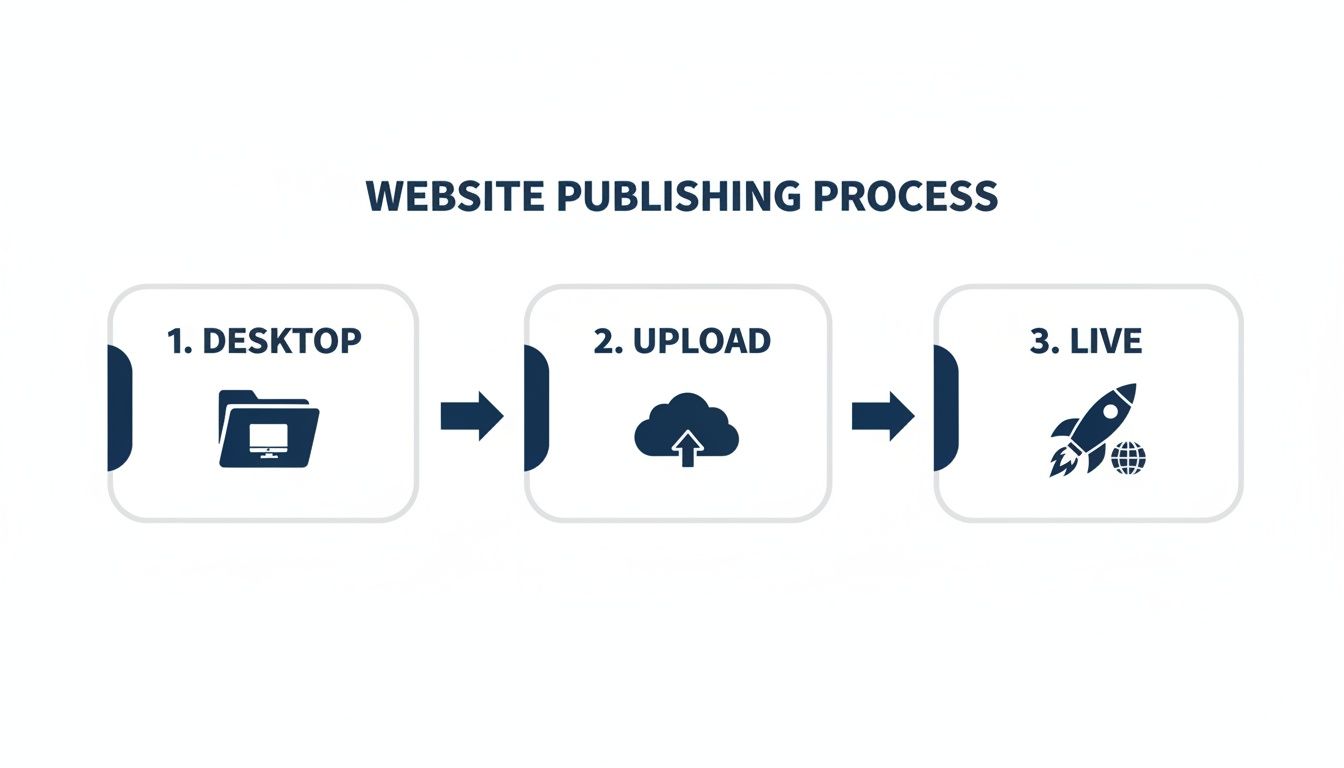
As you can see, it really is a direct line from your local machine to a live site, accessible from anywhere.
So, What's Happening in the Background?
The moment your file lands in that drop zone, the platform kicks into gear. While you don't have to lift a finger, it's pretty cool to know what's going on automatically:
- Global CDN Deployment: Your file isn't just sitting on one server. It’s immediately pushed out across a global Content Delivery Network (CDN), which means it will load lightning-fast for visitors whether they're in London or Los Angeles.
- Automatic SSL: A free SSL certificate is provisioned on the spot. Your site is instantly secure and accessible via HTTPS, which is a must-have these days.
- Instant Recognition: The system knows it’s a web file and gets it ready to serve to browsers without any extra configuration from you.
This approach sidesteps all the usual technical hurdles. While many people still use tools like File Transfer Protocol (FTP) to move files to a server, modern tools like this handle all that complexity for you.
Your only job is to create something great. Let the platform worry about the technical delivery. This is what makes it possible to get a live link in seconds, not hours.
Finding and Sharing Your Live URL
As soon as the upload finishes—and it’s usually over in a blink—your project dashboard will show a public URL. That’s it. That’s the live link to your page.
Go ahead and click it. You can see your work live on the web instantly, which is perfect for a quick check to make sure everything looks right. If you ever need to take a closer look at the code itself once it's live, using a tool like an online HTML viewer can be really helpful for troubleshooting.
This URL is now ready for the world. You can send it to your client for feedback, pop it in your social media bio, or share it with your team. You’ve just managed to upload an HTML file and publish it globally without ever looking at a line of server code.
Publishing Your Entire Website with a ZIP Archive
While a single HTML file works for simple landing pages, most websites are more complex. Think about it: a portfolio, a client prototype, or even a local restaurant's menu site usually has a whole collection of files working together. You've got CSS for styling, maybe some JavaScript for interactive elements, and definitely a folder packed with images.
This is where ZIP archives come in. Bundling your entire project into one ZIP file is the cleanest, most efficient way to get your site online. It keeps your file structure perfectly intact, so you don't have to waste time manually uploading individual files and recreating folders on the server.

Getting Your Project Ready for Upload
Before you can publish, you need to make sure your project folder is set up correctly. Honestly, getting this part right is the most critical step to avoiding headaches like broken images or missing stylesheets down the line.
Here's the golden rule: your main index.html file must be at the root (the top level) of your project folder. It can't be tucked away inside another subfolder. Web servers are specifically configured to look for index.html as the default starting point for any website, so this is a must.
A well-structured project folder should look something like this before you zip it:
my-portfolio/(Your main project folder)index.html(The homepage, right at the top)about.htmlcontact.htmlcss/(A dedicated folder for your stylesheets)style.css
js/(A folder for your scripts)main.js
images/(A folder for all your pictures and graphics)logo.pngproject-1.jpg
With your folder organized this way, all you have to do is compress it. On a Mac or PC, just right-click the main my-portfolio folder and choose an option like "Compress" or "Send to > Compressed (zipped) folder."
The Drag-and-Drop Upload
Once you have your ZIP file, the upload process is just as simple as it was for a single HTML file. Just drag that .zip file right into the Hostmora uploader.
Our platform is smart enough to see it's an archive. It takes care of everything behind the scenes—unzipping the file and deploying your entire website while preserving the exact folder structure you created. Your index.html file automatically becomes the homepage, and all your relative links to CSS, JavaScript, and images will just work.
This kind of efficient workflow is becoming more important every day. With global data creation projected to reach 149 zettabytes in 2024, having a simple way to manage and publish complex projects is no longer a luxury, it's a necessity.
Pro Tip: Think of the ZIP file as a perfectly packed shipping container for your website. You arrange everything inside exactly how you need it, and our platform unpacks it at the destination, ready for visitors. No extra assembly required.
This method is incredibly effective for getting multi-page sites live in just a few seconds. To dive deeper into the specifics, check out our guide on the ZIP uploader.
Take Your Project to the Next Level with Advanced Features
So, you’ve uploaded your HTML file or ZIP archive. Your site is live. That’s a fantastic start, but now the real fun begins. Getting your page online is one thing; turning it into a professional, secure, and shareable tool is another. Let's dig into some of the powerful features that can take your project from a simple URL to a full-fledged publishing solution.
These aren’t just flashy extras. They’re practical tools built to solve common problems I see every day. Whether you’re showing a prototype to a client, running a marketing campaign, or sharing a private draft, these features give you the control and polish you need.
Connect a Custom Domain for a Professional Touch
A Hostmora subdomain is perfect for getting something up and running fast. But when you’re ready to look a bit more polished, nothing beats a custom domain. It’s the difference between a temporary link and a real brand identity. Connecting a domain you already own transforms your URL into something memorable and professional, like yourportfolio.com or yourclientsproject.com.
The whole process is refreshingly simple. You can skip the headache of messing with complex DNS settings and waiting around for hours. Just link your domain from your project settings, and you're good to go. It’s a small change that makes a huge difference in how people perceive your work.
Generate Instant QR Codes for Real-World Marketing
Let's say you're a restaurant owner who just uploaded a new digital menu. How do you get it in front of customers sitting at their tables? This is where QR codes are a lifesaver. With just one click, you can generate a high-resolution QR code that points directly to your live project.
I’ve seen this work brilliantly for all sorts of things:
- Restaurant Menus: Slap the QR code on a table tent and you're done.
- Event Flyers: Link right to the event schedule or registration page.
- Business Cards: A quick scan can take a potential client straight to your online portfolio.
- Product Packaging: Offer instant access to video tutorials or setup guides.
The QR code is created on the spot, ready for you to download and use in any print materials. It’s a simple but effective way to bridge the gap between your physical and digital marketing efforts.
Your live HTML file is more than just a webpage; it's a dynamic asset. Features like instant QR codes turn it into an interactive tool that can be used in countless real-world situations, driving engagement directly from your marketing materials.
Secure Your Work with Password Protection
Not everything you build is meant for the whole world to see. I often need to share a work-in-progress with a client, an internal prototype with the team, or a private photo gallery with family. That’s exactly what password protection is for—it lets you lock your project behind a simple password.
This is absolutely critical for keeping things confidential. Once you enable it, anyone who lands on your URL will have to enter the password to see what’s there. It’s an easy way to control access without setting up complicated user accounts or permission systems.
For freelancers and agencies, this feature is invaluable. You can confidently share client previews for feedback, knowing the project will stay under wraps until it’s ready for launch. It's a simple layer of security that provides a lot of peace of mind.
Share Content Seamlessly with AI-Friendly Links
In a world where we're all using AI tools, the way we share information really matters. A standard URL sometimes gets tripped up by AI assistants like ChatGPT, Claude, or Gemini.
Hostmora generates AI-friendly links, which means these tools can actually open the link and "read" the content of your HTML file directly. This is a game-changer for a few reasons:
- Sharing Documentation: You can ask an AI to analyze your technical docs and answer questions about them.
- Providing Datasets: Researchers can feed your HTML-based data straight into their models.
- Content Summarization: Need a quick summary of a report you uploaded? Just ask an AI.
This makes sure your content isn't just human-readable but also machine-readable. Your uploaded file becomes a source of knowledge that plays nicely with the latest tech.
Troubleshooting Common HTML Upload Issues
Even with a simple drag-and-drop process, you might hit a snag now and then. It happens to everyone. The good news is that when you upload an HTML file to Hostmora, most of the common hiccups are incredibly easy to fix once you know what to look for.
Let's walk through a few of the usual suspects so you can diagnose and solve them in minutes, not hours. Think of this as your quick-start guide to squashing those annoying little bugs that can pop up after you hit "upload."
The Dreaded 404 Not Found Error
It's a frustrating feeling: you've just uploaded your project, you click the link, and all you see is a "404 Not Found" page. This error simply means the server can see your request, but it can't find the specific file it's supposed to show.
In my experience, 99% of the time, the cause is the same. Web servers, by default, look for a file named index.html to serve as the homepage. If you've named your main file something else, like home.html or my-portfolio.html, the server gets lost.
- The Cause: Your primary HTML file isn't named
index.html. - The Fix: Just rename the file to
index.htmlbefore uploading. If you're using a ZIP file, make sureindex.htmlis in the main (root) directory, not buried inside another folder.
Why Are My Images and CSS Broken?
This is another classic. You upload your ZIP file, and the text from your site appears, but it’s a total mess—no styling, broken image icons, and none of your JavaScript is working. This almost always comes down to broken file paths.
Your HTML needs to know where to find its assets (like CSS files, images, and fonts). If an image tag in your code looks something like <img src="C:/Users/YourName/Desktop/images/photo.jpg">, that’s an absolute path. It works perfectly on your computer but means nothing to a web server.
Pro Tip: Always use relative paths for your assets. Instead of a hard-coded location on your C: drive, a relative path points to a file based on its location relative to the HTML file itself, like
<img src="images/photo.jpg">. This simple practice makes your site portable and ensures everything works correctly once it's live.
Checking for Browser Rendering Differences
Finally, once your site is live and looking good on your end, it’s always a good idea to check it in a few different web browsers. While modern browsers are getting much better at being consistent, you can still find small, surprising differences in how they render CSS or handle certain code.
With Google Chrome holding over 68% of the global browser market, testing there is non-negotiable. But taking a minute to open your site in Firefox or Safari can help you catch minor visual glitches and guarantee a smooth experience for all your visitors. It’s that final bit of polish that separates a good project from a great one.
Got Questions About Your HTML Upload?
You've built something great, and getting it online should be the easy part. Let's tackle some of the most common questions that pop up when uploading an HTML file, so you can get your project live without any hitches.
What If My Site Uses JavaScript and CSS Folders?
No problem at all. In fact, this is the most common scenario. The best way to handle a project with multiple folders (for your CSS, JavaScript, images, and other assets) is to zip it all up.
Just make sure your main index.html file sits at the top level of the folder before you create the ZIP archive. When you upload that single file to Hostmora, we'll automatically unpack it, keeping your entire folder structure exactly as you built it. All your internal links and asset paths will work perfectly from the get-go.
How Do I Update an Existing Project?
Updating is even easier than the first upload. Just find your project in the Hostmora dashboard and drag the new version—whether it's a single HTML file or an updated ZIP archive—right on top of the old one.
That’s it. We instantly replace the old files, and your changes are pushed live across our global network in seconds. No need to delete anything or mess with complex deployment steps.
Is an SSL Certificate Included?
Yes, absolutely. Every single project you publish on Hostmora gets a free SSL certificate automatically. This is true whether you're using one of our free subdomains or connecting your own custom domain for that professional touch.
We take care of everything behind the scenes, including the certificate renewals. Your site will always be secure with HTTPS, which is crucial for building visitor trust and for modern SEO. It's all done for you, with zero setup required.
Every upload is automatically secured with HTTPS, whether you're using a free subdomain or your own custom domain. We manage the certificates and renewals so you can focus on your content.
My Main HTML File Isn't Named 'index.html'. What Should I Do?
By default, web servers are set up to look for index.html as the main page for any directory. If your primary file has a different name, like home.html or portfolio.html, you have a simple fix: just rename it to index.html before you zip it up and upload it.
This tiny change ensures that when someone visits your site's main URL, they land on the correct page without having to guess the filename. It's a web standard that guarantees things work as expected.
Ready to get your work out there in just a few clicks? With Hostmora, you can drag, drop, and get a live, secure link in seconds. Try it for free and publish your project today!