

Before you can build slick, modern file uploaders with JavaScript, you have to nail the fundamentals. And it all starts with some basic, battle-tested HTML.
This classic approach is the bedrock of every file upload feature on the web. It's reliable, works in every browser imaginable, and gives you a solid, accessible foundation to build upon.
Building the Foundation of File Uploads

At its heart, a simple HTML file upload requires just two key elements working in concert:
- A
<form>that acts as the container, telling the browser where and how to send the data. - An
<input type="file">element, which is the magic that renders the "Choose File" button and opens the user's local file dialog.
But there's a third piece of the puzzle that’s absolutely critical: the enctype attribute on the form. This is the one detail that trips up a lot of developers.
Why the `enctype` and `method` Attributes are Non-Negotiable
When you’re sending files, you can't use the default form encoding. You absolutely must set enctype="multipart/form-data". This tells the browser to package the form data in a way that can handle binary file content—like images, PDFs, or videos. If you forget this, the server will just get a string with the filename, not the actual file itself.
Equally important is the method attribute, which needs to be set to POST. A GET request just isn't built for this job; it tries to stuff everything into the URL, which has strict size limits. POST sends the data in the body of the HTTP request, which is the only way to transfer file content.
The
<input type='file'>element first appeared way back in HTML 2.0 around 1995. It was a game-changer, opening up a world beyond basic FTP for sharing content. Fast forward to today, and human-driven requests now make up 47% of all HTML traffic globally as of December 2023. You can dig into more of these trends in Cloudflare's 2023 year in review.
A Better User Experience with Input Attributes
You can make the basic file input much more user-friendly with a couple of simple attributes. These are small tweaks that have a big impact on usability.
- The
acceptattribute: Give the browser a heads-up on the file types you want. For instance,accept="image/png, image/jpeg"will prompt the user's file browser to show only PNG and JPEG files by default. It’s a great way to guide users and cut down on validation errors. - The
multipleattribute: Need to let users upload a whole gallery of photos at once? Just add themultipleattribute. It’s that easy. This transforms the input from a single-file selector to a multi-file uploader.
Here’s a quick reference table to keep these essential attributes straight.
Essential HTML Attributes for File Inputs
This table is a quick reference guide to the key attributes for the <input type='file'> element and the <form> tag when handling file uploads.
| Attribute | Applies To | Purpose and Example |
|---|---|---|
enctype |
<form> |
Specifies the encoding needed for file data. Example: enctype="multipart/form-data" |
method |
<form> |
Sets the HTTP method for submission to POST. Example: method="POST" |
accept |
<input> |
Hints at the expected file types to the user's browser. Example: accept=".pdf, .docx" |
multiple |
<input> |
Allows users to select more than one file at a time. Example: <input type="file" multiple> |
Getting comfortable with these HTML building blocks gives you a robust and universally compatible starting point. Once you've mastered this foundation, you'll be ready to layer on the more dynamic, client-side enhancements we'll get into next.
Building Dynamic Uploads with JavaScript

While a standard HTML form gets the job done, it's a bit of a relic. Modern web apps need to feel fluid and interactive, and a full-page refresh every time a user uploads a file just feels clunky. It completely breaks the flow.
This is where a little bit of JavaScript turns a static process into something far more elegant. We can create a seamless experience with real-time feedback, all without that jarring page reload.
The trick is to take control of the form submission yourself. Instead of letting the browser handle it the old-fashioned way, we’ll use JavaScript to intercept the submit event, giving us total command over the files and how they get to the server.
Intercepting the Form and Accessing Files
First things first, we need to get a handle on our HTML form and the file input element. A simple getElementById or querySelector will do the trick. Once we have them, we attach an event listener that patiently waits for the user to hit "submit."
Inside that listener, the most important line is event.preventDefault(). This single command stops the browser’s default behavior in its tracks, preventing the page reload and putting you in the driver's seat. Now, you can easily grab the selected files from the input element’s files property. This gives you a FileList object, which is basically an array of all the files the user picked.
Introducing FormData and the Fetch API
So, we have the files. How do we send them? The modern answer is the FormData object. Think of it as a virtual package for your form data. It’s built to assemble key/value pairs that perfectly mimic what a browser sends in a normal submission, making it incredibly easy for servers to understand.
Creating a FormData object is a breeze. You can either make an empty one and add files manually, or, even better, just pass your form element straight into the constructor. It will automatically scoop up all the input values for you.
const form = document.getElementById('uploadForm');
form.addEventListener('submit', (event) => { event.preventDefault();
const formData = new FormData(form);
// You can also append files manually if needed: // const fileInput = document.getElementById('fileInput'); // formData.append('userFile', fileInput.files[0]);
// Now, let's send it! uploadWithFetch(formData); });
This approach gives you a ton of flexibility. You can add, remove, or even tweak data on the fly before sending it off—something that’s impossible with a plain HTML form. If you enjoy digging into how web pages are put together, you might find our guide on using an online HTML viewer helpful for inspecting these elements.
With our data neatly packed in FormData, we’ll use the modern Fetch API to send it on its way. Fetch provides a clean, promise-based way to make HTTP requests, which is a massive improvement over older, more complex methods like XMLHttpRequest.
Sending the Asynchronous Request
The fetch call is where the magic really happens. We tell it where to send the data (your server endpoint), set the method to POST, and pass our formData object as the request body. One of the best parts is that you don't even have to worry about setting the Content-Type header; when you use FormData, the browser is smart enough to set it to multipart/form-data with the correct boundary for you.
async function uploadWithFetch(formData) { try { const response = await fetch('/your-upload-endpoint', { method: 'POST', body: formData, });
if (!response.ok) {
  throw new Error(`HTTP error! Status: ${response.status}`);
}

const result = await response.json();
console.log('Upload successful:', result);
// Here you can update the UI to show a success message
} catch (error) { console.error('Upload failed:', error); // Update the UI to show an error message } }
This asynchronous pattern is a total game-changer for user experience. Since the page doesn't reload, you can build features that give your users immediate, helpful feedback.
By preventing the default form submission, you unlock the ability to create sophisticated user interfaces. This includes real-time progress bars, instant file previews, and client-side validation that informs the user of issues before the upload even starts, saving both time and bandwidth.
Ultimately, using JavaScript to handle file uploads gives you the best of both worlds: the simple accessibility of an HTML form combined with the slick, responsive experience users expect from a modern website.
Making the User Experience Feel Effortless
A file uploader isn't just a button—it's a critical handshake between your user and your application. When it’s slow, confusing, or gives no feedback, people get frustrated and might just give up. The key to a great experience is giving people immediate confirmation and clear guidance, which turns a clunky process into a smooth one.
The instant a user selects a file, they need to know the system got it. This is where client-side file previews are an absolute game-changer. Instead of just showing a static filename, you can display a thumbnail of the image they just picked. It’s a simple visual confirmation that says, "Yep, you chose the right one."
Generating Instant Image Previews
You can pull this off with JavaScript’s built-in FileReader API. It’s a handy tool that lets you read the contents of a user's file right in their browser, without any server interaction.
When someone selects an image, you just create a new FileReader instance, call its readAsDataURL() method, and plug the result directly into the src of an <img> tag. The effect is immediate. A preview appears on the screen, making your app feel incredibly responsive and professional.
Smart Client-Side Validation
The next move is to catch problems before an upload ever starts. There’s nothing more annoying than waiting for a huge file to upload, only to see an error message saying it’s the wrong format or too big. Client-side validation is your best defense against this.
The File object gives you everything you need. You can inspect its properties to check for:
file.name: The file's name, likequarterly-report.pdf.file.size: The size in bytes, perfect for checking against your upload limit.file.type: The MIME type, such asimage/jpegorvideo/mp4, which lets you easily filter for allowed formats.
By checking these properties on the spot, you can give instant, specific feedback. If someone tries to upload a 50 MB video when your limit is 10 MB, you can pop up a message right away: "File is too large. Please choose a file under 10 MB." This saves everyone a ton of time and bandwidth.
A well-designed upload process is fundamental to good usability. It builds trust and makes your application feel solid and reliable. When users feel confident their actions are being understood, they're far more likely to stick around.
If you want to go deeper on creating user-friendly forms, it's worth exploring resources on mastering form design best practices.
Building an Intuitive Drag-and-Drop Zone
The classic "Choose File" button works, but a drag-and-drop area offers a much more modern and fluid experience. To build one, all you need to do is listen for a few browser events—dragover, dragleave, and drop—on whatever HTML element you've designated as your drop zone.
When a user drags a file over the area, you can add a simple visual cue, like a highlighted border or an icon, to show it's an active target. The real magic happens on the drop event, which is where you grab the file data and run the same preview and validation logic. It’s a small touch that makes the whole process feel more direct and interactive.
With over 60% of website traffic now coming from mobile, you can't afford to ignore this experience. Mobile users, who actually account for 65.3% of all web activity, need interfaces that are fast and touch-friendly. Think of a restaurant manager trying to quickly update a PDF menu from their phone—they need it to be seamless. This is where a service like Hostmora really shines, by pushing content out to 35+ edge locations so it loads instantly on any device. These seemingly small UX details add up to create an upload feature that feels effortless for everyone.
Handling Server-Side Logic and Security
Once a file leaves the browser, your server takes over, and this is where security has to be your number one priority. All those nice client-side checks we set up are great for the user experience, but they can be bypassed with trivial effort.
If there's one golden rule in backend development, it's this: never trust the client. Every single piece of data that hits your server, especially a file upload, must be treated as hostile until you've proven otherwise.
That means you have to re-validate everything on the server. Check the file size again to catch anyone who bypassed your JavaScript limits. Scrutinize the file type—don't just trust the extension (.jpg). You need to inspect its actual MIME type (image/jpeg) to stop someone from sneaking a malicious script onto your system disguised as a harmless image. This server-side gatekeeping is absolutely non-negotiable.
Client-Side vs Server-Side Validation
It’s crucial to understand why both client-side and server-side checks are necessary, as they serve entirely different purposes. Client-side validation is about creating a smooth, responsive user experience, while server-side validation is your critical security checkpoint.
| Validation Check | Client-Side (JavaScript) | Server-Side (Backend) |
|---|---|---|
| Purpose | Provides instant feedback to the user, improving UX and preventing basic errors. | Acts as the authoritative security gatekeeper, protecting the application and infrastructure. |
| File Size | Checks size before upload starts to save user's bandwidth and time. | Enforces a hard limit to prevent server overload or denial-of-service attacks. |
| File Type | Filters allowed extensions (.png, .jpg) for user convenience. |
Inspects MIME types to prevent execution of malicious code disguised with a fake extension. |
| Can it be bypassed? | Yes, easily. | No, this is the last line of defense. |
Ultimately, you need both. Think of the front end as a friendly receptionist and the back end as the head of security.
Processing Uploads with Node.js and Python
So, what does this look like in the real world? In the Node.js ecosystem, the go-to tool for this is Multer. It’s a middleware designed to handle multipart/form-data, which is the encoding used for file uploads. It neatly parses the incoming data and makes the file available in your request object, typically as req.file.
The great thing about Multer is that you can configure it to enforce your security rules from the get-go. You can set a maximum file size or create a filter for specific MIME types, giving you a solid first line of defense the moment a file hits your server.
// Example of Multer configuration in an Express.js app const multer = require('multer');
const upload = multer({ dest: 'uploads/', // Temporary storage directory limits: { fileSize: 5 * 1024 * 1024 }, // 5 MB limit fileFilter: (req, file, cb) => { if (file.mimetype === 'image/jpeg' || file.mimetype === 'image/png') { cb(null, true); } else { cb(new Error('Invalid file type.'), false); } } });
app.post('/upload', upload.single('userFile'), (req, res) => { // If we get here, the file passed validation res.send('File uploaded successfully!'); });
The process is just as straightforward if you’re working with Python and a framework like Flask. Flask gives you easy access to uploaded files via the request.files object. From there, you can run your own validation checks before saving the file to a secure location on your server.
Key Takeaway: The server is your last and most important line of defense. Client-side validation is for UX; server-side validation is for security. Always assume incoming data is hostile until proven otherwise.
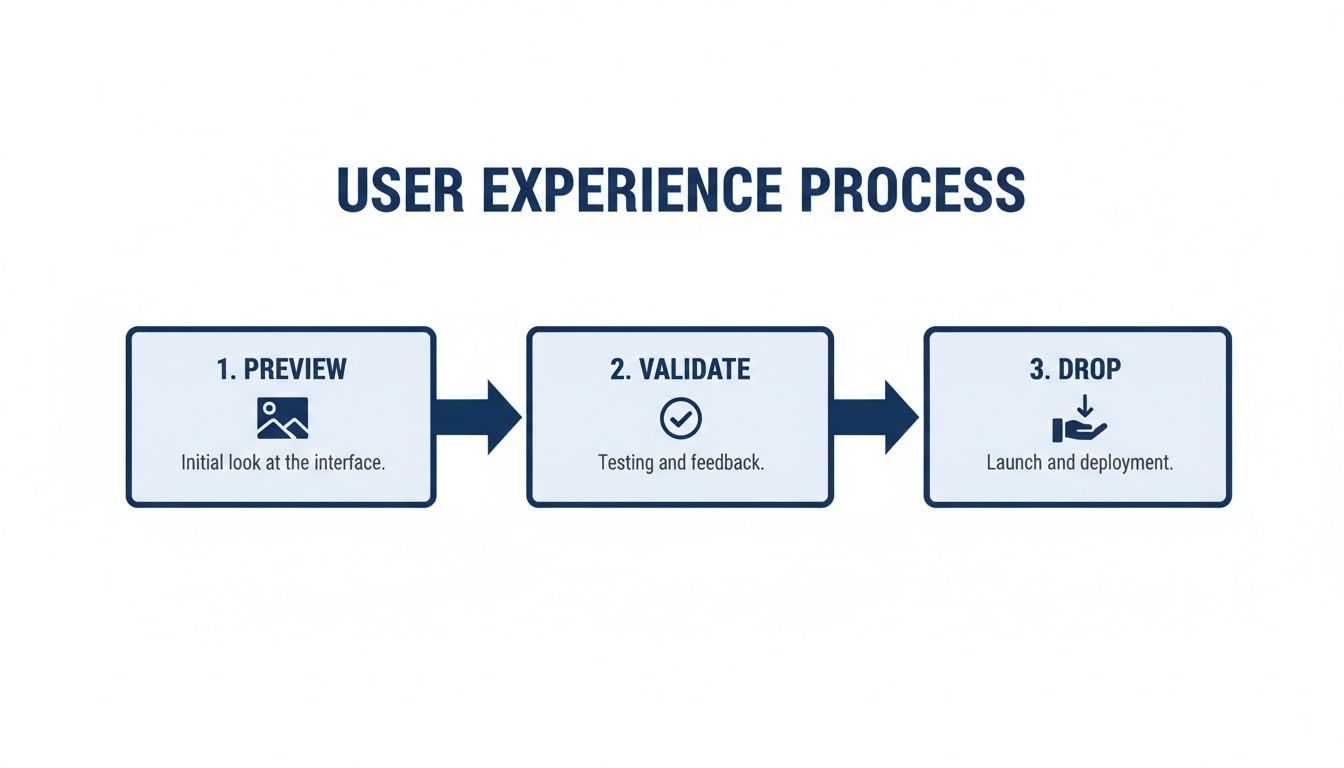
This flow is all about balancing a great user experience with ironclad security. The user gets a smooth journey, and the server handles the critical security checks behind the scenes.
Critical Security Practices for File Uploads
Beyond the basic checks, a few other security measures are absolutely essential when you're handling file uploads.
- Sanitize Filenames: User-provided filenames are a huge security risk. A malicious name like
../../etc/passwdcould lead to a path traversal attack, allowing an attacker to access sensitive system files. The best practice is to ignore the original name entirely. Generate a new, random name (like a UUID) for every file you store. - Store Files Securely: Never, ever store uploaded files in a publicly accessible web directory. If someone uploads a PHP script and you save it in your public root, they could just navigate to the URL and execute code on your server. Always store uploads outside the web root or, even better, in a dedicated cloud storage service like Amazon S3.
- Scan for Viruses: If your application involves users sharing files with each other, you should be running a virus scan on every single upload. This prevents your platform from becoming a distribution hub for malware.
Implementing these practices isn't optional—it's a core part of building a responsible and secure application. For sensitive areas, you can also learn how to protect your website with a password to add another layer of access control.
A popular and highly scalable pattern is to avoid having the file pass through your server at all. Using presigned URLs, your server can generate a secure, temporary link that gives the user's browser permission to upload a file directly to cloud storage. This offloads the heavy lifting from your server, which is a massive win for both performance and security.
Getting Your Project Live on a Modern Platform

You’ve built the perfect file uploader with slick HTML and JavaScript. Now what? The final hurdle is getting it out into the world for people to use. In the old days, this was often the most painful part. You’d have to mess with FTP clients, configure web servers, and pray you didn't break something in the command line. It was a tedious process that could suck up hours.
Thankfully, we've moved past that. Modern platforms have completely changed how we deploy projects. Instead of wrestling with a server, you can take your local files and push them to a live, globally-distributed website in minutes. It's my go-to method for launching prototypes and static sites because I don’t have to touch a single line of backend code.
From Your Computer to a Live URL
The beauty of a modern publishing platform like Hostmora is its sheer simplicity. The entire deployment process is often just packaging your project and dragging it into your browser. This is perfect when you just want to upload files with HTML and see your work live without getting tangled up in DevOps.
It’s all centered around a simple drag-and-drop zone. No complex dashboards or confusing settings to navigate.
The workflow is incredibly efficient. Here's how it breaks down:
Zip It Up: First, get all your project files—
index.html, your CSS, your JavaScript, and any images—and put them into a single folder. Then, just compress that folder into a ZIP file. This little package is your entire website, ready to go.Drag and Drop: Next, you log into the platform and drag that ZIP file right onto the upload area. The system takes it from there, unzipping everything and setting it all up.
Go Live: That's it. Seriously. Within seconds, your site is deployed and live on the internet. The platform handles all the boring-but-critical stuff that used to be a manual chore.
This method makes it ridiculously easy to publish anything from a simple landing page to a complex web app. You get to focus on what you're building, not the infrastructure it runs on.
What’s Happening Behind the Scenes?
When you drag that file over, you’re getting a lot more than just a place to store your files. A whole bunch of optimizations kick in automatically to make your site fast, secure, and reliable for anyone, anywhere.
- Global CDN Distribution: Your files are immediately spread across a global Content Delivery Network (CDN). On a platform like Hostmora, this means your site is cached in over 35 edge locations. A user in Tokyo gets the same speedy load time as someone in New York.
- Automatic SSL: An SSL certificate is automatically installed and configured. Your site is served over
httpsright out of the box, which is non-negotiable for security and a big plus for SEO. - Asset Optimization: The platform often automatically minifies your code and compresses your images. These tweaks shrink your file sizes, which makes your site feel much faster and more responsive to the end user.
The real power here is that the server-side headaches are completely abstracted away. This frees you up to focus 100% on creating a great front-end experience. It’s what allows us to ship projects faster and more reliably than ever before.
Connecting a Custom Domain and Sharing Your Work
Once your project is live on a temporary URL, connecting your own custom domain is usually just a few clicks in the settings. This gives your site a professional, branded address.
For quick sharing, especially with mobile users, many platforms also generate an instant QR code. Think of a restaurant wanting to link a QR code on their physical menu to a live, interactive version online—it’s perfect for that.
If you’re curious about how this stacks up against other popular solutions, our guide on Firebase website hosting offers a look at another modern deployment method. The key takeaway is that getting your project online is no longer the barrier it once was.
Common HTML Upload Questions Answered
Once you get past the basics, you'll inevitably run into a few common sticking points with HTML file uploads. It happens to everyone. Let's tackle some of the most frequent questions I see pop up in real-world projects, from styling that stubborn default button to making sure a massive file doesn't time out.
Can You Style the Default File Input Button?
This is easily one of the first frustrations developers face. The default <input type="file"> button is notoriously ugly, looks different in every browser, and almost never matches your site's design. So, can you just style it with CSS?
The short answer is: not really. Browsers lock down the appearance of this element for security reasons, making direct styling a non-starter.
But don't worry, there's a classic and effective workaround that everyone uses. The trick is to hide the real input element and use a beautiful, custom-styled <label> as a proxy.
Here's how it's done:
- Hide the real input. You use CSS to make the
<input type="file">invisible—thinkopacity: 0and positioned off-screen—but still functional. - Style a
<label>as your button. Create a<label>element and style it however you want. This is your new "button." - Connect them. The magic is in the
forattribute on the label. You link it to theidof your hidden input.
When a user clicks your slick-looking label, the browser automatically triggers the click on the hidden input it’s linked to. The file selection window pops up just as it should. The user gets a seamless experience, and you get complete design control. It’s the industry-standard way to handle this.
How Do You Handle Large File Uploads?
Trying to upload a massive file—like a high-res video or a big dataset—with a single HTTP request is a recipe for disaster. It's slow, and if the connection hiccups or the server times out, the entire upload fails. The user is left staring at a broken progress bar, and you're left with an incomplete file.
The professional way to solve this is with file chunking.
Instead of trying to shove a 1GB file through the pipe all at once, your JavaScript code slices it into smaller, manageable pieces (say, 5MB each) using the File.slice() method. Then, you send these chunks to the server one by one using a series of separate requests.
Your backend code receives each chunk, saves it temporarily, and once the final piece arrives, it stitches them all back together into the original file. This method is far more robust and reliable for large transfers. It also paves the way for advanced features like resumable uploads, so a user can pick up right where they left off if their connection drops.
By breaking large files into smaller chunks, you not only avoid server timeouts but also create a more resilient and user-friendly upload process. It transforms a potentially fragile operation into a robust and reliable one.
What is the Best Way to Show Upload Progress?
For any upload that isn't instantaneous, showing real-time progress is non-negotiable. It's a fundamental part of good user experience. Without it, users are left in the dark, wondering if their upload has frozen or failed.
Thankfully, the tools built into modern browsers make this pretty straightforward.
When you send a file using XMLHttpRequest (or the Fetch API), you can listen for progress events. The XMLHttpRequest object, for example, has a progress event on its upload property. This event fires repeatedly as the file is being sent, giving you two key pieces of information: loaded (how many bytes have been sent so far) and total (the file's total size).
From there, the math is simple: (loaded / total) * 100 gives you the percentage complete. You can use this value to dynamically update a progress bar in your UI, giving the user clear, immediate feedback. It’s a small detail that makes a world of difference in how professional and polished your application feels.
Ready to skip the server setup and publish your project in seconds? Hostmora lets you drag and drop your HTML, ZIP, or PDF files to create instant, secure links on a global network. Get your free site live in under a minute.