
Ever found yourself needing to save a webpage exactly as it looks, either for your records or to use offline? Turning a website into a PDF is a surprisingly useful skill. It essentially takes a snapshot of a dynamic page and freezes it in time, creating a static document that will look the same on any device.
This isn't just about saving an article to read later. It’s about creating a stable, portable file you can archive, share, or print with confidence.
Why You Might Need to Convert a Site to PDF
The reasons for converting a webpage to a PDF are incredibly practical and solve a ton of real-world headaches. It’s about taking control of digital content, preserving it accurately, and presenting it professionally.
Think about it. As a freelancer, you might get an online payment confirmation. Converting that site to PDF gives you a permanent, unalterable record for tax time. Or if you’re a designer showing a client a live website mockup, sending a PDF ensures they see it exactly as you designed it, without strange browser glitches getting in the way.
Common Scenarios for PDF Conversion
This simple skill is valuable in all sorts of professional and personal situations. The need for reliable digital documents is why the global PDF software market was valued at $2.15 billion in 2024 and is expected to hit $5.72 billion by 2033. People need good tools to turn web content into something they can hold onto. You can discover more insights about this growing PDF market.
Here are a few times this comes in clutch:
- Archiving Legal Documents: Saving a company’s terms of service or a privacy policy on a specific date for your records.
- Creating Reports: Grabbing a snapshot of a web-based dashboard, like from Google Analytics, to drop into a monthly report for stakeholders.
- Compiling Research: Collecting several online articles into a single, organized PDF for a research project or presentation.
- Offline Access: Saving travel confirmations, event tickets, or online recipes so you can get to them without an internet connection.
The core benefit is simple: a PDF preserves the visual fidelity of a webpage. What you see on the screen is exactly what you get in the document, locked in time.
Ultimately, knowing how to convert a site to PDF gives you a foolproof way to capture and share web content in a format everyone can use, turning fleeting online information into a permanent asset.
Quick PDF Conversions Directly From Your Browser
Sometimes, the best tool for the job is the one you already have. For a quick, clean copy of a webpage, you often don't need to install a single thing. Your web browser is surprisingly adept at instantly converting any site into a PDF.
This "Print to PDF" feature is your fastest path from a live site to a static document. It works because modern browsers like Google Chrome, Firefox, and Edge include a virtual PDF printer. Instead of sending a page to a physical printer, you just tell it to save the output as a PDF file right on your computer. It’s a beautifully simple solution for capturing online receipts, articles for offline reading, or project documentation.
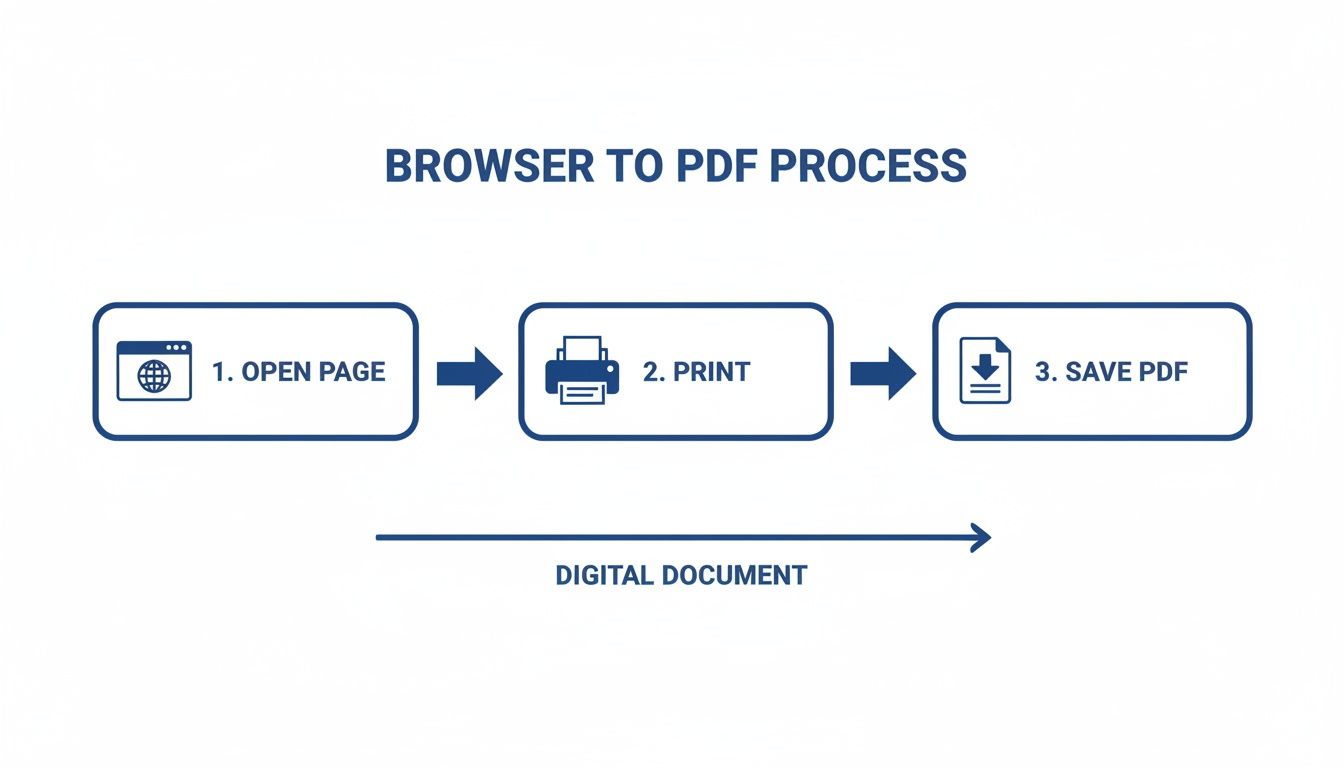
In Google Chrome, for instance, you'll see "Save as PDF" right in the print dialog. This preview window is your command center for getting the document just right before you save.
This little preview window is where you can fine-tune the final document before committing to the save.
Mastering the Browser Print Settings
The real magic isn't just in clicking "Print"—it's in the settings. Before you hit that save button, always expand the "More settings" option to dial in the final look and feel.
Here are the key adjustments I always make:
- Destination: This is the most critical step. Make sure you switch it from your physical printer to "Save as PDF".
- Pages: You can grab everything with "All" or specify a custom range if you only need a few pages from a long article.
- Layout: "Portrait" is the default, but "Landscape" is a lifesaver for wide pages like analytics dashboards or sprawling data tables that would otherwise get cut off.
- Headers and Footers: For a much cleaner, more professional document, I almost always uncheck this box. It gets rid of the distracting page title, URL, and date that browsers add by default.
These small tweaks make a massive difference. They can turn what looks like a messy webpage printout into a polished, intentional, and readable document.
The goal is to create a PDF that looks like a purpose-built document, not just a haphazard web capture. Removing headers and footers is the single fastest way to achieve that professional look right from your browser.
When to Use Online Converter Tools
Beyond your browser, a quick search will reveal dozens of free online "site to PDF" converter websites. Their appeal is simplicity: you paste a URL, click a button, and they generate a PDF for you to download. They can be a decent fallback if your browser's print function is having a tough time with a particularly complex or JavaScript-heavy page.
But that convenience comes with a major caveat. I'd strongly advise against using these services for any webpage that contains sensitive or personal information. When you submit a URL, you're sending that page's content to a third-party server, and you lose all control over that data.
For anything confidential, always stick with your browser's built-in print-to-PDF feature. It keeps the entire process local to your machine, ensuring your information stays private.
Choosing Your Site to PDF Conversion Method
Deciding which tool to use can be tricky, as each has its place. Your browser is great for speed, but command-line tools offer unparalleled control.
This table breaks down the most common methods to help you pick the right one for your specific task.
| Method | Best For | Technical Skill | Customization Level |
|---|---|---|---|
| Browser "Print to PDF" | Quick, simple captures of articles, receipts, or single pages. | Beginner | Low |
| Online Converters | A fast alternative when the browser fails on a non-sensitive page. | Beginner | Low |
| Wkhtmltopdf | Automated batch conversions and server-side PDF generation. | Intermediate | High |
| Headless Chrome / Puppeteer | Precisely rendering modern, JavaScript-heavy sites and SPAs. | Advanced | Very High |
Ultimately, for one-off tasks, the browser is usually enough. But once you need to automate the process or handle tricky dynamic content, it's time to graduate to a more powerful command-line solution.
When it's time to convert websites to PDFs at scale, fiddling with the browser’s print dialog just isn’t going to work. If you're batch-processing dozens of reports, archiving a blog, or building PDF generation right into an application, you need the muscle of command-line tools. These are what the pros use for true automation and control.
We'll look at two of the best tools for the job. First up is wkhtmltopdf, a trusty open-source utility that’s been around for a while. It uses the WebKit rendering engine—the same one that originally powered Safari. Then, we’ll dive into a more modern approach using a headless browser, specifically Google Chrome driven by Puppeteer, which is brilliant for handling today's JavaScript-heavy sites.
Wkhtmltopdf: The Scripting Workhorse
Think of wkhtmltopdf as the reliable workhorse in your toolkit. It's a simple, self-contained program you can run from your terminal or call from any script to turn a URL into a PDF. Its biggest selling point is its straightforward, single-command operation, which makes it incredibly easy to plug into automated workflows.
You can also get incredibly precise with the final document. Simple flags let you control everything from paper size and orientation to the exact margins.
A basic command is as simple as it gets:
wkhtmltopdf http://example.com my-output.pdf
But where it really shines is in the details. You can add more parameters to get a truly professional result:
--page-size A4: Sets the document to standard A4 paper.--orientation Landscape: Flips the page to better fit wide content.--margin-top 10mm: Adds a 10-millimeter margin to the top of every page.
This granular control is perfect for things like automatically generating consistent, well-formatted invoices or reports straight from a server.
Headless Chrome and Puppeteer: The Modern Standard
While wkhtmltopdf is great for static pages, it can sometimes stumble on modern websites that rely on a ton of JavaScript to load their content. For these dynamic single-page applications (SPAs), the best bet is to use a real browser engine. This is where a headless browser saves the day.
A headless browser is just a web browser, like Chrome, running in the background without a visible user interface. You control it completely with code. Puppeteer is a Node.js library from Google that gives you a clean, high-level API to command headless Chrome or Chromium. It's really the gold standard now for accurately capturing a site to PDF because it renders the page exactly as a user would see it, running all the necessary JavaScript first.
Here's a look at what you can do with it, taken from the project's documentation.
As you can see, Puppeteer is capable of much more than just creating PDFs; it's a full-blown browser automation tool used for web scraping and testing, too.
Puppeteer's real magic is its ability to wait for a page to become fully interactive before saving it. This means lazy-loaded images, data fetched from APIs, and client-side rendered charts will all appear correctly in your final PDF.
Here's a little taste of what a Puppeteer script looks like. This simple Node.js snippet fires up a browser, navigates to a page, and saves it as a PDF.
const puppeteer = require('puppeteer');
(async () => { const browser = await puppeteer.launch(); const page = await browser.newPage(); await page.goto('https://example.com', { waitUntil: 'networkidle0' }); await page.pdf({ path: 'example.pdf', format: 'A4' });
await browser.close();
})();
That waitUntil: 'networkidle0' option is the secret sauce. It tells Puppeteer to hang on until network activity has settled down, giving all the page elements a chance to load. If you're working with other text formats, our guide on converting Markdown files to PDF has some similar automation tips that can complement these workflows. This kind of scripting opens up a whole world of possibilities for creating some seriously powerful, automated document systems.
Solving Rendering Issues with Dynamic Content and CSS
There’s nothing worse than converting a website to a PDF, only to open the file and find a complete mess. You might see text overflowing its container, missing images, or just blank spaces where interactive charts should be. This is a classic sign that you’re dealing with a modern, dynamic website.
These sites rely heavily on JavaScript to pull in content after the initial page has loaded. Most basic conversion tools are too fast for their own good—they grab a snapshot of the page before all the essential elements have even had a chance to appear.
The secret to a perfect render is simply giving the page time to breathe. When you use a more advanced tool like Puppeteer, you're not just taking a picture; you're automating a real web browser. This means you can tell it to wait patiently until all the background network activity dies down. This one simple instruction ensures that lazy-loaded images and data-driven widgets are fully rendered, solving the vast majority of conversion problems right off the bat.
Handling JavaScript-Heavy Pages
For single-page applications (SPAs) built with frameworks like React, Vue, or Angular, the initial HTML file is often little more than an empty shell. All the content you see is constructed on the fly by JavaScript. If your PDF is coming out blank or missing huge chunks of content, that's a dead giveaway the converter didn't wait for those scripts to do their job.
A simple, targeted delay in your automation script can work wonders. In Puppeteer, for instance, you can use a waitForSelector command. This tells the script to pause and only proceed once a specific, late-loading element—like a chart in the body or the copyright text in the footer—is visible on the page. It's a simple way to guarantee the page is in its final, complete state before you save it as a PDF. Our guide on working with HTML files has more on how web documents are put together, which can be a huge help when you're trying to figure out what's going wrong.
Fine-Tuning with Print-Specific CSS
Even with all the content loading perfectly, you probably don't want a carbon copy of the live website. Things like navigation menus, cookie consent pop-ups, and sidebar ads are just clutter in a static document. The elegant solution here is to use a print stylesheet.
This is a special set of CSS rules that only apply when a page is being printed or, in our case, converted to a PDF. You can inject this CSS using an @media print query to completely restyle the page for its new format.
Inside this query, you can hide any element you don't want:
- Navigation and Footers:
nav, footer { display: none !important; } - Advertisements:
.ad-container, #sidebar-ads { display: none !important; } - Interactive Buttons:
.no-print, .share-buttons { display: none !important; }
This approach gives you surgical control over the final PDF layout, letting you create a clean, professional document that focuses only on what matters. The need for this kind of accurate web archiving is a big deal; the market for these tools is expected to jump from $3.14 billion in 2025 to $6.2 billion by 2032, driven by this exact demand.
A well-crafted print stylesheet is the secret to transforming a cluttered webpage into a polished, report-quality PDF. It lets you surgically remove the noise without ever touching the website’s original code.
Controlling Page Breaks and Flow
Finally, think about how the document will be read. A long webpage will naturally get split across multiple PDF pages, but the automatic page breaks can be incredibly awkward—sometimes cutting right through an image or the middle of an important heading. You can fix this with a few simple CSS properties.
The page-break-before, page-break-after, and page-break-inside properties give you direct control over pagination.
For example, you could ensure every major section starts fresh on a new page with h2 { page-break-before: always; }. To keep an image and its caption from being split apart, you could wrap them in a <div> and apply .image-caption-wrapper { page-break-inside: avoid; }. This level of fine-tuning is what elevates a simple screen capture into a truly professional-grade document.
Optimizing Your Final PDF for Size and Accessibility
Getting the PDF file is just step one. The real craft is in producing a document that’s lean, professional, and genuinely usable for everyone. After you've converted a website, you often run into two big roadblocks: massive file sizes and a total lack of accessibility.
Think about it. An image-heavy webpage can easily turn into a clunky PDF that takes forever to open and is a nightmare to email. And if a screen reader can't make sense of the document's structure, you've just cut off a huge part of your potential audience. Nailing both size and accessibility is what separates a quick, sloppy export from a truly professional document.
Taming Large File Sizes
When you see a PDF file size getting out of control, high-resolution images are almost always the culprit. A website might feature a beautiful 2MB hero image that loads just fine on a fast connection, but it becomes a serious burden when embedded in a document you need to send around.
Luckily, you can get that file size down with a few proven strategies:
- Image Downsampling: This is the process of lowering the resolution of the images inside your PDF. Shifting to something like 150 DPI is perfect for on-screen viewing and can slash the file size without any obvious loss in quality.
- Compression Settings: Most good PDF editors have compression tools that intelligently squeeze out redundant data from the file, making it smaller.
- Removing Unused Objects: Sometimes, PDFs carry extra weight from embedded fonts or metadata that you just don't need. Tools like Adobe Acrobat have features to strip this unnecessary data and slim down the final file.
Applying these techniques can often shrink a file's size by more than 70%, which makes a huge difference. For a deeper dive, our complete guide to the PDF file format covers more advanced ways to handle your documents.
Creating Accessible Tagged PDFs
Accessibility isn't just a nice-to-have feature; it’s essential for creating inclusive content that everyone can access. A standard PDF might look perfect to the eye, but to a screen reader, it's often just a flat, jumbled mess of text and images.
An accessible PDF, on the other hand, contains a hidden "tag tree" that provides a logical map of the content. This underlying structure tells assistive technologies the correct reading order, identifies headings, properly marks up lists, and provides alternative text for images. Without these tags, a screen reader might read a sidebar before the main article or jump around the page in a confusing way.
A tagged PDF is the digital equivalent of adding wheelchair ramps and braille signs to a physical building. It ensures that everyone, regardless of ability, can navigate and understand the information you're providing.
You’ll typically need to create a tagged PDF as a follow-up step using a tool like Adobe Acrobat Pro. Its built-in accessibility checker is great for finding problems and guiding you through adding the right tags for headings (H1, H2), paragraphs (P), and image alt-text. This small bit of extra work makes an enormous difference for your users.
It's no surprise that the demand for these capabilities is growing. The market for PDF software is projected to hit $7.12 billion by 2035, largely driven by the need for more accessible and intelligent documents. You can explore more PDF software market statistics to see just how important this is becoming.
Common Questions (and Expert Answers) on Site-to-PDF Conversions
We’ve walked through the tools and the "how-to," but let's be honest—the real learning happens when you hit a snag. I've seen it all over the years, so here are my go-to answers for the most common issues that pop up when converting a site to PDF.
How Do I Convert a Page Behind a Login?
This is a big one. Those simple online converters just can't handle anything that requires a username and password.
The easiest way around this is to just use your browser's built-in "Print to PDF" feature. Since you’re already logged in, the browser has access and can generate the PDF without a problem.
If you need to automate this, however, you'll need to roll up your sleeves with a tool like Puppeteer. You’ll have to write a script that tells it to find the login form, type in the credentials, click "submit," and then navigate to the page you want to capture.
Why Does My PDF Look... Broken?
You generate the PDF and find missing images, messed-up charts, or a completely busted layout. It's a classic sign that you're dealing with a modern, JavaScript-heavy website.
What’s happening is that many tools take the "snapshot" too early, before all the dynamic content has had a chance to load. Think lazy-loaded images or elements that animate into view—the converter often misses them entirely.
The most dependable fix for this is a headless browser. With something like Puppeteer, you can explicitly tell your script to wait for the page to be fully loaded—either by waiting until network activity stops or for a specific, slow-loading element to finally appear on the page. This simple delay solves 90% of rendering issues.
Can I Just Convert an Entire Website into a Single PDF?
Technically, you could with some heavy-duty scripting, but I’d strongly advise against it. Imagine trying to navigate a 500-page PDF with no real structure. It would be a nightmare.
A far more practical approach is to be selective. Identify the key pages you need and convert them into individual PDFs. If you really need to archive a whole site, use a command-line tool to batch-convert a list of URLs into a neatly organized folder of separate PDF files. Trust me, it's a much better system.
How Can I Get Rid of Ads and Menus in the PDF?
Nobody wants navigation bars, sidebars, or ad banners cluttering up their final document. You have a couple of great options here.
If you're using a tool like Puppeteer, the most elegant solution is to inject your own CSS using a print stylesheet. You can add a few lines of code to hide elements you don't want, like nav, .ad-banner { display: none !important; }, which will only apply when the PDF is being generated. It’s surgical.
For a quick, one-time job directly in your browser, just use Developer Tools (F12 or right-click > Inspect). You can literally click on any unwanted element—like an ad or a cookie banner—and hit the delete key to remove it from the page right before you hit print.
Ready to publish your documents online? Hostmora turns your PDFs, Markdown, and other files into live websites in seconds. Just drag, drop, and share your work with a fast, professional link. Get started for free at Hostmora.