
Grabbing a solid OVH domain name is a great first move, but that's only half the battle. You still need a fast, headache-free way to get your website online. This is where connecting it to a no-code platform like Hostmora comes in, letting you skip the complicated server setups altogether.
This pairing is a smart play: you get OVH's rock-solid domain management combined with Hostmora's near-instant publishing power.
Why Connect Your OVH Domain to Hostmora
You've already done the right thing by registering your domain with a respected provider like OVHcloud. But from my experience, keeping your domain registrar separate from your web host is almost always the best strategy.
Think of it this way: your domain is the car you own, and your host is the expert mechanic you choose for service. You're not stuck with the dealership's garage; you get to pick the best specialist for the job. This gives you the best of both worlds without getting locked into one company's ecosystem.
This "decoupled" approach is a game-changer for freelancers, agencies, and small businesses who need both control and speed. It lets you keep full ownership and access to advanced settings in your OVH panel while using a purpose-built tool to get your content live.
The Benefits of a Decoupled Setup
Hooking your OVH domain name up to Hostmora delivers some immediate wins, wiping out the usual technical hurdles that slow people down. The whole point is to help you launch projects in minutes, not days.
Here’s what you get right away:
- Speed and Simplicity: Go from a static HTML file on your desktop to a live, professional website in under a minute. It’s truly just drag-and-drop.
- No DevOps Overhead: Stop worrying about server configurations, security patches, or surprise downtime. Hostmora takes care of all that backend infrastructure for you.
- Global Performance: Your site is automatically pushed to a global edge network, which means lightning-fast load times for your visitors, no matter where they are.
- Automatic Security: Every site gets a free SSL certificate that’s installed and renewed for you. Secure HTTPS is standard, with zero extra work.
Here's a pro tip: Keeping your domain separate from your publishing platform gives you incredible flexibility. If you decide to switch hosting or publishing tools down the road, you can do it without the nightmare of transferring your domain name. It’s a huge convenience for any long-term project.
The domain market is massive and still growing. In Q2 2024, there were roughly 362.4 million domain registrations across the globe, and that number is only expected to climb. You can find more stats on the global domain market at diviflash.com. This trend shows that tons of domain owners, many using registrars like OVH, are looking for simpler ways to deploy websites without needing a computer science degree. This is exactly the gap that connecting services like these is meant to fill.
Choosing and Registering Your OVH Domain Name
First things first: before connecting anything, you need a domain. This isn't just a technical step; it's your brand's digital address, so picking the right one is a huge deal. The best domains are short, memorable, and easy for people to type without thinking twice.
When you start searching for an OVH domain name, you'll quickly notice a ton of options besides the classic .com. And while .com is almost always a safe bet due to its universal recognition, don't write off other extensions. If you're targeting a specific country, a local TLD like .co.uk or .fr can actually build more trust with that audience.
Finding and Securing Your Domain
The actual process on the OVHcloud website is pretty simple. You pop your idea into their search bar and see if it’s available. A word of advice from experience: have a few alternatives ready to go. Your first choice is often already snapped up.
Here are a few pointers I always follow when brainstorming:
- Keep it brief. The shorter, the better. It's just easier to remember and type.
- Ditch hyphens and numbers. They're a pain to communicate verbally ("Is that the number 4 or the word four?").
- Make it brandable. Something unique sticks in people's minds. Think about it: "zenofolio.com" sounds a lot more professional than "bestdesignportfolioonline.com."
Here’s the bottom line: think long-term. Your domain name is a foundational piece of your brand. Changing it down the road is a massive headache, so it’s worth spending the extra time now to nail it.
Once you land on a name that’s free, registering it is just a matter of a few clicks. You'll add it to your cart, fill in your contact information for the official WHOIS record, and check out.
You might see that OVHcloud pushes its own .ovh extension, but it's a very niche option used by less than 0.1% of all websites. Most people are better off sticking with a conventional domain. This is where OVH's strength really lies, holding a solid 3.29% market share as a registrar. You can dig into these domain technology statistics on w3techs.com if you're curious.
With your professional domain secured, you're all set for the next step.
Finding Your Way Around the OVH Control Panel
So, you've got your OVH domain. Great! The next step is to log into your OVHcloud control panel and point that domain to your Hostmora project.
At first glance, the OVH dashboard can feel a bit overwhelming, but don't worry. We're going to cut through the noise and head straight to the one place that matters for this task: the DNS Zone.
Think of the DNS Zone as your domain's personal address book. Right now, it might have an old address or no address at all. Our job is to give it the correct directions so that anyone who types in your domain ends up right at your new Hostmora site.
Getting to Your DNS Zone
Once you're logged into your OVHcloud account, you'll land on the main dashboard. Look for a section called "Web Cloud" in the navigation, which is where your domains live. Find your domain in the list and click it. This will take you to its dedicated management page.
You'll see a lot of information and options here, but you can ignore most of it for now. We're looking for one specific tab.
The DNS Zone Tab: Your Domain's Command Center
On your domain's management page, find and click the tab labeled “DNS Zone.” This is where the real work gets done.
When you open it, you'll see a table filled with what looks like technical jargon. This is the heart of your domain's configuration, containing all the records that tell it how to behave. We only need to focus on a few of them to get you connected to Hostmora.
Before we jump in and start editing, let’s quickly cover the three records you'll be working with. Understanding what they do makes the whole process feel a lot less like guesswork.
- A Record: The "Address" record. This one points your main domain (e.g.,
yourdomain.com) to a specific server IP address. It’s the most fundamental record for your website. - CNAME Record: The "Canonical Name." This record acts as an alias, pointing a subdomain (like
www.yourdomain.com) to another domain name. We'll use this for thewwwversion of your site. - TXT Record: The "Text" record. This is a simple, versatile record that lets you add plain text to your DNS. It’s most often used to prove you own the domain, which is exactly what we need it for.
Once you get the hang of these three record types, you've mastered the core skill of domain management. It's a fundamental piece of knowledge for anyone with a website, and it's much simpler than it looks.
This is a routine task for web designers and developers. For a more detailed look at the specifics, you can learn more about connecting your OVH domain name in our complete guide. With this basic orientation out of the way, you're all set to configure the records and get your Hostmora site online.
Connecting Your OVH Domain to Hostmora: A DNS Walkthrough
Alright, let's get down to the nitty-gritty. Now that you have your domain, it's time to tell it where to find your Hostmora project. This part can seem intimidating if you've never touched DNS settings before, but I promise it's mostly just a copy-and-paste exercise once you know where to go.
We'll be adding three specific records to your OVH DNS Zone. Each one has a distinct job, and together, they'll get your site up and running.
First, you need to find where to make these changes. Here's the typical path inside your OVH account:
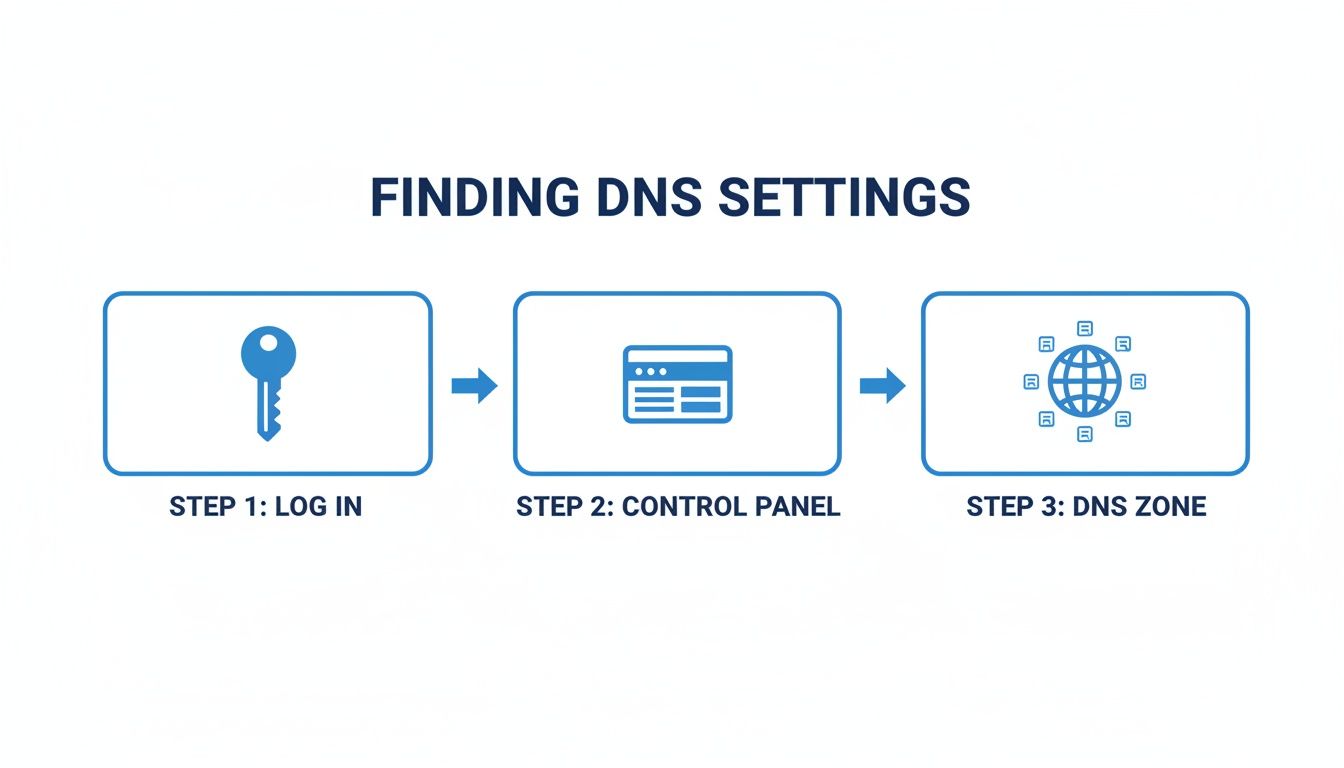
Simply log in, head to the Web Cloud Control Panel, find your domain, and click into its DNS Zone. This is where the magic happens.
DNS Records for Your Hostmora Connection
Here's a quick reference table for the three records you'll be creating in your OVH control panel. Think of this as your cheat sheet for the next few steps.
| Record Type | Host / Name | Value / Points To | Purpose |
|---|---|---|---|
| A | @ or blank |
Your Hostmora IP Address | Points your main domain to the server. |
| CNAME | www |
Your root domain (e.g., yourbrand.com) |
Redirects www traffic to your main domain. |
| TXT | @ or blank |
Hostmora-provided verification code | Proves you own the domain. |
With this table handy, let’s walk through adding each record one by one. It's a straightforward process of clicking "Add an entry" for each one.
The Main A Record: Your Digital Address
First on the list is the A Record, which stands for "Address." This is the most crucial piece of the puzzle. It points your root domain (like yourbrand.com) straight to the Hostmora servers where your project lives. Think of it as filing a change of address form for your website.
Inside your OVH DNS Zone, find the button to "Add an entry" and select A as the record type.
You’ll see a few fields to fill out. For the Host/Name, you can either leave it blank or enter the @ symbol—both tell OVH this rule applies to your main domain. For the Value/Points To, you'll paste in the specific IP address provided by Hostmora in your project settings.
Save it, and you’re one-third of the way there.
The WWW CNAME Record: Catching All Traffic
Next up, we need to handle the "www" version of your domain. Some people type yourbrand.com directly, while others still use www.yourbrand.com. A CNAME Record (which stands for "Canonical Name") makes sure both groups of visitors end up in the same place.
This record is basically an alias. Instead of pointing to a numeric IP, it points to another domain name.
Add another new entry, but this time, choose CNAME.
- For the Host/Name field, simply type
www. This tells OVH the rule is just for that specific subdomain. - For the Value/Points To, enter your main domain, like
yourbrand.com.
This setup essentially says, "Hey, anyone looking for the www version? Just send them to the main address we already set up with the A record." It’s clean, simple, and keeps things organized.
Pro Tip: I always recommend pointing the
wwwCNAME back to your own root domain rather than a Hostmora-specific URL, unless their documentation explicitly tells you otherwise. It's the standard, most manageable way to do it.
The TXT Record: Proving You're the Owner
The final step is adding a TXT Record. This one isn't for routing traffic; it's purely for security and verification. It allows Hostmora to confirm that you are the legitimate owner of the domain you’re connecting. It's like receiving a unique code in the mail to prove you really live at your new address.
Go ahead and add one last entry, selecting TXT as the type.
Hostmora will give you a unique string of characters. You'll leave the Host/Name field blank (or use @), and then carefully copy the entire unique string from your Hostmora dashboard and paste it into the Value field.
Once you’ve saved all three records, you have officially configured your OVH domain name to work with Hostmora. If you run into any trouble or want more technical details, the official guides in the Hostmora documentation are a great resource.
Now, all that's left is to wait for these changes to go live across the internet.
Verifying Your Domain and Troubleshooting Common Glitches
After you've added the new DNS records in your OVH control panel and saved everything, the next phase is a bit of a waiting game. It's called DNS propagation, which is really just the time it takes for servers across the internet to get the memo about your changes.
Think of it like updating your contact info in a global address book. The update isn’t instantaneous everywhere. With an ovh domain name, you'll find this process is usually quite fast—often wrapping up in under 30 minutes. That said, in some rare cases, it can take up to 48 hours. My advice? Go make a coffee and check back in a little while.
Finalizing the Connection in Hostmora
Once you’ve given the DNS a bit of time to settle, pop back over to your Hostmora account. You'll want to navigate to your project's domain settings, where you should see the domain you just added. Now for the satisfying part: click the "Verify" button.
Hostmora will do a quick check to see if your domain's DNS records match the values it gave you. If everything lines up, the status will flip to "Connected," and your site will be officially live.
One of the best parts about this process is that Hostmora takes care of security for you. As soon as your domain is verified, a free Let's Encrypt SSL certificate is automatically provisioned. This gives you the secure HTTPS connection and the little padlock icon in the browser, which is a huge trust signal for your visitors—all without you lifting a finger.
The waiting period during propagation is where most people get tripped up. The biggest mistake is to get impatient and start changing the DNS settings again. Trust the process, give it at least 30-60 minutes, and then try to verify.
Quick Fixes for Common Setup Hiccups
It happens. Sometimes the connection doesn't work on the first try. Before you get frustrated, let's walk through the most common culprits. It’s almost always a simple fix.
- Typos in DNS Values: This is hands-down the number one reason for verification failure. Double-check everything. Go back to your OVH DNS Zone and meticulously compare the A, CNAME, and TXT record values against the ones Hostmora provided. A single wrong character is all it takes.
- Propagation Delays: Your own internet provider might just be a little slow on the uptake. A good trick is to clear your browser cache or even try checking the site from a different network, like your phone's data connection.
- Conflicting DNS Records: Make sure there aren't any old or duplicate A records hanging around for your root domain. You should only have one A record, and it needs to point directly to Hostmora's IP address.
As a major player in web services, OVH holds a significant market share—about 13% for dedicated hosting in the United States, according to some reports. Its Web Cloud services, including domain names, are a massive part of its business. This means tons of users are looking to pair their reliable OVH domains with modern, easy-to-use platforms like Hostmora. You can explore web hosting market statistics on digitalsilk.com to see the broader trends.
If you’ve checked for typos and are still stuck, our guide on how to view DNS records for any domain can be a lifesaver for confirming what the rest of the internet actually sees.
Common Questions About Connecting OVH and Hostmora
Even when things go smoothly, a few questions always pop up. Let's tackle the most common ones we hear from users connecting their OVH domain name to a Hostmora project, so you can tie up any loose ends.
How Long Does It *Really* Take for My Domain to Go Live?
This is the big one, isn't it? The standard answer for DNS changes is that it can take up to 48 hours to update across the globe. But in my experience, that's a worst-case scenario. You’ll usually see your new site live within 5 to 30 minutes.
The verification status in your Hostmora dashboard is your best guide. If a couple of hours pass and you're still seeing the old site (or nothing at all), the culprit is almost always a tiny typo in your DNS records. Double-check the A, CNAME, and TXT values you entered back in the OVH control panel.
A quick tip from the trenches: Your computer often clings to old DNS info. Before you panic, clear your browser's cache or pop open an incognito window to check your domain. You might be surprised to find your site was live all along.
Can I Just Connect a Subdomain from OVH?
You absolutely can, and it's a great strategy. Think blog.yourdomain.com or shop.yourbrand.com—each pointing to a different Hostmora project. It keeps everything neat and organized.
Better yet, the process is simpler than connecting a primary domain. You don't even need to mess with A records or TXT records for verification.
Here’s the streamlined approach:
- Head over to your DNS Zone in the OVH dashboard.
- Create a new CNAME record.
- In the Host field, just type your subdomain (like
blogorshop). - For the Value, paste in the unique target URL that Hostmora gives you.
And that’s all there is to it. This is perfect for launching separate initiatives—a portfolio, a client portal, a special landing page—without touching your main website.
Will This Mess Up My Email Hosting at OVH?
This is a totally valid concern, but you can relax. Your email service will not be affected.
Your website and your email are managed by two completely different types of DNS records. We've only been changing the A, CNAME, and TXT records, which handle web traffic. Your email, on the other hand, runs on MX (Mail Exchanger) records.
As long as you don't delete or modify your existing MX records inside the OVH DNS zone, your email will keep working perfectly. They are completely separate systems.
Do I Have to Buy My Own SSL Certificate?
Nope, you don't. This is one of the best parts about using Hostmora. As soon as your OVH domain name is verified and connected, our platform automatically issues and installs a free Let's Encrypt SSL certificate for you.
We also handle the renewals automatically, so you never have to worry about it expiring. Your site gets the secure HTTPS padlock in the address bar, which is essential for building trust with visitors and a nice little boost for your SEO. It all happens behind the scenes, with zero cost to you.
Ready to turn your files into live, professional websites in seconds? With Hostmora, you can skip the complex configurations and get your content online with a simple drag-and-drop. Connect your custom domain, get automatic SSL, and publish on a global network. Get started for free today at https://hostmora.com.