
Long gone are the days of downloading clunky software just to open a PDF. You can now open, view, and even make quick edits to PDFs right in your browser. These modern online PDF viewers are a game-changer, giving you instant access on any device without the hassle of installation.
Why Online PDF Viewers Are the New Standard
Think about it in a real-world context. A remote team needs to review a new project proposal. Instead of emailing attachments back and forth (and worrying about version control), they share a single link. Everyone clicks, and instantly, they're all looking at the exact same, most up-to-date document.
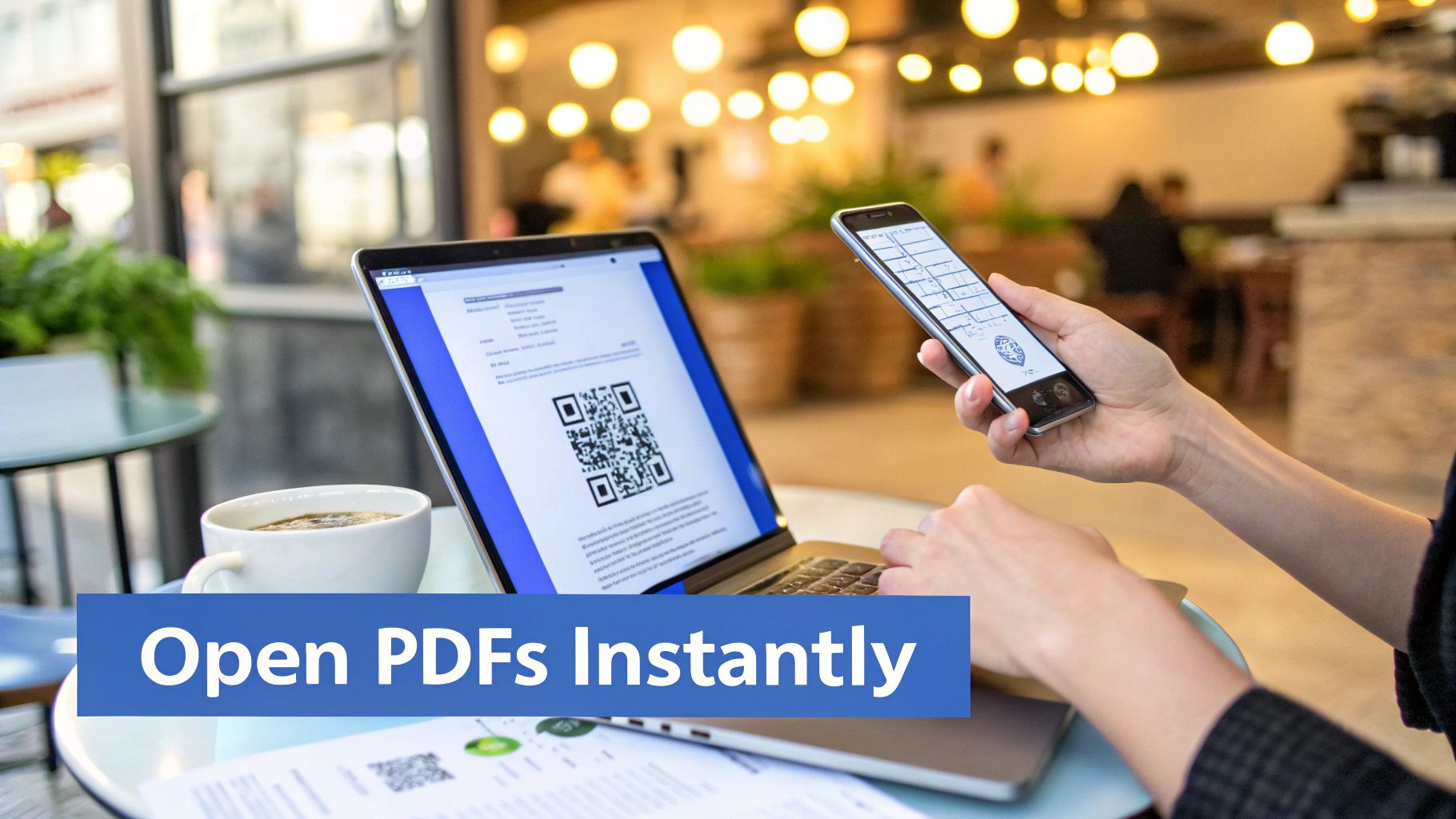
Or consider a small business, like a local food truck, that wants an easy way for customers to see the menu. They can embed a PDF menu into a QR code. Customers scan it with their phones, and the menu pops up immediately. No app, no download, no waiting.
This shift isn't just a minor convenience; it's a fundamental improvement in how we handle documents.
- Instant Access: The biggest win is the ability to open a PDF on any platform—desktop, tablet, phone—without a second thought. It just works.
- Seamless Collaboration: Teams spread across different time zones can comment and annotate a single document in real-time, keeping everyone on the same page.
- Mobile-First World: With 63% of people viewing PDFs on smartphones, a mobile-responsive experience is non-negotiable.
Real-World Scenarios
The pop-up cafe with a QR code menu is a perfect example. A customer scans the code, and the menu details load right away on their phone. It’s a smooth, professional experience.
Another great use case is for teams in the field. Imagine a construction crew needing to reference the latest safety protocols. They just pull up a shared PDF link on a tablet right there on the job site, ensuring they're always working with the most current information.
To really get a feel for how powerful this is, it's worth exploring the various Adobe PDF alternative tools available. Many of them build on this foundation of instant access, offering even more flexible ways to manage your documents.
What You Gain from Online Viewing
The benefits are pretty clear once you make the switch.
- Convenience: Opening a file is as simple as clicking a URL. It takes seconds.
- Collaboration: When one person leaves a comment or annotation, it updates for everyone else viewing the document.
- Compatibility: The experience is consistent whether you're on a laptop at your desk or on your phone on the go.
The sheer volume of PDFs in use today—over 2.5 trillion in existence—tells the story. Businesses rely on them for 98% of their external communications, and 78% of all agreements are now handled digitally. Mastering online PDF viewing isn't just a nice-to-have; it's becoming a crucial skill.
Switching to an online-first approach for PDFs directly tackles common bottlenecks. Approval processes speed up, project timelines shrink, and the endless chain of email attachments finally comes to an end. You can embed these live PDFs directly into company wikis, customer support portals, or marketing landing pages without needing to loop in the IT department.
"Switching to online PDF viewers cut our document turnaround time by 50%," says a project manager at a digital agency.
Whether you're sharing a simple one-page flyer or a comprehensive training manual, online viewers keep your content live, accessible, and always up-to-date. Making this simple change will have a noticeable impact on how smoothly your work gets done.
Your Go-To Methods for Viewing PDFs Online
Forget downloading clunky software every time you get a file. Knowing how to open a PDF online is a core skill these days, and the good news is you have several fantastic, free methods ready to go. Each one is built for a different job, whether you just need a quick peek at a document or you're organizing files for a whole team.
The simplest way? Just use your web browser. Most people don't even realize that modern browsers like Chrome, Firefox, and Microsoft Edge have powerful PDF viewers built right in. This is your go-to for pure speed and convenience. Click a PDF link, and it just opens in a new tab.
There’s nothing to install and zero setup required for basic viewing. It’s the perfect fix for quickly checking an invoice, reading a report, or pulling up a digital ticket without junking up your downloads folder.
Using Cloud Storage for More Control
When you need to do more than just look at a file, cloud storage platforms like Google Drive, Dropbox, or OneDrive are the next logical step. These services are less about a single click and more about creating a central command center for your documents.
Uploading a PDF to Google Drive doesn't just let you view it from any device; it gives you serious organizational power. You can sort files into folders, keep track of different versions, and—most importantly—control exactly who can see or edit them.
This is where it clicks for team projects. Imagine a group working on a proposal. Instead of a messy email chain with ten different attachments, everyone can access and comment on the same file in Google Drive. It completely cuts out the headache of figuring out who has the latest version.
Using a cloud drive turns a static file into a living, shareable asset you can access with a simple link.
Dedicated Online PDF Tools for Advanced Tasks
But what happens when viewing and sharing aren't enough? Maybe you need to fill out a form, add a digital signature, or mark up a document with notes. This is exactly where dedicated online PDF tools come into play.
Think of these as lightweight versions of desktop software that run entirely in your browser. They offer a whole suite of features that go way beyond what your browser’s built-in viewer can handle.
You’ll find tools for all sorts of tasks:
- Editing Text: Making small corrections or updates directly in the PDF.
- Adding Annotations: Highlighting key passages, adding comments, or drawing shapes.
- Filling Forms: Typing directly into interactive fields on applications or contracts.
- Compressing Files: Shrinking the file size to make it easier to email or share.
While Adobe Acrobat still commands a 64% market share, the use of cloud-based alternatives has skyrocketed by 200% since 2020. This shift is being driven by freelancers, educators, and small businesses who need flexible tools without the hefty price tag. For instance, platforms like Smallpdf now serve over 40 million monthly users, proving that people are actively looking for powerful, browser-based solutions. If you want to dig into the numbers, you can find more on this e-publishing market trend on Statista.com.
Comparing Online PDF Opening Methods
To help you choose the best tool for the task at hand, here’s a quick breakdown of the three main methods for opening PDFs online.
| Method | Best For | Key Feature | Limitation |
|---|---|---|---|
| Web Browser | Quick, one-time viewing of documents. | Instant opening, no software needed. | Viewing only; no editing or saving. |
| Cloud Storage | Storing, organizing, and sharing files. | Centralized access and collaboration. | Requires an account and file upload. |
| Online PDF Tools | Editing, signing, or converting PDFs. | Advanced features beyond viewing. | May have usage limits on free plans. |
Each option has its place, and knowing the difference will save you a ton of time.
Choosing the right method all comes down to what you need to accomplish. For a quick look, your browser is perfect. For team access and long-term storage, go with a cloud drive. For specific tasks like editing or signing, a dedicated online tool is your best bet.
Getting familiar with these options helps you pick the most efficient tool for the job. For more detailed comparisons and our top recommendations, check out our complete guide on finding the best PDF reader online for your needs. It will give you an even clearer picture of which tool fits your specific workflow, from simple viewing to more complex document management.
How to Turn Your PDF Into a Professional Live Link
Sure, browsers and cloud drives get the job done for personal use, but when you're sharing documents professionally, the stakes are higher. Attaching a file to an email or sending a generic Google Drive link can sometimes feel… a bit amateur. It doesn’t quite match the quality of the work you’ve poured into the document itself.
This is where you shift from just trying to open a PDF online to truly publishing it as a live, secure, and trackable asset.
Imagine you’re a designer sending a final brand guide to a new client. Instead of a bulky attachment that might get lost in their inbox or become outdated, you send a single, polished link. The client clicks it, and the guide opens instantly on their phone or desktop. No downloads, no weird font substitutions, no formatting glitches. They see it exactly as you designed it.
That simple change turns your PDF from a static file into an active communication tool.
From Static File to Shareable Asset
The idea is to use a PDF hosting platform, like Hostmora, to give your document a permanent home online. The process is surprisingly simple: you just drag your PDF into the dashboard, and it instantly generates a unique URL for you.
But this isn't just a basic link. A lot is happening behind the scenes to make it professional:
- SSL Security: Your link is automatically secured with HTTPS. This is a small but crucial detail that tells viewers your document is trustworthy.
- Global Distribution: The file is cached on a global network, which means it loads almost instantly, whether your client is in London or your boss is in Tokyo.
- Built-in Analytics: You can finally get answers to questions like, "Did they even open it?" You can see who is viewing your document, how many times, and from where.
This visual breaks down the different ways you can get a PDF online, from the simple to the more advanced.
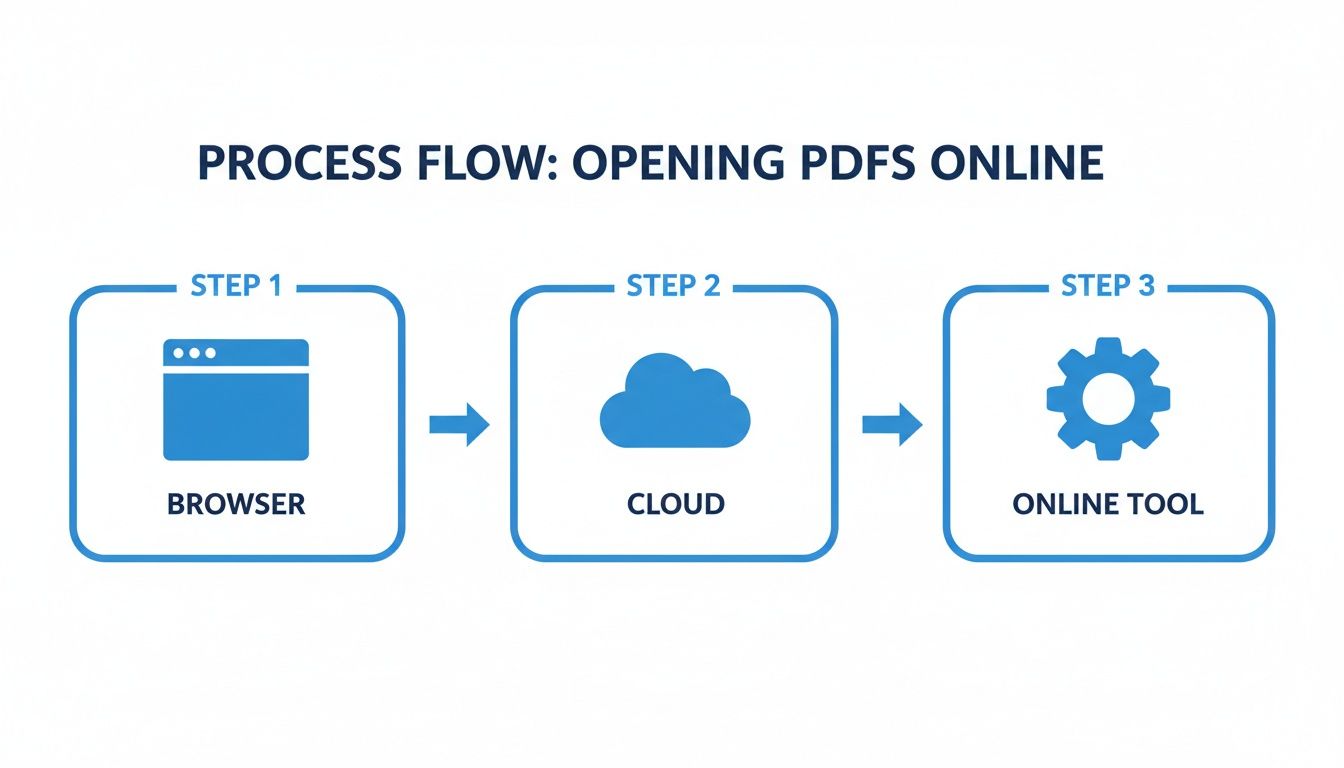
As you can see, whether you're using a browser, cloud storage, or a dedicated tool, the end goal is always the same: making your document easily accessible online.
Real-World Professional Scenarios
Let's walk through a common example. A consultant has just finished a deep-dive market analysis report for a major client. It’s full of sensitive data and strategic advice.
Instead of just emailing the PDF and hoping for the best, she uploads it to a platform like Hostmora and adds password protection. She sends the client the clean, branded link in an email and the password in a separate text message for security. The client just clicks, enters the password, and views the report right in their browser. No downloads, no software hassles, just immediate access.
By publishing our reports as secure links, we’ve eliminated version control issues and can see exactly when clients review our work. It’s a small change that has made our entire delivery process more professional and efficient.
This method puts the consultant in the driver's seat. If she needs to update a chart or fix a typo, she can replace the file on the backend without ever changing the link—the client will always see the latest version. Plus, the analytics tell her exactly when the report was opened, which is perfect for timing a follow-up call.
To make it even easier, you can convert your secure PDF link into a QR code, perfect for sharing during in-person meetings.
This workflow is a game-changer for all sorts of professional documents:
- Sales Proposals: Get notified the moment a prospect opens your proposal.
- Portfolios: Share your creative work without forcing clients to download massive files.
- Training Manuals: Push updates to your entire team with one permanent link.
- Client Invoices: Send a professional, easy-to-access invoice that can't be easily edited.
When you turn your PDF into a live link, you’re not just sharing a file—you’re controlling the entire experience. You give your audience a seamless way to view your work, gather useful data for yourself, and present everything in the most polished way possible.
Keeping Your Documents Safe in the Cloud
Let's be honest. Uploading a sensitive file to some random website just to open a PDF online feels a little sketchy. And it should. Those free, ad-plastered converter sites can be a minefield for your privacy, and the real risk isn't just the pop-ups. It's what happens to your file long after you've closed the browser tab.
Think about it: many of these free tools are incredibly vague about how long they keep your files or who gets to see them. That financial report or confidential contract could be sitting on an unknown server for who knows how long. It’s a gamble you don’t need to take.
A Quick Security Checklist
Before you upload anything, take 30 seconds to run through this mental checklist. It’s a simple habit that can save you a world of trouble.
- Look for the Lock: Is there a padlock icon and HTTPS in the website’s address bar? This means your connection is encrypted, scrambling the data as it travels. If you don't see it, that's your cue to leave.
- Scan the Privacy Policy: You don’t need a law degree to do a quick check. Hit
Ctrl+F(orCmd+F) and search for terms like “delete,” “store,” “retain,” or “third party.” A good service will be upfront, often stating that files are automatically wiped within a few hours. - Trust Your Gut: Does the site look thrown together or is it overloaded with shady ads? These are classic red flags. When in doubt, stick with established platforms. If you're exploring your options, our guide on choosing a Google Drive alternative has some great secure recommendations.
A secure online tool is transparent. If you have to dig around to figure out how they handle your data, it's probably time to find a better, safer service.
Taking Control with Password Protection
For the really important stuff—client proposals, internal audits, you name it—you can’t just rely on the service's security alone. You need to put a lock on the file itself. This is where password protection becomes your best friend.
Some platforms, like Hostmora, build this right into the workflow. You can upload your PDF, set a unique password, and then generate the shareable link. This is a game-changer. It means even if the link gets forwarded to the wrong person, the document inside remains completely inaccessible.
Learning how to make PDFs password protected is a crucial skill for anyone handling sensitive information. It transforms a simple file into a secure digital asset, giving you total confidence that only the right people can open it.
Troubleshooting Common PDF Viewing Glitches
We’ve all been there. You click a link to a critical report, only to be met with a blank screen, a wall of garbled text, or a frustrating error message. When you just need to open a PDF online, these hiccups can stop you in your tracks. But don't worry—most of these issues are surprisingly easy to fix.
Before you jump to the conclusion that the PDF file is corrupt, take a look at your browser. It’s often the real culprit. Over time, your browser’s cache gets cluttered with old data that can interfere with how new documents are displayed.
A quick cache clear is usually all it takes. You'll find this option in your browser’s settings, typically under "Privacy and security," and it often solves the problem instantly.
Another great trick is to try opening the link in an incognito or private browsing window. This forces the page to load without any extensions or cached data getting in the way. If the PDF suddenly works perfectly, you know one of your browser extensions is causing the conflict.
When the Problem Is the File Itself
Sometimes, the issue isn't on your end at all. The problem might be baked into the file's permissions or how it was saved. This is especially common with links from cloud storage services like Google Drive or OneDrive.
For instance, if you get an "access denied" error from a Google Drive link, the sender just needs to update the sharing settings. The fix is as simple as switching the file's access from "Restricted" to "Anyone with the link."
Here are a few other common headaches and how to solve them:
- You See Gibberish Text: This usually happens when your browser tries to download the PDF instead of opening it. Dig into your browser settings (in Chrome, look under "Site Settings") and make sure you've told it to open PDFs automatically.
- A Password Is Rejected: You're positive you have the right password, but it won't work. First, try copying and pasting it to avoid any typos. Also, be on the lookout for extra spaces before or after the password—they’re a common cause of login failures.
- The Link Is Broken: If you hit a 404 error, it means the file has been moved or deleted from the server. There's no technical fix for this one; you’ll have to reach out to the sender for an updated link.
A good rule of thumb is to always start with the simplest fix. A browser refresh, a cache clear, or a quick check of file permissions will solve the problem more often than not. It can save you from a lot of unnecessary frustration and a technical deep dive.
Got Questions About Online PDFs? We’ve Got Answers.
We get a lot of the same questions about handling PDFs online, so we’ve gathered them all here. Think of this as the final piece of the puzzle, clearing up any lingering doubts you might have.
Is It Really Safe to Open a PDF From an Unknown Source?
You should always treat PDFs from unknown senders with caution. It’s not just a theoretical risk; malicious PDFs can hide scripts that steal data or links that lead to phishing sites. A good rule of thumb is to let your browser's built-in viewer handle it first. This keeps the document in a "sandbox," safely walled off from the rest of your computer.
For anything remotely sensitive, stick with trusted platforms that take security seriously. If a site looks sketchy or isn't secured with HTTPS, just don't use it. It's not worth the risk.
Why Does My PDF Look Weird Online Compared to My Desktop App?
This is almost always a font problem. If the person who created the PDF used a fancy font that your web browser doesn't have, the browser just swaps in a replacement. This can throw off spacing, formatting, and the whole look of the document. Complex graphics and layered images can also render differently from one viewer to another.
Pro Tip: To guarantee your PDF looks exactly as you designed it for every single person who opens it, use a publishing service. These tools pre-process the file so it displays perfectly on any browser or device, eliminating those frustrating font and layout surprises.
Can I Actually Edit a PDF After I Open It Online?
That depends entirely on the tool you're using. Your browser’s viewer or the basic one in Google Drive are just for looking, not touching. They’re read-only by design.
But if you need to make changes, dedicated online editors from services like Smallpdf or Adobe give you a full suite of editing capabilities. On the flip side, if you want to make sure no one can alter your final document, publishing it as a secure web link is the way to go. It locks the content down.
What’s the Best Way to Share a Really Big PDF?
Whatever you do, don't email it. Large attachments are the fastest way to get your message bounced back by an email server or sent straight to your recipient's spam folder. It's a clumsy approach that just doesn't work well anymore.
The much smarter method is to upload the file to a cloud service and share a simple link. For professional documents, using a dedicated publishing platform is even better. They store your file on a global Content Delivery Network (CDN), so it loads instantly for anyone, anywhere, without forcing them into a slow download. It's faster, more secure, and looks far more professional.
Ready to stop emailing attachments and start sharing professional, secure, and trackable online documents? With Hostmora, you can turn any PDF into a live link in seconds. Just drag, drop, and you're done. Try Hostmora for free and see how easy it is to share documents online.