
The quickest, no-fuss way to see your HTML file in action is to simply drag it from your folder and drop it right into an open browser window.Boom. It renders instantly, showing you exactly what your visitors would see. It's my go-to method for a fast check or a quick preview.
From Code on Your Computer to a Live Preview
We've all been there—staring at a folder full of HTML, CSS, and JavaScript files, wondering what the next step is to actually see the thing you've built. This guide is here to clear up that confusion and show you how to bring your code to life, whether you're just starting out or you're a seasoned pro.
We'll cover everything from the simple drag-and-drop method to more advanced setups using code editors and local servers. Understanding the difference between opening a file directly from your computer and viewing it on a live server is a small detail that makes a huge difference in your workflow.
The Journey From Local File to Live Website
Getting your HTML from a file on your desktop to a live, public website follows a pretty standard path. This diagram breaks down the typical journey, showing how you move from a basic local preview to a professional development environment and, finally, to a live site for the world to see.
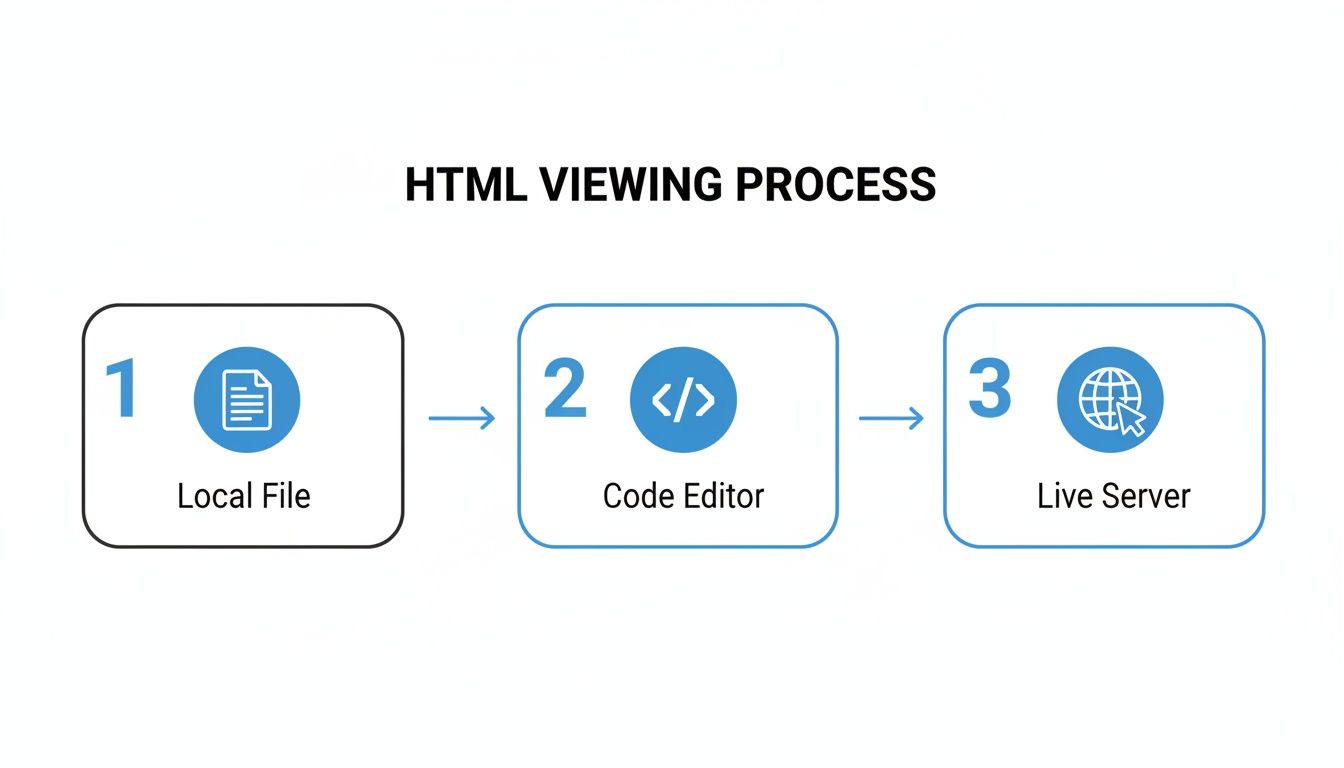
As you can see, viewing a file locally is fantastic for initial spot-checks. But as soon as you start working with more complex features, a code editor and a local server give you a much more accurate picture of how your site will behave in the wild.
Why This All Matters
Knowing how to open an HTML file is fundamental because it's the language that builds the web. Seriously—an incredible 97.3% of all websites use HTML, according to data from W3Techs. It's everywhere. This is why every tool, from the simplest browser to the most complex development environment, is built to handle it perfectly.
The real challenge isn't just opening the file. It's making sure the version you see on your machine is identical to what everyone else sees online. That’s why understanding the difference between a local
file:///preview and a livehttp://server is so important for any project you care about.
If you need a more powerful way to inspect your code on the fly, you might want to check out our guide on using an online HTML viewer for real-time validation and feedback. The right tool always comes down to what you're trying to accomplish, whether it's a quick check for yourself or a final review before shipping it to a client.
A Quick Look at HTML Viewing Methods
Before we dive deep into the step-by-step instructions, it's helpful to see the different methods side-by-side. Each approach has its place, and choosing the right one can save you a lot of time and headaches.
| Method | Primary Use Case | Best For | Key Advantage |
|---|---|---|---|
| Browser Drag & Drop | Quick, simple visual checks of a single HTML file. | Non-technical users, students, quick proofing. | Dead simple. No software or setup required. |
| Code Editor/IDE | Actively developing and editing code with a live preview. | Developers, web designers, serious hobbyists. | All-in-one environment for coding and viewing. |
| Local Dev Server | Simulating a real web server environment on your machine. | Developers working with server-side logic or complex JS. | The most accurate preview of the final live site. |
| Online Platform | Publishing your HTML to share it with the world. | Anyone wanting to make their site public. | Globally accessible via a real URL. |
This table should give you a good starting point for figuring out which method fits your current needs. Whether you're making a quick edit or building a full-blown web application, there's a viewing method that's perfect for the job.
Viewing Local HTML Files on Your Computer
Before you can show your web project to the world, you need a way to see it yourself. Opening an HTML file directly on your computer is the quickest, most fundamental way to get a visual check on your work. No special software needed—this works straight out of the box on Windows, macOS, and Linux.
In most cases, a simple double-click on your .html file is all it takes. Your operating system is usually configured to open these files in your default web browser, giving you an instant preview.
Mastering the "Open With..." Command
While double-clicking is easy, the right-click menu is where you gain real control. This is an essential skill for anyone serious about web development or even just making sure a simple webpage looks right for everyone.
By right-clicking your HTML file and selecting "Open with...", you can choose exactly which browser to view it in. This is a crucial step for cross-browser testing. You can quickly see how your layout holds up in Chrome, Firefox, Safari, or Edge without changing any system-wide settings.
Think about it: a small business owner launching a new landing page needs to be sure it works for as many people as possible. They could use this method to check it in Chrome, which commands over 65% of the browser market, and then immediately check it in Safari to cover a huge chunk of Apple users.
Right-clicking a file like index.html in your file explorer brings up this handy menu, putting the "Open with..." command right at your fingertips.
Making Your Favorite Browser the Default
If you find yourself constantly right-clicking to open files in the same non-default browser, you can streamline your workflow by setting a new default for all HTML files. This tells your computer which browser to use every time.
- On Windows: Find an
.htmlfile, right-click it, and navigate to "Open with..." > "Choose another app." Pick your preferred browser from the list and, most importantly, tick the box that says, "Always use this app to open .html files." - On macOS: Right-click the file and choose "Get Info." Look for the "Open with:" section, select your browser from the dropdown, and then click the "Change All..." button to make this the default for every HTML file on your Mac.
A quick tip: When you view a file this way, look at the browser's address bar. You'll see the URL starts with
file:///. This is your clue that you're looking at a file stored on your local machine, not one being served from the web.
"Why Are My Images and CSS Broken?"
It’s a classic moment of frustration: you open your perfectly crafted HTML page, only to find it’s a mess of unstyled text with broken image icons everywhere. Don't panic. This is almost always a simple problem with file paths.
When you open an HTML file locally, your browser looks for linked files—like images and stylesheets—relative to where the HTML file is saved. For example, if your index.html is in the main project folder, but your style.css is inside a subfolder named css, the link in your HTML has to reflect that structure: <link rel="stylesheet" href="css/style.css">.
If the path is wrong, the browser can't find the file, and your page won't load the styles or images. Always double-check your folder structure and make sure the paths in your code match it exactly.
Using a Code Editor for an Enhanced Workflow
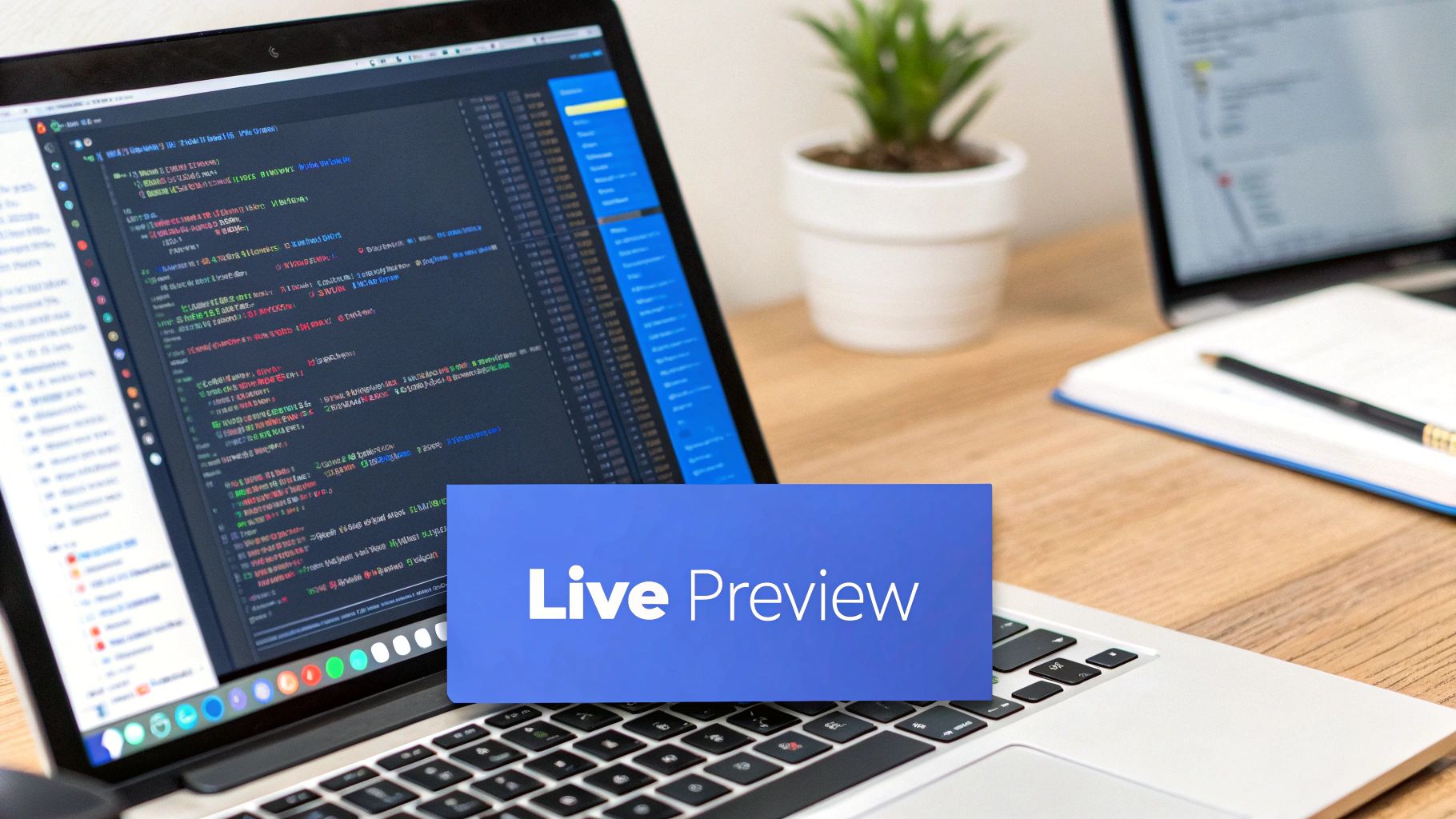 Sure, opening an HTML file directly in a browser is fine for a quick peek. But when you’re actually building or tweaking a web page, that’s when you need to level up your tools. The real magic happens inside a code editor like Visual Studio Code, Sublime Text, or Atom. These aren't just fancy text editors; they are command centers for web development.
What sets them apart is that they’re built specifically for people who create things for the web. They give you syntax highlighting that makes code readable at a glance, smart code completion that saves you from endless typing, and project management tools that keep your files from becoming a chaotic mess. You get to see the structure, the code, and the preview, all in one cohesive workspace.
The Magic of Live Preview
One of the best things to come out of modern code editors is the live preview extension. Picture this: you’re adjusting some CSS to get a button color just right. Instead of the old, tedious cycle of save, switch to the browser, and hit refresh, you have your code on one side of the screen and a browser preview on the other. Every single time you save a change, the preview updates instantly.
This immediate feedback is a massive productivity boost. It closes the loop between writing code and seeing the result, which helps you work faster and catch mistakes the moment they happen.
- Popular Extensions: The go-to for VS Code is an extension called "Live Server." Other editors have similar packages that do the same thing.
- How It Works: These tools spin up a tiny local development server on your machine. This is a much better way to preview your site because it more closely mimics how it will behave on a real web server, avoiding issues you sometimes get with opening a
file:///path directly.
When you're ready to move beyond just the structure, you'll want to get comfortable with styling. Learning what is custom CSS is your next step to controlling the look and feel of your page.
Keeping Your Project Organized
Another huge win for using a proper code editor is how it handles entire projects, not just individual files. When you open a project folder, the editor gives you a clean file tree view. You can see your index.html, your css and js folders, and all your images, all laid out in a clear hierarchy.
This kind of organization is what saves you from the headache of broken images and un-styled pages. Because the editor understands the relationships between your files, it’s easy to link your stylesheet (<link href="css/styles.css" ...>) or drop in an image (<img src="images/logo.png" ...>) with confidence.
Working inside a project folder from the start builds the right habits. It ensures all your paths are correct and your site will work perfectly when you finally upload it to the web. It’s the professional approach that turns a jumble of loose files into a cohesive, functional project.
If you're building from scratch, our guide on how to créer un site en HTML is a great resource that walks you through everything from file structure to the final code. Ultimately, a good code editor gives you the control and visibility you need to build with confidence.
Publishing Your HTML Online for Global Access

Working with HTML files on your computer is great for building and testing, but the real magic happens when you share your creation with the world. This is the moment you graduate from a local file:/// path to a live, public URL that anyone can visit. Publishing your HTML file transforms it from a private document into a public asset.
Services like Hostmora are built to make this leap incredibly simple. Gone are the days of wrestling with complex server setups or command-line tools. Now, you can just drag your index.html file—or even a ZIP file of your entire project—straight into a web browser. In a matter of seconds, you’ll have a live link ready to share.
From Your Desktop to the World in Seconds
The beauty of modern publishing platforms is how they combine speed with simplicity. They handle all the technical grunt work that used to be a huge roadblock for creators and small businesses. This lets you forget about the backend headaches and stay focused on your content.
Here’s a glimpse of what happens automatically behind the scenes when you upload your file:
- SSL Certificate: Your site instantly gets the "HTTPS" treatment, which is non-negotiable for building visitor trust and helps with search engine rankings.
- Global CDN: Your files are spread across a worldwide network of servers, ensuring your page loads quickly for visitors, whether they're next door or across the globe.
- Asset Optimization: Images and other files are automatically compressed, giving everyone who visits your site a faster, smoother experience.
This streamlined process turns a once-daunting task into a simple, two-step action. It’s all about making it easy to open html files not just for yourself, but for a global audience. For developers who prefer an approach tied to their code repository, it's also worth checking out a comprehensive guide on using GitHub Pages, which is another powerful free option.
Why This Matters in Today's Online World
In a world where everyone is online, making your content accessible is everything. The internet’s growth has been staggering; as of October 2025, there were 6.04 billion internet users, which is 73.2% of the planet’s population. With a huge slice of that traffic coming from mobile devices, a fast, secure, and globally available site isn’t just a nice-to-have—it’s a necessity. You can dive deeper into the latest trends in the Digital 2026 Global Overview Report.
Imagine a freelance designer needing to send a portfolio draft to a client overseas, or a local restaurant wanting to share its new menu with a simple QR code. In both cases, a fast, reliable, and professional-looking link is what makes the difference.
Practical Scenarios for Instant Publishing
This ease of publishing isn’t just for seasoned developers. It opens up a world of possibilities for everyone. A student can host a class project, a job seeker can publish an interactive resume, or a startup can launch a quick landing page to test a new idea.
The platform takes care of the technical side, but it also gives you tools to simplify sharing. You can attach a custom domain for that professional touch or even password-protect a link for a private client preview. This philosophy is shared by other modern hosting solutions, and you can learn about a different take in our article on Firebase website hosting. Ultimately, the goal is the same: get your content online quickly and securely.
Troubleshooting Common HTML Viewing Problems
It’s a moment every developer and creator has faced. You double-click an HTML file, expecting to see your beautiful new webpage, but instead, you’re greeted by a jumble of raw code or a broken layout. Frustrating, right?
Don't worry. These issues are almost always quick fixes once you know what to look for. Let's walk through the usual suspects so you can get your page looking right in no time.
Why Am I Seeing Code Instead of My Webpage?
This is easily the most common hiccup. You open your file and see a wall of text—your <p> tags, <div>s, and all—right there in a plain window. This isn't a problem with your code; it's a file association issue.
It simply means your computer's default program for .html files is a text editor like Notepad or TextEdit instead of a web browser.
The fix is easy. Right-click the HTML file, find the "Open with" option in the context menu, and select a browser like Google Chrome, Firefox, or Safari. To prevent this from happening again, look for an option like "Always use this app" to make that browser the new default.
Diagnosing Broken Images and Missing CSS
Here’s another classic scenario: your text shows up, but all the images are missing, and the styling is gone. The page looks like a plain, unformatted document from the 90s. This is a dead giveaway for an incorrect file path.
When you open an HTML file locally, your browser needs exact directions to find other files like images and stylesheets. These paths are relative to where your index.html file is saved.
- Real-World Example: Imagine your project folder has
index.htmlat the root and animagessubfolder with yourlogo.pnginside. - The Solution: The path in your HTML needs to be
<img src="images/logo.png">. If you just write<img src="logo.png">, the browser will look for the logo in the same folder as your HTML file, come up empty, and show a broken image icon.
Take a moment to double-check that your folder structure on disk perfectly matches the paths you've written in your code. This simple verification fixes the problem over 90% of the time.
A pro tip I always share is to build your projects inside a dedicated folder and open that entire folder in a code editor like VS Code. The editor’s file tree gives you a clear visual of your structure and even helps with path auto-completion, cutting down on typos from the start.
What Are These Weird Characters and Symbols on My Page?
Ever opened your page and seen strange symbols like "Â" or "�" sprinkled throughout your text? That’s a classic character encoding mismatch. It happens when the browser gets confused and misinterprets the characters in your document.
Thankfully, the fix is a single line of code. All you need to do is tell the browser which character set to use. The modern web standard is UTF-8, which is designed to handle nearly every character and symbol from languages all over the world.
Just add this meta tag inside the <head> section of your HTML document:
This one line explicitly tells the browser how to read your file, ensuring all your text displays exactly as you wrote it. I recommend making this a non-negotiable part of every HTML file you create.
What Happens After You Open Your HTML?
So, you've successfully opened your HTML file and can see it in your browser. That's a huge milestone, but it's really just the beginning. Now that you've confirmed your code works, the real fun starts—turning that local file into something you can actually share and use.
The magic isn't just in writing clean code; it's in what you do with the finished product. This is where a simple publishing tool like Hostmora can make a world of difference, helping you move from a private preview to a public, professional presence.
Taking Your Project Live
Once you get your HTML file online, you can start using features that just aren't possible with a local file. Instead of emailing an attachment or dealing with broken links, you can instantly make your project look and feel more professional.
Here’s what you can do right away:
- Add a Custom Domain: Swap out the generic URL for a branded, memorable address that builds instant credibility.
- Create a QR Code: Effortlessly connect your physical marketing—like a business card or a restaurant menu—directly to your digital content.
- Password-Protect Your Page: Need to share a draft with a client or a private portfolio? Lock it down so only the right people can see it.
This is the leap from a simple HTML document to a powerful, real-world asset. It’s all about making your work accessible, professional, and genuinely useful.
Think of your HTML less as code to be viewed and more as a communication tool waiting for an audience. Everything from a custom domain to a QR code is designed to close that gap.
The need for simple publishing solutions is exploding. Did you know that an average of 252,000 new websites are created every single week? This incredible growth, highlighted in these website creation statistics, shows just how many people are looking for easy ways to get their work online.
For developers, this means you can use a platform like Hostmora for quick prototyping, sharing technical docs, or even hosting a bare-bones API status page. No matter who you are, the core principle is the same: stop previewing and start publishing.
Got Questions? We've Got Answers
Stuck on a tricky HTML issue? You're not alone. Here are some quick answers to the questions we see pop up all the time, whether you're just starting out or have been coding for years.
Why Is My HTML File Opening as Plain Text?
This is a classic one. It almost always means your computer thinks .html files should be opened by a text editor instead of a web browser. It's just a file association mix-up, and luckily, it's an easy fix.
Just right-click on your HTML file, find the "Open with" option, and select your browser of choice (Chrome, Firefox, Safari, etc.). To avoid this happening again, look for a checkbox that says something like "Always use this app" to set it as the new default. Problem solved for good.
Can I Actually Open an HTML File on My Phone?
Technically, yes, but it's usually not a great experience. While a mobile browser can open a file saved on your phone's local storage, you'll often find that none of your CSS or images load with it. You're left with a broken, unstyled page.
For a reliable preview on any device, your best bet is to upload the file to a publishing service. That way, you get a real web link that renders your page perfectly on phones, tablets, and desktops—ensuring everyone sees your work exactly as you designed it.
What's the Real Difference Between a Local File and a Web Server?
When you open a file locally, you're just telling your browser to read it directly from your computer's hard drive. You'll see file:/// at the start of the address in your browser bar. In this local mode, some things, especially more complex JavaScript, can get a bit wonky or not work at all.
On the other hand, viewing a file from a web server means you're accessing it over the internet using the HTTP/S protocol, just like any other website. This is the true test environment. It gives you an accurate picture of how visitors will see your site, making sure all your scripts, styles, and other assets load exactly as they're supposed to.
Ready to stop previewing and start publishing? With Hostmora, you can drag and drop your HTML file and get a live, shareable link in seconds. Try it for free today!