
Ever been sent an .ai file and had that sinking feeling because you don't have Adobe Illustrator? You're not alone. It's a common hurdle, but once you understand what's inside that file, figuring out how to open it becomes much easier.
Why Can AI Files Be So Tricky to Open?
When a designer hands over an .ai file, they're giving you the entire blueprint for a design, not just a picture of the finished product. Think of it this way: a JPEG or a PNG is like a photograph of a cake, but an .ai file is the recipe, with every ingredient and instruction intact.
This "recipe" is made of vectors—mathematical equations that map out every line, curve, and color. It's the secret sauce that allows logos and illustrations to be scaled from a tiny business card to a massive billboard without losing an ounce of quality.
The catch is that .ai is Adobe's proprietary format, created specifically for Adobe Illustrator. It's the industry standard for a reason. With Adobe Creative Cloud boasting an estimated 32.5 million subscribers and Illustrator capturing an 8% market share of all creative tools, .ai files are everywhere. You can dive deeper into these Adobe software statistics to see just how widespread they are.
Getting to the Root of the Problem
The real issue isn't just about having the right program; it's about keeping the file's editable, high-quality vector information safe and sound. You can't just rename a file from logo.ai to logo.jpg and expect it to work. That’s like trying to play a Blu-ray disc in an old CD player—the technology is fundamentally different.
When you need to open an Adobe Illustrator file, your goal is to access the vector data inside. This includes all the layers, paths, text, and effects that a designer painstakingly created.
If you improperly convert that .ai file, all that rich detail gets flattened into a simple, pixel-based image, and the magic is lost.
This is especially important for folks who aren't designers themselves, like project managers or marketers. Understanding that an .ai file is the source document—the master key—and not just another image, sets the right expectations for collaborating with your creative team. Thankfully, you no longer need an expensive Adobe subscription just to peek inside one of these files. There are plenty of great tools out there that can help.
Your Go-To Methods for Opening AI Files
So, you've got an Adobe Illustrator file on your hands. What you do next really boils down to one simple question: do you need to edit it or just see what's inside?
Are you the original designer who needs to tweak a path? Or maybe you're a collaborator who just needs to approve the artwork? The tool you choose depends entirely on your answer. This flowchart breaks down that initial decision.
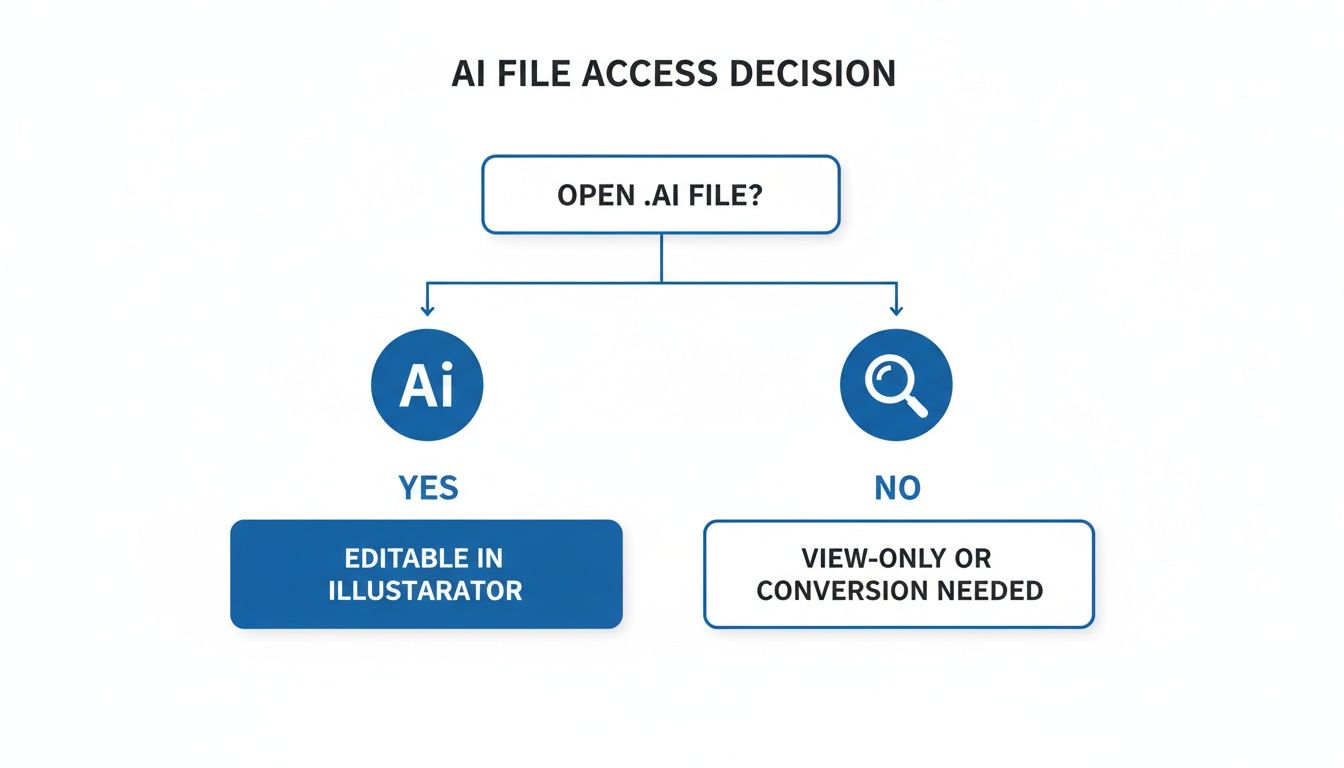
As you can see, once you know whether you’re editing or viewing, your options open up quite a bit.
Inside The Adobe Ecosystem
Naturally, the most straightforward way to open an Adobe Illustrator file is with Adobe Illustrator itself. If you have a Creative Cloud subscription, this is a no-brainer. You get 100% compatibility—just hit File > Open, and every layer, path, and effect will be exactly where the creator left it.
What if you're working with an older version, say CS6? You might hit a snag if the file was saved with newer features. Illustrator usually gives you a heads-up with a warning, then opens the file in a "legacy" mode. This often means complex effects get flattened, but it’s better than nothing.
For those without Illustrator, other Adobe apps can lend a hand. Adobe Photoshop can open .ai files, but it will rasterize them. In simple terms, it converts the clean, scalable vector into a flat, pixel-based image, like a PNG.
Pro Tip: When Photoshop’s import dialog box pops up, make sure to set a high resolution (I recommend 300 DPI) and the dimensions you need from the get-go. Once it's rasterized, you can't scale it up without it looking pixelated and blurry.
Adobe Acrobat is another great choice for just viewing. Most designers save .ai files with the "PDF Compatible" option enabled, which handily embeds a PDF preview inside the file. This lets Acrobat open and display the artwork perfectly, though you can’t edit any of the vector elements. It's a fantastic trick for sending proofs to clients. It follows the same principle as when you need to convert an entire website into a PDF for easy sharing—it's all about creating a universal, view-only document.
Comparing Popular Tools for Opening AI Files
To help you decide which tool is right for you, here’s a quick-glance comparison of the most common applications. This table highlights what each one is best for, its editing power, and what it'll cost you.
| Tool | Primary Use | Editing Capability | Cost |
|---|---|---|---|
| Adobe Illustrator | Professional vector design & editing | Full | Subscription |
| Adobe Photoshop | Image editing & raster graphics | Rasterizes file (no vector editing) | Subscription |
| Adobe Acrobat | Viewing & reviewing documents | None (view-only) | Free reader / Paid Pro |
| Affinity Designer | Professional vector design & editing | High compatibility | One-time fee |
| Inkscape | Open-source vector editing | Good, with some limitations | Free |
| Figma | UI/UX design & collaboration | Imports for use in designs | Freemium |
| Canva | Quick-and-easy design templates | Basic import & placement | Freemium |
As you can see, a paid subscription to Illustrator gives you the most power, but free tools like Inkscape and Figma offer impressive capabilities if your needs are more specific.
Using Illustrator Alternatives for Editing and Viewing
If you're operating outside the Adobe universe, don't worry. Several powerful apps handle .ai files surprisingly well, and many are much easier on the wallet.
Here are a few of my favorites:
- Affinity Designer: This is a huge favorite among designers looking to ditch the subscription model. It's a one-time purchase and does a fantastic job preserving layers, groups, and vector paths from .ai files. A very strong contender for serious editing work.
- Inkscape: As a completely free and open-source vector editor, Inkscape is a powerhouse. Its compatibility isn't always perfect—it can struggle with complex gradients or newer Illustrator effects—but for opening and making basic edits, it's an incredible resource.
- Figma: This collaborative, browser-based tool is a game-changer for UI/UX teams. You can just drag and drop an .ai file right onto your canvas to incorporate vector logos and icons into your mockups.
- Canva: While known for its templates, Canva now supports importing .ai files. This is perfect for a marketing team member who just needs to drop a logo into a social media post without any fuss.
Keep in mind that each of these tools interprets the .ai file data a little differently. Simple logos and icons will usually import flawlessly. But for complex illustrations with tons of effects, you might see some minor visual changes. The best approach is to try a few and see which one handles your typical files best.
Don't Have Illustrator? Here's How to Open AI Files Anyway
So, you've been sent an .ai file by a designer, but you’re a marketer, a project manager, or a client who doesn't have an Adobe Illustrator subscription. What now? Don't worry, you don't need to shell out for expensive software just to see what's inside. There are several great ways to open Adobe Illustrator files without any fuss.
These methods are perfect for collaborators who just need to view artwork, give approvals, or even convert a file for a presentation. The goal is simple: get you access, fast.
Try Your Computer's Built-In Tools First
For a quick peek, you might not need to download a single thing. Most modern computers have built-in viewers that can handle .ai files, thanks to a common practice where designers save them with PDF compatibility enabled.
If you’re on a Mac, you're in luck. The Preview app is your go-to. Just double-click the .ai file, and nine times out of ten, it will pop right open like a regular PDF, giving you a crystal-clear view of the design.
Keep in mind: This is strictly for viewing. You won't be able to see layers, edit vector paths, or pull out individual assets. But for a quick "yep, that's the logo," it's perfect.
Windows users don't have a built-in tool as reliable as Preview for this. You might see a thumbnail, but to actually open and view the file, you'll likely need to turn to another option.
Use a Free Online AI Viewer
When you're on a machine without any design software, browser-based AI viewers are a lifesaver. These websites let you upload an .ai file directly and view its contents instantly. Many even let you convert and download the artwork as a JPG, PNG, or SVG.
A few things to consider before you upload:
- Speed: They're incredibly convenient. Just drag, drop, and you're done. No installation needed.
- Security: Be smart about what you upload. If the design is confidential, using a public online tool might not be the best idea. Always give their privacy policy a quick scan.
- File Size: Free services often have upload limits. This can be a problem if you're dealing with a particularly complex or large illustration.
These tools work on the same principle as something like an online HTML viewer—they give you a quick, accessible way to render a file without needing the native software.
Get Your Hands Dirty with Inkscape
Need to do more than just look? Inkscape is the undisputed king of free, open-source vector software. It's a seriously powerful program that can not only open AI files but also let you edit them with a surprising amount of control.
Think of Inkscape as the free, community-built alternative to Illustrator. While it might stumble on some hyper-specific Adobe effects, it handles the vast majority of vector files beautifully.
Just download and install it, then head to File > Open and find your .ai file. Inkscape will import it, preserving layers, paths, and even text in many cases. From there, the floor is yours—tweak colors, move elements around, or export the design to a more universal format like SVG or PNG. For anyone who needs to actually work with an AI file without paying for Illustrator, this is your best bet.
Troubleshooting Common AI File Issues
Opening an Adobe Illustrator file should be a straightforward click, but every now and then, a file decides to throw a curveball. You might get a cryptic error message, or the design just looks… wrong. These glitches can grind your workflow to a halt, but the good news is that most of them are common problems with surprisingly simple fixes.
The key is knowing what to look for before you even try to open the file. Anticipating these common hurdles will save you a world of frustration.
Solving the Missing Fonts Dilemma
The "missing fonts" warning is probably the most familiar issue for anyone who regularly handles design files. It simply means the artwork was created using fonts you don't have installed on your computer. When this happens, the software substitutes the missing font with a default one, which often messes up the entire layout.
Here’s how you can tackle this head-on:
- Request a Packaged File: This is the gold standard. Ask the original designer to use Illustrator's "Package" feature. It neatly bundles the
.aifile, all linked images, and the actual font files into a single, organized folder. Problem solved. - Convert Text to Outlines: Another option is for the designer to convert the text to outlines before sending it over (the command is
Type > Create Outlines). This essentially turns the letters into vector shapes, so they no longer depend on any font files. The trade-off? The text is no longer editable. - Allow Font Substitution: If you're just trying to get a quick look, programs like Affinity Designer or Inkscape will offer to substitute the font. It’s a decent workaround for a quick preview, but it can dramatically alter the design's look and feel.
The best fix is always a proactive one. Make it a habit to ask designers to either package their files or, at the very least, send a PDF version alongside the native
.aifile. This guarantees everyone sees the design exactly as it was intended.
Navigating Version Compatibility Problems
Another all-too-common headache is trying to open an Adobe Illustrator file that was saved in a newer version of the software than what you have. Adobe Illustrator is constantly evolving, and features from a new release often aren't backward-compatible.
When a designer saves a file, they have the choice to save it for a legacy version (like Illustrator CS6). If they forget to do this, your older program simply won’t know how to read the modern data, and you’ll be met with an error. The only real solution here is to reach out to the sender and ask them to re-save the file in a version that your software can handle.
Fixing Broken Image Links and Color Mismatches
Ever opened a design file and seen empty boxes with an "X" through them where beautiful images should be? That’s the classic sign of a broken image link. This happens when images are linked to the file instead of being embedded within it. A linked image is just a reference to an external file path, so if that image file isn't included with the .ai file, Illustrator has no idea where to find it. The fix is to ask the designer to either embed the images or, better yet, send a packaged file.
Finally, keep an eye out for color profile mismatches. A file created in CMYK (for print) might look weirdly bright or just "off" when viewed on a screen that operates in RGB. While this won't stop you from opening the file, it's a critical detail to be aware of to ensure the colors in the final output are what you expect.
Sharing and Exporting Your Illustrator Designs
Once you’ve put the finishing touches on your masterpiece, the next step is getting it out into the world. Exporting from Illustrator isn't just about saving—it's about translating your vector design into a format anyone can use, whether they can open Adobe Illustrator files or not.
Choosing the right format is everything. The decision really comes down to where the design will live. Is it going on a website? A printed brochure? Or is it just a proof for a client to review? Each scenario calls for a different file type to maintain quality and avoid headaches down the road.
Choosing the Right Export Format
Think of exporting as dressing your design for a specific occasion. You wouldn't send a massive PNG when a tiny, crisp SVG is all that's needed. Getting this right from the start makes life easier for you, your client, and anyone else who has to work with the file.
Here are the heavy hitters and my go-to uses for each:
- SVG (Scalable Vector Graphics): This is the undisputed champion for web design. Because SVGs are vector, they stay perfectly sharp no matter how much you scale them up or down. This makes them perfect for logos, icons, and any other graphics on a website. Plus, their file sizes are incredibly small.
- PDF (Portable Document Format): When you need to send a proof that looks exactly like it does on your screen, PDF is your best bet. It locks in your layout, fonts, and vector data into one neat package that opens perfectly on just about any device. It's the standard for client previews and print-ready files.
- PNG (Portable Network Graphics): Need a transparent background? PNG is the answer. It’s a raster format (meaning it’s made of pixels), so it's best for web graphics like logos or illustrations that need to sit cleanly on top of different colored backgrounds or photos.
A pro tip I swear by is the "Export for Screens" panel (
File > Export > Export for Screens). It lets you export multiple assets or even entire artboards into different formats and sizes all at once. It is an absolute game-changer and a massive time-saver.
A Smarter Workflow for Sharing Files
Let’s be honest: emailing attachments back and forth is a mess. It creates version-control nightmares and clogs up everyone's inbox. A much better way to work is to use a file-sharing platform that generates live, shareable links for your exported designs. This is where a service like Hostmora really shines.
Instead of attaching that PDF or SVG, you upload it and get a secure, professional-looking link to send to clients or colleagues. It's a simple switch that completely modernizes how you share your work.
For example, with a link-based workflow, you can:
- Generate Instant Previews: Clients can click a link and see the design right in their browser—no software needed.
- Add Password Protection: Keep confidential projects safe by requiring a password to view the file.
- Track Engagement: Get simple analytics to see if and when a client has actually opened the files you sent.
This approach turns your static files into dynamic, trackable assets. It’s the same idea behind using a powerful Google Drive alternative that gives you more control and branding over your shared work. Adopting this workflow is about more than just delivering a file; it's about creating a more professional and organized system for collaboration.
Got Questions About AI Files? We've Got Answers
Even with a bunch of ways to open Adobe Illustrator files, some questions always seem to surface. Let’s tackle the most common ones head-on so you can get back to your project without a hitch.
Can I Actually Open an AI File on My Phone?
Yes, you can, but it’s not the full experience. You can definitely view AI files on an iPhone or Android using apps like the mobile version of Adobe Illustrator or a similar viewer. Just be aware that editing features are usually quite limited compared to what you get on a desktop.
Honestly, a better way to handle this for quick client approvals or sharing on the go is to upload the file to a service that creates a mobile-friendly link. This lets anyone open and see the artwork right in their phone's browser—no special apps required.
Why Does My AI File Look Funky in Another Program?
This is a classic headache. When an AI file looks different in another app, it's almost always due to one of three things: missing fonts, unsupported effects, or a color mode mismatch. If the original designer used a font you don't have installed, your computer will swap it for something else, which can completely mess up the typography and layout.
The most reliable fix? Ask the designer to send a high-quality PDF or an SVG file along with the native .ai. These formats are designed to be self-contained, embedding fonts and other critical data so the design looks exactly as intended, no matter where it's opened.
You'll also run into trouble with complex, Illustrator-specific features. Things like intricate gradients, warp effects, or mesh tools often don't translate perfectly into other programs. The software tries its best to interpret the data, but it's like translating a poem—some of the original meaning gets lost.
What's the Best Way to Send an AI File to Someone Who Doesn't Have Illustrator?
Never just attach the .ai file and hope for the best. The golden rule is to export it into a universal format first. This saves the other person a ton of frustration and guarantees they see your work the way you meant it to be seen.
Here’s a quick rundown of your best options, depending on what they need:
- High-Resolution PDF: This is your go-to for printing or when you need to preserve the exact layout, colors, and vector quality for a detailed review. It’s the gold standard.
- SVG File: Perfect if the recipient is a developer or another designer who needs to use the graphic on the web or in a different vector program.
- PNG or JPG: When all they need is a simple preview and editability isn't a factor, these standard image formats are quick and easy.
A more modern approach is to skip the attachments altogether. Use a file-sharing platform to generate a direct link. They can view it in their browser, which completely sidesteps any software or download issues.
Ready to share your designs professionally? With Hostmora, you can turn your PDFs, SVGs, and other design assets into secure, shareable links in just a few clicks. No coding needed. Start publishing for free today.