

Sometimes, you just need to see your HTML file live on the web, right now. No servers, no complex setup, just a quick way to turn your code into a real, interactive preview. That's exactly what an online HTML viewer is for. It’s the fastest way to get from a raw code or a ZIP file to a live webpage in seconds.
Why an Online HTML Viewer Belongs in Your Toolkit
Let's be real: spinning up a local server just to check a tiny HTML tweak is a pain. Modern web work is all about speed and efficiency, and waiting for a local environment to load just creates friction. An online HTML viewer cuts right through that.
It’s a lifesaver for everyone from seasoned developers to marketers who just want to get something online. You can visualize a project, share it with a teammate, and skip all the frustrating technical hoops. It’s about making your web content shareable in seconds, not hours.
Real-World Scenarios and Use Cases
Think about a marketer who just got a ZIP file for a new landing page. Instead of bugging a developer, they can just drag and drop it into a viewer and get a live URL to test the campaign immediately.
Or imagine a designer who wants to show a client a clickable prototype. Sending a static PDF is one thing, but a live link lets the client actually experience the design. The feedback is better, and approvals happen way faster.
An effective online viewer does more than just render code; it accelerates the feedback loop between creators and stakeholders, turning a technical task into a simple, collaborative process.
These tools are built for the real world, and their popularity is skyrocketing. The market for web publishing tools, which includes these viewers, was valued around USD 1.85 billion and is expected to hit USD 4.35 billion by 2033. That growth tells you everything you need to know—designers, developers, and small businesses everywhere need faster ways to get their work online.
The Core Benefits for Your Workflow
The upsides here are about more than just convenience. Using an online viewer can genuinely change how you work with web files.
- Instant Visualization: See exactly how your HTML, CSS, and JavaScript work together without any local setup.
- Effortless Sharing: Get a shareable link for your team or a client with a single click.
- Simplified Prototyping: Test out user interfaces and interactions in a real browser, not a simulation.
- Zero Configuration: Forget the command line, server configs, and FTP clients. If you want to see how simple it is, you can render your HTML files online right here.
This is what a clean, modern viewer looks like in action.
The whole point is speed. The interface is designed to get you from a local file on your computer to a live, shareable website in just a few seconds.
Using Browser Devtools for Instant Previews

Sometimes the best online html viewer isn’t some fancy third-party tool—it’s already sitting right inside your browser. Every modern browser, whether it's Chrome, Firefox, or Safari, comes packed with a powerful suite of developer tools that are perfect for quick HTML previews and live edits.
You don't need to install a thing. Just right-click anywhere on a webpage and hit "Inspect," or use the universal keyboard shortcut: Ctrl+Shift+I on Windows/Linux or Cmd+Option+I on a Mac. This command opens a panel showing you a real-time, interactive view of the page's underlying code.
I find this approach incredibly efficient for tackling small bugs on the spot. If you've got a broken link or a misaligned image, you can diagnose it right there without the hassle of uploading files or juggling different apps.
Live Editing in the Elements Panel
Here’s where the real magic happens: live editing. The Elements panel (or "Inspector" in Firefox) gives you a complete, interactive map of the page's Document Object Model (DOM). You can click on any element in the structure to see its raw HTML and all the CSS styles affecting it.
From this panel, you can start making changes directly:
- Modify text: Just double-click on any text within an HTML tag, type something new, and watch it update on the page instantly.
- Add or remove elements: A quick right-click on the DOM tree lets you inject new nodes or completely delete existing ones.
- Tweak attributes: Need to test a different image? You can change an
srcattribute on the fly. Want to see how a different CSS class looks? Simply edit theclassattribute.
Let's say you're tweaking a button's design. You can select it, head over to the Styles pane, and start experimenting with different colors, padding, or margins. Every change you make renders immediately. This creates a super-fast feedback loop that's fantastic for polishing visual details.
Key takeaway: Don't worry about breaking anything. These in-browser edits are temporary and only exist in your local session. If you refresh the page, everything resets to its original state. It’s a completely safe sandbox for experimentation.
Simulating Different Devices
Another massive win for browser devtools is the built-in device simulation. With over 65% of global web traffic coming from mobile, you simply can't afford to ignore responsive design. The device toolbar lets you see exactly how your HTML will look on different screens without needing a drawer full of physical devices.
You can pick from a list of presets for popular phones and tablets like iPhones or Google Pixels, or you can drag the handles to test any custom screen dimension. This is hands-down the fastest way to catch layout bugs, like text overflowing its container or a navigation menu that fails to collapse properly on smaller screens. It’s an essential gut-check for modern web work.
Browser Devtools Feature Comparison for HTML Viewing
While all the major browsers give you a solid set of developer tools, they each have their own little quirks and strengths. This table gives you a quick side-by-side look at what makes each one stand out for HTML inspection and editing.
| Feature | Google Chrome | Mozilla Firefox | Apple Safari |
|---|---|---|---|
| Element Editor | Excellent drag-and-drop node reordering. | Strong focus on CSS grid and flexbox tools. | Clean UI, great for general debugging. |
| Device Mode | Extensive presets and network throttling. | Comprehensive responsive design mode. | Tightly integrated with iOS Simulator. |
| Best For | All-around performance and JavaScript debugging. | Advanced CSS inspection and accessibility checks. | Testing on Apple-specific devices and browsers. |
At the end of the day, the "best" tool often comes down to personal preference and what you're most comfortable with. But by getting fluent with the devtools in your browser of choice, you’ve essentially given yourself a powerful, instant online html viewer and editor. It's a fundamental skill that will absolutely speed up your development and debugging workflow.
Level Up with Interactive Code Playgrounds
Sometimes, just looking at a static page isn't enough. You need to see how it behaves. That's when you graduate from simple viewers to full-blown interactive code playgrounds like CodePen, JSFiddle, and Replit.
These platforms are way more than just an online HTML viewer; they're your personal development sandbox in the cloud. You get dedicated panels for your HTML, CSS, and JavaScript, and you see the combined result instantly. This kind of immediate feedback is absolutely critical when you're piecing together dynamic components or trying to squash a tricky bug.
From Static Pages to Live Prototypes
The real magic of a code playground is how it handles interactivity. A simple file preview shows you the blueprint, but a playground lets you walk through the building. You can click the buttons, trigger the animations, and experience the functionality firsthand.
This completely changes the game for a few common tasks.
Imagine you're filing a bug report. Instead of just writing, "the mobile navigation is broken," you can spin up a quick example of the broken component in a playground. Sharing that single URL gives the developers everything they need: your exact code, a visual of the problem, and a live environment to start poking around for a fix.
No more back-and-forth emails. No more guesswork. It just cuts right to the chase.
Pro Tip: A playground turns a static code snippet into a living document. It's the best way to show, not just tell, what your code is supposed to do (or why it isn't working).
How I Use Playgrounds in My Workflow
These tools aren't just for quick one-off tests. They can become a core part of how your team builds and shares code. The collaborative features make them perfect for creating a shared library of assets.
Here are a few ways I've seen them used effectively:
- Building Component Libraries: We create a collection of our standard UI elements—buttons, modals, form inputs—in CodePen. Each "Pen" acts as both live documentation and a working demo that new developers can grab.
- Creating Interactive Demos: If you're writing a technical blog post, embedding a live example is a thousand times better than a static screenshot. It lets your readers actually play with the code you're explaining.
- Prototyping with a Team: I'll often jump on a call with a designer and we'll hash out a new UI element together in real-time. I type, they see the changes instantly, and we can iterate incredibly fast.
Which Playground Should You Use?
While they all do a similar job, each has its own flavor.
- CodePen is fantastic for its strong community and focus on creative front-end design. It's the place to go for inspiration.
- JSFiddle is the old-school, lightweight choice. It's incredibly fast for simple, isolated tests without any extra fluff.
- Replit is a different beast altogether. It's a much more powerful, full-stack environment where you can even run backend code, making it far more than just an online HTML viewer.
Honestly, the best one depends on what you're trying to do. For a quick HTML and CSS check, any of them will work just fine. But if you're building out a more complex, interactive prototype, something with more muscle like Replit might be the right call.
Get comfortable with one or two of them, and you'll always have a powerful, shareable development environment ready to go.
Take Your Project Live in Seconds
Browser devtools are fantastic for quick, solo checks, and code playgrounds are unbeatable for interactive demos. But what about when you need to share a whole project with the world? That’s when an instant publishing platform becomes the most powerful kind of online HTML viewer you can have.
Think about it. You've just wrapped up a multi-page prototype for a client—it's got HTML, CSS, JavaScript, and a folder full of images. You need to send them a live, clickable link for review, not a bunch of separate files they have to piece together. This is exactly the problem that zero-configuration tools like Hostmora were built to solve.
These platforms are designed to take your entire project, whether it's a regular folder or a compressed ZIP file, and turn it into a public website in moments. The process is dead simple: you drag your project onto the platform, and it handles the rest. No messing with servers, FTP clients, or command lines. It just works, giving you a secure, shareable URL almost instantly.
From Local Files to a Live URL
This drag-and-drop workflow completely removes the technical hurdles that used to stand between local files and a live website. It's a game-changer for anyone who needs to publish quickly without getting bogged down in traditional hosting headaches.
For example, a freelance designer can send a password-protected preview of a new site to a client. They get immediate feedback on a real, working website without having to pay for a hosting plan or configure a domain just for a temporary review. It’s not only faster but also far more professional than emailing a ZIP file and hoping the client can figure out how to open it.
The whole idea is to simplify the journey from code to collaboration, as this flow diagram shows.
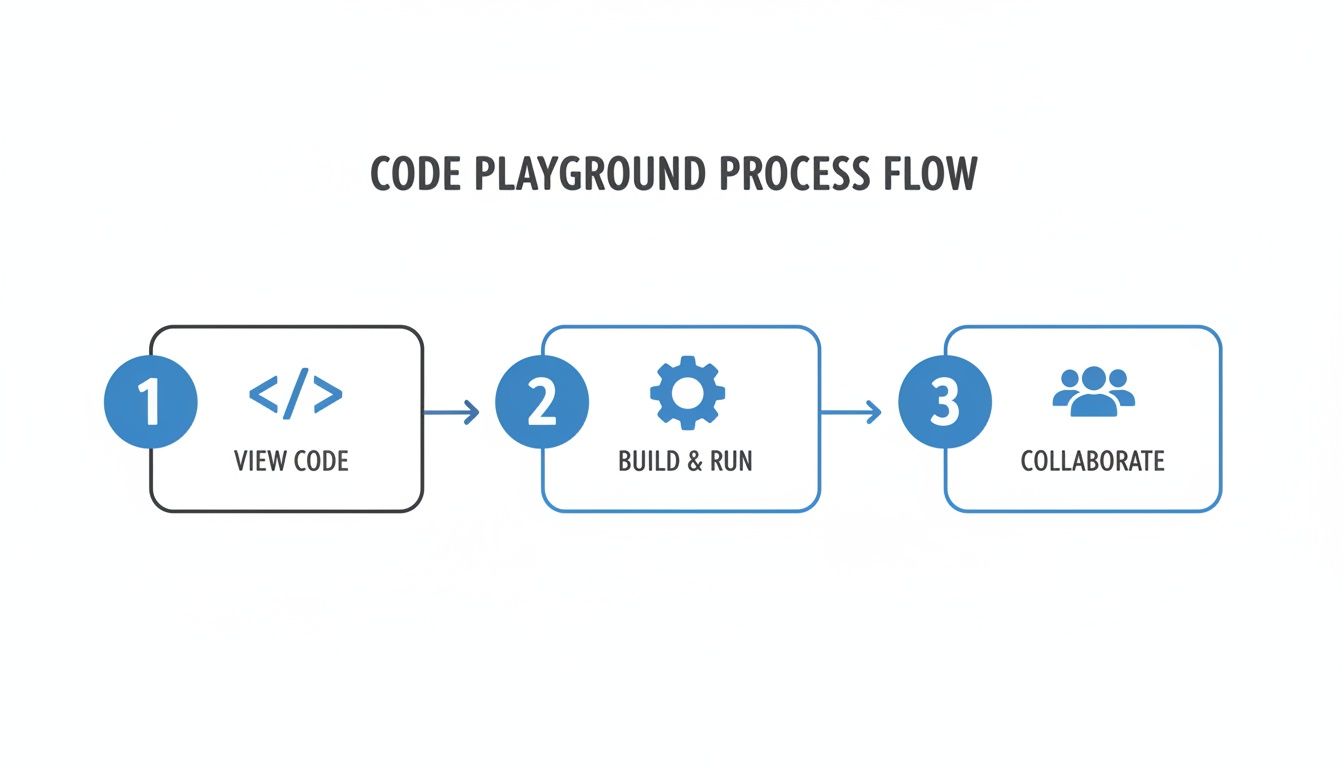
As you can see, modern tools boil down complex processes into a few straightforward actions—letting you focus on viewing, building, and collaborating.
This move toward simplicity is a big deal. Web-based tools that enable this kind of instant publishing now command a 52% market share. The whole sector is projected to grow from USD 650 million to USD 1.2 billion by 2032, which tells you just how much people want tools that get rid of installation and configuration hassles.
The ultimate goal here is to make publishing a website as easy as sharing a document. It's all about focusing on your content, not the infrastructure behind it.
Real-World Publishing Scenarios
The uses for instant publishing are incredibly practical and go far beyond just developers. It’s for anyone who needs to get web content online without a fuss.
Here are a few everyday examples:
- Restaurant Menus: A cafe owner uploads an HTML menu and instantly gets a live link to put into a QR code for their tables.
- Event Landing Pages: A marketer deploys a quick landing page for a webinar without having to wait for the IT department.
- Personal Portfolios: A design student can publish their first portfolio from a class project to share with potential employers.
- Client Deliverables: An agency sends over the final website as a live, white-labeled link instead of a clunky ZIP archive.
This method is especially great for static sites, which are inherently fast and secure. If you’re building simple websites, there are tons of resources out there on using free static site hosting to get your projects live without spending a dime.
When all is said and done, these platforms act as the most practical online HTML viewer for finished projects. They bridge that final, crucial gap between local development and a live, public audience.
Sharing and Securing Your HTML: Best Practices

Getting your HTML file up and running with an online viewer is the first hurdle. But how you share that link and protect your work is what really separates the pros from the amateurs. The right approach can make all the difference in a client presentation or a team review.
One of the first decisions you'll face is whether to use a temporary, auto-generated URL or a permanent custom domain. For quick internal checks or getting informal feedback, a random link from a tool like Hostmora is perfectly fine. But for a final client delivery, a custom domain adds a level of polish and authority a temporary link just can't match.
Protecting Sensitive Client Previews
When you're sharing a work-in-progress or a sensitive prototype, security is everything. You wouldn't leave a physical blueprint lying around for anyone to see, and the same caution applies to your digital projects. This is where password protection becomes non-negotiable.
This simple feature ensures that only the right people can see the preview. It's a critical layer of security that prevents your work from being accidentally indexed by search engines or seen by wandering eyes. If you're curious about data handling, you can always learn about our commitment to privacy and security policies and how we safeguard your content.
Pro Tip: Sending a password-protected link isn't just about security; it’s a statement. It tells your client you take their project’s confidentiality seriously, which helps build trust right from the start.
Making Your HTML Look Great on Social Media
Once your project is polished and ready for a wider audience, you want it to look sharp wherever it’s shared. That’s where Open Graph (OG) tags come into play. These are just small snippets of code you add to the <head> section of your HTML, but they have a huge impact.
OG tags give you control over how your link preview appears on platforms like Facebook, X, and LinkedIn. You can define things like:
og:title: The exact headline you want people to see.og:description: A short, snappy summary of your page.og:image: The perfect thumbnail image to grab attention.og:url: The official link to your page.
If you skip this step, social media platforms will just guess what to show, and the results are often pretty messy. Taking a few minutes to add OG tags ensures your shared link looks professional and enticing, which can dramatically improve how many people click on it. It’s a small detail that turns a simple webpage into a well-packaged, shareable piece of content.
Answering Your Questions About Online HTML Viewers
When you're trying to get HTML files online, a lot of questions pop up. You start wondering about the best tools for the job, how to keep your work safe, and just how fast you can get a live preview. Getting straight answers is the key to picking the right tool and using it like a pro.
Whether you're a developer who just needs a quick render or a marketer trying to get a landing page live yesterday, knowing the ins and outs of these tools makes all the difference. Let's tackle some of the most common questions I hear.
What Is the Fastest Way to View an HTML File Online?
It really depends on what you mean by "view."
If you just need a private, instant preview for yourself, nothing beats the developer tools already built into your browser. You can literally paste your code into the Elements panel and watch it render in real-time. No uploads, no waiting.
But if "fastest" means getting a live link you can send to a client or coworker, then you want a drag-and-drop publishing platform. These services are built for one thing: turning local files into a public URL in seconds. You skip all the tedious setup and configuration.
My rule of thumb: For a quick personal check, use devtools. For fast, public sharing, go with a zero-config publishing tool. The right method always comes down to who your audience is—just you, or other people.
Can I View an Entire Website from a ZIP File?
Yes, but this is where you start to see the difference between basic viewers and more powerful platforms. A simple online HTML viewer is usually built to handle a single file. It'll show you the HTML, but it won't know what to do with all your CSS, JavaScript, and image files.
More advanced tools, on the other hand, are designed to host entire projects. You can upload a ZIP file, and they'll unpack it, preserving the folder structure and linking all your assets correctly. Your website will look and function exactly as it does on your own computer.
Are These Tools Secure for Confidential Projects?
This is a big one. Security really depends on the platform you choose. Public code playgrounds like CodePen are brilliant for sharing open-source code and learning from the community, but I would never put confidential client work there.
For any sensitive project, like a new feature prototype or a pre-launch landing page, you have to use a service that takes security seriously. I always look for a few key features:
- Password Protection: The ability to lock a deployment behind a password is non-negotiable. This way, only people you trust can see it.
- Clear Privacy Policies: Read the fine print. You need to be sure the platform respects your intellectual property and won't claim any ownership over what you upload.
Do I Need to Know How to Code to Use an HTML Viewer?
Absolutely not. While developers rely on these tools daily, many are specifically designed for people who don't write a single line of code.
Maybe a designer sent you an HTML file, or you downloaded a website template. You don't need to understand the code to get it online. Modern drag-and-drop platforms are built to handle all the technical heavy lifting for you. The whole point is to make publishing on the web easy for everyone, so you can focus on your content, not the command line.
Ready to turn your files into live websites effortlessly? Hostmora offers a zero-config, drag-and-drop workflow to publish your HTML projects with instant URLs, password protection, and global delivery. Go from local file to live link in seconds at https://hostmora.com.