
Embedding a PDF directly into your HTML is one of the smartest ways to keep visitors on your site and engaged with your content. Instead of kicking them out to a new tab or forcing a download, the document just appears right there on the page. It's a simple change that makes a huge difference in the user experience.
Why You Should Embed PDFs Directly on Your Website
Let's be honest, the old "click here to download" link is a relic. Forcing someone to download a file interrupts their flow, creates unnecessary friction, and often encourages them to leave your site for good. An HTML embedded PDF solves this beautifully by making the document a natural part of your webpage.
Think about a restaurant that embeds its menu right on the homepage. Visitors can see the dishes immediately without any extra steps. Or a design firm showcasing its portfolio—potential clients can flip through stunning visuals without ever leaving the project page. This keeps people locked in, focused on what you have to offer.
Enhancing User Engagement and Accessibility
The web is mobile-first, period. With over 80% of PDFs now being opened on mobile devices, a clunky download link is more frustrating than ever. The famed usability expert Jakob Nielsen once estimated that PDF browsing kills usability by about 300% compared to a standard HTML page. Embedding completely flips that script, presenting your content in a familiar, easy-to-browse format.
When you keep users on your site, you drastically increase the odds they'll click around, explore other pages, or take that next step, like filling out your contact form. It's a small technical tweak with a real, measurable impact on your site's performance.
Key Takeaway: Embedding a PDF isn't just about convenience. It’s a strategic move to improve user experience, lower your bounce rate, and keep full control over how your content is presented.
Before we dive into the how, it's helpful to see a direct comparison of the two approaches.
Embedding vs Linking PDFs A Quick Comparison
This table breaks down the core differences in user experience between embedding a PDF and just linking to it.
| Feature | HTML Embedded PDF | Traditional PDF Link |
|---|---|---|
| User Experience | Seamless; content is viewed within the webpage. | Disruptive; opens in a new tab or forces a download. |
| Engagement | High; keeps users on your site and interacting. | Low; encourages users to leave your site. |
| Mobile Friendliness | Good; can be made responsive within the page layout. | Poor; often difficult to view and navigate on mobile. |
| Brand Control | Strong; document is presented within your site's branding. | Weak; user views the PDF in a generic browser viewer. |
As you can see, embedding consistently provides a better, more integrated experience that keeps your audience engaged and within your branded ecosystem.
Practical Benefits for Different Scenarios
The power of embedding shines across all sorts of industries. Just look at these real-world examples:
- Businesses: Share your latest annual report, a detailed whitepaper, or a compelling case study without making your audience jump through hoops.
- Creative Professionals: Let your portfolio, proposals, or resume do the talking instantly, right on the page.
- Educators: Post lecture notes, the course syllabus, or required reading materials directly within the student portal for easy access.
- E-commerce: Display detailed product manuals or spec sheets on the product page itself, answering customer questions before they're even asked.
In every case, the goal is the same: keep the user in a controlled, branded environment. Of course, to embed a file, you first need to host it somewhere reliable. Platforms like Hostmora make it incredibly easy to upload your file and get a stable, embeddable link. For a full walkthrough, check out our guide on how to generate a link for a PDF. This ensures your hard work gets seen, not just downloaded and lost in a folder.
Getting to Grips With the Core HTML Tags for PDF Embedding
When you need to embed a PDF directly into a webpage, HTML gives you three native tools right out of the box: <iframe>, <embed>, and <object>. Each of these tags gets the job done, but they all come with their own history, quirks, and best-use cases. Knowing the subtle differences is the first step to a solid HTML embedded PDF implementation.
But first, let's back up. Should you even be embedding the PDF in the first place? Sometimes, a simple link is all you need.
This decision tree helps visualize that choice—do you want users to view the PDF right on the page, or is the goal for them to download it?
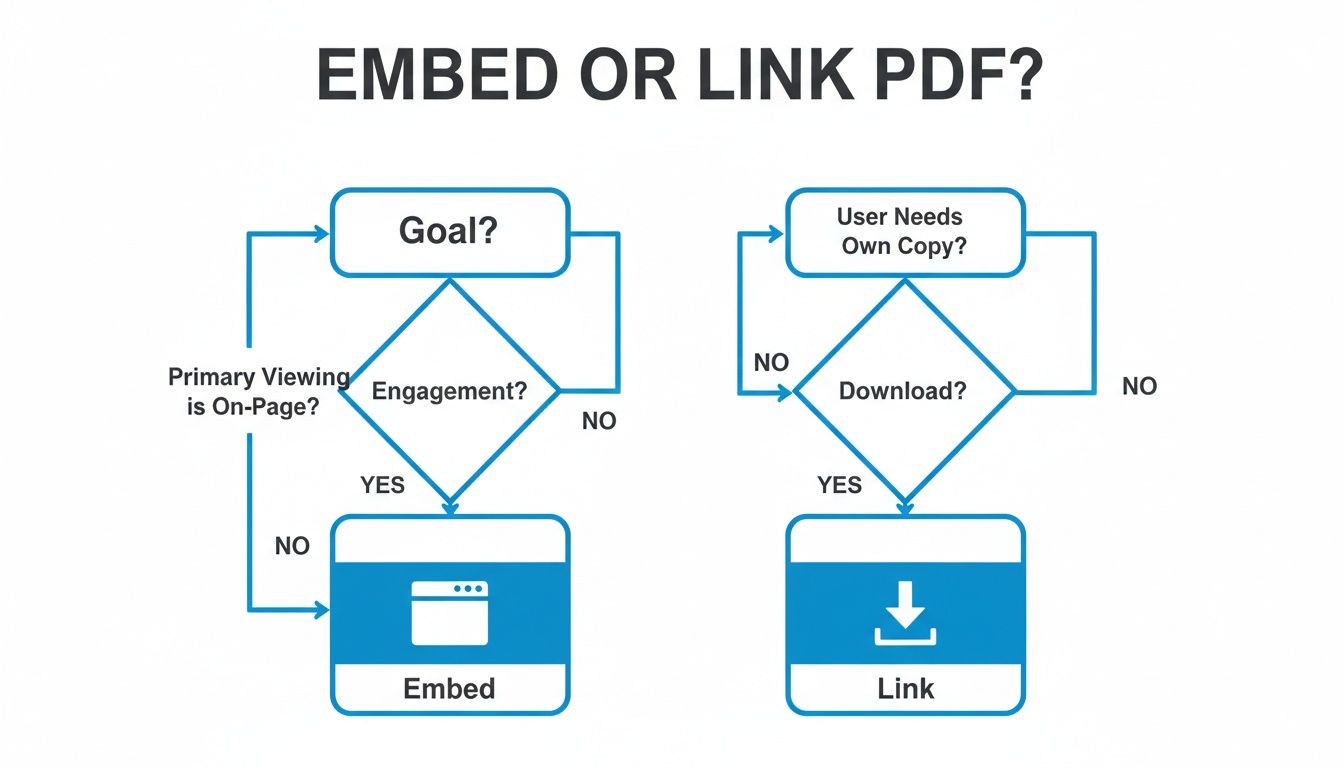
As you can see, if keeping visitors on your site and interacting with your content is the priority, embedding is the way to go. Linking really only makes sense when the user’s main goal is to save the file for later.
The Modern Go-To: The Iframe Tag
In my experience, the <iframe> tag is the most common and reliable method used today. It basically creates a self-contained "window" inside your webpage to display the PDF. The biggest win here is its broad support across all modern browsers, making it a safe and predictable choice.
Here's a quick and practical example of embedding a file named your-report.pdf:
While the standard HTML tags and robust JavaScript libraries get the job done most of the time, there are a couple of other tricks you can pull out of your sleeve. Let's look at two interesting alternatives for creating an html embedded pdf: the ultra-convenient Google Docs Viewer and the more technical Base64 encoding method. Each has its own distinct place, from quick, hassle-free embedding to creating completely self-contained documents.
The Google Docs Viewer is a fantastic option if you need something fast and simple. As long as your PDF is already online and publicly accessible, you can use Google's service to render it on your site. This is a lifesaver for non-technical users or when you just need to get a document up without messing with your own server files.
The beauty of this approach is that you just need to build a specific URL and pop it into an <iframe>. The viewer itself is clean and provides users with familiar controls for zooming and navigating—a big win for user experience.
Using the Google Docs Viewer
Honestly, this is one of my go-to methods when speed and simplicity are the top priorities. You don't have to upload or manage the PDF on your own hosting, which cuts out a whole step.
Here’s the simple formula for embedding a PDF with Google's help:
<iframe src="https://docs.google.com/gview?url=YOUR_PDF_URL&embedded=true" width="100%" height="600px"></iframe>
All you have to do is swap out YOUR_PDF_URL with the live, direct link to your file. It’s an incredibly efficient way to embed a document with almost no effort.
Key Consideration: The main catch with the Google Docs Viewer is that you're relying entirely on an external service. If Google ever decides to change or discontinue the service, or if the original link to your PDF goes down, your embed will break. It's perfect for less critical content but might not be the best choice for essential documents.
Embedding with Base64 and Data URIs
Now for a more advanced, self-contained approach. You can actually convert an entire PDF file into a Base64 string and embed it directly into your HTML using a Data URI. This technique literally packs the document's data inside the HTML file itself. The result? No extra HTTP request is needed to fetch the PDF once the page has loaded.
This might sound complicated, but there are plenty of free online tools that can handle the PDF-to-Base64 conversion for you in seconds. Once you have that long string of text, you can plug it into the src attribute of an <iframe> or the data attribute of an <object> or <embed> tag.
The code would look something like this:
<iframe src="data:application/pdf;base64,BASE64_ENCODED_STRING"></iframe>
But here comes the major trade-off. Base64 encoding bloats the file size by roughly 33%. This means your HTML file's size can balloon, which can seriously slow down your initial page load time. Your user's browser has to download all that extra data before it can even start rendering the page.
Because of the performance hit, this technique is really only practical for tiny, single-page PDFs. For anything more substantial, the cost to performance is just too steep, making a standard file link a much smarter and more efficient choice.
How to Securely Host and Embed PDFs with Hostmora
So, we've covered the different ways you can get a PDF onto a web page using native HTML and JavaScript. But that’s only half the battle. You still need to upload, secure, and serve that file, which can often feel like a clunky, disconnected process. This is where a modern workflow, combining secure hosting with easy embedding, really shines. Platforms like Hostmora are built to tie all these loose ends together, making the whole thing surprisingly simple.
The old-school way? You'd have to find a hosting provider, fire up an FTP client, upload your files, wrestle with file permissions, and then finally copy the URL. Hostmora cuts right through that noise. It gives you a simple drag-and-drop interface where you upload your PDF and instantly get back a secure, shareable link that’s ready to be embedded.
This approach eliminates a ton of potential headaches and streamlines the entire journey from a finished PDF on your desktop to a live document on your website.
The All-in-One Workflow
Let's put this into a real-world context. Imagine you’re a freelance designer who just put the finishing touches on a big brand proposal. Instead of emailing a massive file that might get blocked or using a generic file-sharing link that looks unprofessional, you can use Hostmora to create a sleek, branded viewing experience right on your site.
Here’s just how fast that can be:
- Drag and Drop: You pull your
proposal.pdffile straight into the Hostmora uploader. - Instant Link Generation: The platform immediately hands you a secure
https://link. You don't have to think about SSL certificates—it's all handled automatically. - Embed Anywhere: Grab that link, pop it into an
<iframe>on your portfolio or client portal, and you're done. The PDF just appears, neatly framed within your own website's design.
The entire process takes a few seconds, not the half-hour you might spend fiddling with FTP. The platform handles all the tricky backend stuff, ensuring your file is both secure and delivered fast. For highly sensitive documents requiring more advanced controls, solutions like secure data rooms for documents offer another layer of protection.
Advanced Security and Performance Features
Beyond just making things easier, a dedicated hosting platform gives you critical features that are a real pain to manage on your own. Security is obviously a huge one, especially if you're dealing with sensitive documents. Think about it: over 2.5 trillion PDFs are created every year, and the use of encryption has skyrocketed from under 10% in 2005 to over 40% in 2023, largely thanks to privacy regulations.
Hostmora’s automatic SSL and password protection make secure embedding a non-issue, taking that technical burden completely off your plate.
Key Advantage: Using a platform like Hostmora is like having a dedicated DevOps team without the overhead. You get to offload the responsibility for security and performance and just focus on your content.
Then there's performance. Hostmora is built on a Content Delivery Network (CDN), which means your PDF gets cached on servers in over 35 locations around the world. When someone in Tokyo opens your embedded document, it’s served from a nearby server, not one halfway across the planet. The result is a lightning-fast load time.
This global distribution is essential for keeping users engaged and maintaining a professional look, no matter where your audience is. You can even connect a custom domain to present the document under your own brand, giving your clients a completely seamless, white-label experience. To learn more about getting your own site up and running, take a look at our guide on how to host a static website for free.
Common Questions About Embedding PDFs in HTML
Once you start embedding PDFs, you'll quickly run into the same few questions that pop up on almost every project. I know I did. Getting these details right is what separates a clunky user experience from a seamless one.
Let’s walk through the most common hurdles people face, from making PDFs look good on phones to figuring out how they affect your SEO. Nailing these will save you a ton of headaches later.
How Can I Make My Embedded PDF Responsive?
This is probably the biggest challenge. The secret isn't in the HTML tag itself—it's all about CSS. The most bulletproof way to handle this is by wrapping your <iframe>, <object>, or <embed> tag inside a parent <div>. Think of this div as a flexible frame that tells the PDF how to behave.
By styling this wrapper div, you can lock in the document's aspect ratio. This ensures the PDF scales down gracefully on smaller screens instead of getting cut off or forcing users to scroll horizontally. It’s a game-changer for mobile users.
Here’s the basic game plan:
- Wrap it up: Put a
<div>around your<iframe>or<object>tag. - Work some CSS magic: Use
padding-topon the container to define the aspect ratio. For a standard portrait A4 page,padding-top: 141.42%works perfectly. Then, you'll want to position the actualiframeinside it absolutely. - Go full-width: Make sure your embedded element has its width and height set to 100% so it completely fills the container you just made.
This little CSS trick is incredibly effective. It forces the PDF viewer to resize in proportion to the browser window, which is exactly what you want for a clean mobile experience.
My Personal Tip: I use this container-wrapping technique on every single client project. It's a "set it and forget it" fix that completely eliminates those awful horizontal scrollbars on phones and tablets.
Can I Disable the Download or Print Button?
Ah, the classic request, especially when you're dealing with copyrighted or sensitive material. Whether you can hide those toolbar buttons really comes down to which embedding method you're using.
If you stick with the standard HTML tags, you're at the mercy of the user's browser and its built-in PDF viewer. You might see advice to add parameters like #toolbar=0 to the end of the PDF's URL. While this can sometimes work, it's not a reliable solution. It might do the trick in Chrome but do absolutely nothing in Safari or Firefox, leaving you with an inconsistent experience.
For total control, a JavaScript library like PDF.js is your best bet. It lets you render the PDF inside a custom viewer that you build. Since you’re building the interface, you can simply choose not to include a download or print button in the first place. That way, it's disabled for everyone, on every browser.
What Are the SEO Implications of an Embedded PDF?
This is a big one. The good news is that search engines like Google have gotten pretty smart about reading and indexing the actual text inside a PDF file. The bad news? That content doesn't pack the same SEO punch as the native HTML on your page.
Google sees the text within an html embedded pdf as secondary to the main content of the webpage it lives on. It might get crawled and show up in search results, but it won't do much to help your page rank for its target keywords.
For the best possible SEO, your core content—headings, key information, calls to action—should always be standard HTML. Think of embedded PDFs as supplementary resources, perfect for things where exact formatting is non-negotiable, like:
- Detailed technical whitepapers
- Printable restaurant menus
- Official reports or certificates
This approach gives you the best of both worlds: your most important content is fully visible and valuable to search engines, and your users still get access to richly formatted documents when they need them.
Ready to stop wrestling with complex configurations and start publishing effortlessly? Hostmora turns your files into secure, live links in seconds with simple drag-and-drop uploads. Get lightning-fast load times with our global CDN, protect your content with passwords, and present your work professionally on a custom domain. Try it free today at https://hostmora.com.