
Whether you need to lock down an entire staging site, a specific client preview, or just some members-only content, password protection is your go-to security layer. You can tackle this in a few ways: using built-in tools from your host (like ours at Hostmora), getting your hands dirty with server configs like .htaccess, or simply installing a plugin on your CMS.
Why Password Protecting Your Website Is a Smart Move
Before we jump into the "how," let's quickly cover the "why." Leaving parts of your website exposed isn't just a small oversight; it's a real-world risk. For freelancers, agencies, and businesses handling sensitive information, it's a critical step that can't be skipped.
Common Scenarios Where Protection Is Non-Negotiable
Think about these everyday situations. A simple password gate is often the first and best line of defense.
- Client Previews: You're about to show a client the first draft of their new site. You definitely don't want it going public before they've even seen it.
- Staging & Development: You have a work-in-progress version of your site for testing new features. The last thing you need is search engines indexing it or random visitors stumbling upon broken pages.
- Internal Resources: Need to host training materials, company wikis, or sensitive documents? A password ensures only your team can access them.
- Exclusive Content: If you're running a membership site, this is the lock on the door for your premium articles, courses, or downloads.
In every one of these cases, a password prevents prying eyes from seeing things they shouldn't, protecting both your hard work and your clients' privacy. If you want to go deeper on this, it's worth understanding web security risks and key vulnerabilities that are always lurking.
Thwarting Automated Digital Threats
Even a basic password prompt does a surprisingly good job of stopping automated bots that constantly crawl the internet looking for easy targets. These bots often run brute-force or credential-stuffing attacks, where they just try thousands of common username and password combinations to get in.
The sheer scale of this is mind-boggling. One major data leak alone exposed a collection of 16 billion passwords. That's why even a simple password is so critical. For developers and creators using platforms like Hostmora, this basic protection can stop nearly 37% of web application attacks that depend on brute force.
Putting that simple barrier in place helps keep your data safe and private. You can learn more about how we approach data security by checking out Hostmora’s commitment to privacy.
Quick and Dirty Password Protection with No-Code Tools
Let's be real: sometimes you just need to lock down a webpage right now. You don't have time to mess with server files or complicated configurations. Maybe you're a freelancer about to send a portfolio to a dream client, or an agency needing to give a sneak peek of a new design. In these moments, speed is everything.
This is where no-code tools are a lifesaver.
Modern platforms are built for this exact kind of rapid deployment. Forget about technical jargon. We're talking about simple toggles and input fields that handle all the complex security stuff behind the scenes. You can secure a single HTML page, a PDF, or even a whole ZIP archive containing a static site in less than a minute.
It’s all about efficiency. You get the security you need without ever touching a command line or a config file. It's a fantastic option for non-developers, but honestly, it's just as useful for seasoned pros who just need to get a secure link out the door fast.
A Look at Hostmora's Approach
Using a platform like Hostmora makes this process incredibly straightforward. The whole idea is that securing your work should be as simple as making it in the first place. The interface guides you right where you need to go. If you're starting from scratch, our guide on how to make a simple website with no code tools can give you some great context.
Here's a peek at the password protection feature right inside the Hostmora dashboard.
See? It’s literally just a switch. Flip it on, type in the password you want, and the platform instantly locks down your live project link. This kind of direct, visual control takes all the guesswork out of it.
The best part is how fast it works. Once you set a password and save, the protection is live instantly across a global network. No waiting for servers to reboot or caches to clear.
The Bottom Line: The biggest win with no-code protection is its immediacy. In the time it takes to write an email, you can have your project uploaded, password-protected, and ready to share as a secure, professional link.
When Does This Method Make Sense?
This isn't just for developers. Anyone who needs to control access to their work can put this to use.
- Securing a Digital Portfolio: A designer wants to share their best work with a potential employer but doesn't want it floating around the public internet. They can upload their site, pop a password on it, and include that password in their cover letter. Simple.
- Protecting a Draft Landing Page: An agency just finished a new landing page for a big campaign. To get client feedback without tipping off competitors, they share a password-protected link.
- Sharing Confidential Documents: A consultant needs to send over a sensitive report. Instead of attaching a big PDF to an email, they can upload it and protect the link with a password, adding a simple but effective layer of security.
Choosing the Right Way to Password-Protect Your Site
Deciding how to lock down your website isn't a one-size-fits-all deal. The best method really boils down to your technical chops, what you're trying to protect, and the platform your site runs on. You've got options ranging from deep server-level configurations to simple, one-click solutions in your website builder.
Let's walk through the most common approaches so you can figure out what makes the most sense for your project.
To get started, this decision tree gives you a quick visual guide. It helps clarify when and why you'd want to flip the switch from public to private.
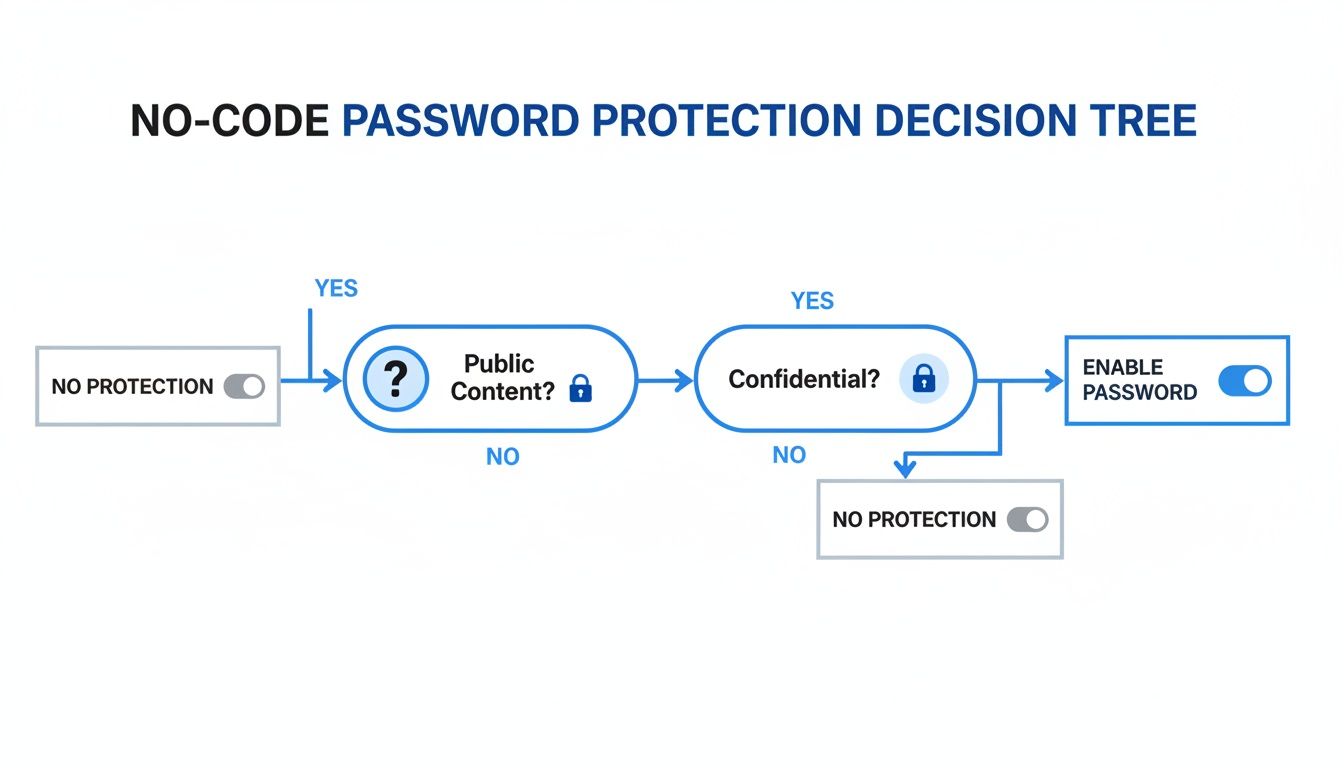
As you can see, the core choice is simple: if the content is confidential, password protection is your next move. It’s the gatekeeper between your private work and the public web.
To help you compare your options more directly, here's a quick breakdown of the most popular methods.
Password Protection Methods at a Glance
This table compares common methods for password-protecting a website, helping you choose the best option based on your technical skill and specific needs.
| Method | Best For | Technical Skill Required | Pros | Cons |
|---|---|---|---|---|
| Server-Level (.htaccess) | Staging sites, securing admin areas, static sites. | High (Comfort with FTP/command line) | Very secure, platform-independent, highly configurable. | Easy to break the site with a typo; can be complex. |
| CMS/Platform Built-in | Individual pages, posts, or member-only areas. | Low (Point-and-click) | Extremely easy to use, no coding needed, well-integrated. | Limited to the platform's features; less flexible. |
| Plugins (e.g., WordPress) | E-commerce, membership sites, complex access rules. | Low to Medium | Feature-rich, highly customizable, powerful user management. | Can add bloat; potential for security vulnerabilities. |
| Hosting Control Panel | Protecting entire directories quickly. | Low | Simple interface, often just a few clicks in cPanel/Plesk. | Less granular control than server-level methods. |
| CDN/Edge Controls | Enterprise-level security, global sites, advanced rules. | High | Blazing fast, globally distributed, advanced security rules. | Can be expensive and complex to configure. |
Each path has its trade-offs, but understanding them is the key to picking the right tool for the job.
H3: The Technical Route: Server-Level Protection
If you're comfortable getting your hands dirty with server files, methods like .htaccess on Apache or basic authentication on Nginx are incredibly robust. This approach involves directly telling the server which files or folders require a username and password before anyone can see them.
This is a powerful way to lock things down because the protection happens before your website's code even loads. It's a fantastic fit for a few common scenarios:
- Hiding a Staging Site: Developers rely on this to keep a site-in-progress completely invisible to clients, the public, and search engines.
- Securing Admin Folders: It’s a great way to add an extra layer of security to backend directories that should never be public.
- Protecting Static Sites: For simple HTML websites without a fancy CMS, this is often the most direct way to add a password gate.
The catch? You'll need FTP or command-line access to your server, which can be a non-starter for some. One tiny typo in a file like .htaccess can take your whole site down, so it's best left to developers or those with a bit of technical experience. If you’re building on a platform where you don’t have this kind of access, you can check out our guide on https://hostmora.com/static-website-hosting/ for other options.
H3: The User-Friendly Path: Platform and CMS Solutions
Does editing server configuration files sound like a nightmare? Good news—most modern website builders and content management systems have you covered. They offer built-in features or plugins that make password protection a complete breeze.
WordPress, for instance, has a massive library of plugins that can lock down your entire site, a single page, or even just a snippet of content within a post. Platforms like Squarespace and Wix have native password-protection settings baked right into their dashboards.
These solutions swap the fine-grained control of server-level methods for sheer ease of use. You can typically get a password prompt up and running in just a few clicks, which is why it's the go-to for most freelancers, agencies, and small businesses.
This is more important than ever. We're seeing over 1.5 billion automated credential-stuffing attempts every month, where attackers use leaked passwords to try and break into other accounts. And since 94% of people admit to reusing passwords, it's a shockingly effective tactic.
This is exactly why password-protecting a client proof or a sensitive document is so crucial. Verizon’s latest report shows that credential abuse was the starting point for 22% of recent data breaches, making it the number one attack vector. Understanding the bigger picture, like the principles of a Zero Trust security model, helps reinforce why every single access point needs to be properly validated. It’s all about assuming no one is trustworthy by default.
Creating and Managing Passwords That Actually Work
Putting a password prompt on your site is one thing, but if the password itself is weak—think ClientProject2024!—you’ve essentially installed a cheap screen door on a bank vault. A truly strong password isn't just about tossing in a symbol or a capital letter; it’s about creating something genuinely difficult for a machine to guess.
The three pillars of a solid password are length, unpredictability, and uniqueness. Out of these, length is by far the most important factor. A short, complex password can be cracked thousands of times faster than a long, simple one. That’s why it’s better to think in terms of passphrases.
For instance, blue-guitar-runs-fast is infinitely stronger and way easier to remember than a jumbled mess like BgrF$8!z.
The Case for a Password Manager
Let's be real for a second: humans are terrible at creating and remembering dozens of unique, strong passwords. This is where a dedicated password manager like 1Password or Bitwarden moves from a "nice-to-have" to an essential part of your toolkit.
These tools do all the heavy lifting for you. They can:
- Generate long, random, and complex passwords with a single click.
- Store every credential you have in a secure, encrypted vault.
- Autofill logins so you rarely have to type anything.
Using a password manager removes the mental gymnastics and, more importantly, stops the dangerous habit of reusing passwords. This is critical, especially when you learn that only a tiny 3% of compromised passwords meet basic complexity requirements. This poor password hygiene helps explain why brute force attacks have nearly tripled, now accounting for 60% of basic web app attacks. For Hostmora creators, a strong, unique password is what turns your hard work into a secure, gated asset. You can dig into more stats and trends on password security over at Descope.com.
The real danger isn't just a weak password; it's password reuse. When you use the same credentials everywhere, a breach on one insecure website gives attackers the key to unlock your accounts across the internet.
Securely Sharing Credentials with Others
Sooner or later, you'll need to give access to a client, a teammate, or a contractor. The absolute worst way to do this is by sending credentials over email, Slack, or a text message. These channels are often unencrypted and searchable, leaving a permanent digital breadcrumb trail right to your password.
Instead, follow a much safer process for sharing access.
- Use a Password Manager's Sharing Feature: This is the gold standard. Most managers let you share a credential via an encrypted, often time-sensitive, link.
- Try a Secure Note Service: If a password manager isn't an option for the other person, a service like Privnote creates a self-destructing note that disappears after it's read.
- Split the Information: If you're really in a pinch, split the login across two different channels. Send the username via email and then the password through a separate, encrypted messaging app like Signal.
No matter which method you choose, always instruct the recipient to change the password immediately after their first login. This ensures the credential you shared has a very short lifespan, minimizing any potential risk. Taking these extra few seconds is a fundamental part of how to properly protect a website with a password.
Testing and Troubleshooting Your Protected Site
Alright, you've set up your password protection. High five! But don't pop the champagne just yet. The last and arguably most important step is making sure it actually works.
It's a classic rookie mistake: setting up a password and just assuming it’s secure without a second thought. This can leave your "protected" content wide open. Think of testing as your final quality check before handing the keys over to your client or team.
A Practical Checklist for Verification
The best way to see if your lock holds up is to try and pick it yourself. You need to approach your site like a brand-new visitor who knows nothing about your setup. This is the only way to get a true picture of what they'll experience.
Here’s a quick-and-dirty checklist I run through every time:
- Go Incognito: This is non-negotiable. Open a new private or incognito browser window and paste the URL. This bypasses your browser's cache and any active logins, showing you exactly what a stranger sees.
- Try the Right Password: First, check the "happy path." Type in the correct credentials and make sure you get in smoothly. If that works, you’re halfway there.
- Then, Use the Wrong One: Now, try to log in with a deliberately incorrect password. You should be firmly rejected with an error message. If you get in… something is very, very wrong.
- Check on Mobile: Pull out your phone and try the URL. Does the login prompt look okay? Does it work as expected? The experience should be seamless across all devices.
A core part of understanding how to protect a website with a password is accepting that verification isn't optional. Your site is only truly secure after you've proven it yourself from an outsider's perspective.
Solving Common Password Protection Issues
Even with the best tools, things can get a little weird. Don't worry. Most problems are common and have simple fixes. Knowing what to look for will save you from a major headache.
The Password Prompt is a No-Show By far the most common issue is the password prompt simply not appearing. 99% of the time, this is a caching problem. Your browser is holding onto an old, unprotected version of the page.
The fix? Clear your browser cache or, better yet, just stick to testing in an incognito window from the start.
"Oops, I Forgot the Password" It happens to the best of us. How you recover depends entirely on the method you used to set it up:
- Hostmora's Built-in Tool: This is the easy one. Just head back to your project settings. You can view or reset the password right there in the dashboard.
- Server-Level (
.htaccess): A bit more hands-on. You'll have to regenerate your.htpasswdfile with a new password and re-upload it to the server. - CMS Plugins: Dive back into your website's admin panel and find the plugin's settings. There’s almost always a password management section inside.
Sometimes, you might see the unprotected page flash for a split second before the password prompt kicks in. This is often caused by a caching layer at the server or CDN level. If it's a persistent problem, check your platform's documentation for rules on how to bypass the cache for specific URLs to ensure your security is always the first thing to load.
Got Questions? Let's Talk Password Protection
Once you’ve got your site locked down, a few questions almost always come up. Getting these sorted is the last step to feeling confident you've made the right call for your project. Think of this as tying up the loose ends.
Will Password Protecting a Page Tank My SEO?
The short answer? Yes, it will.
When you password-protect a page, you're basically telling search engine crawlers like Googlebot, "You can't come in." Since they can't see the content, they can't index it. That means the page simply won't show up in search results.
But here’s the thing: that's usually exactly what you want. You don't want a client’s staging site or your company’s internal training materials popping up on Google. Use password protection as a strategic tool for anything that isn't meant for public eyes. For all the pages you do want to rank, just keep them open and accessible.
Just How Secure Is Basic Password Protection, Really?
It’s surprisingly effective for what it's designed to do. Basic methods, like the kind you find in no-code tools or a server's .htaccess file, are fantastic at stopping casual visitors, keeping out former clients or team members, and blocking the endless stream of automated bots looking for easy targets.
For most everyday needs—like sharing a design mockup or sending over a draft report—this level of protection is more than enough. It puts up a solid barrier that keeps the content away from the general public and opportunistic scans.
Of course, you have to match the tool to the job. If you're dealing with seriously sensitive data that falls under compliance rules (think personal health records or financial info), you need to step up your game. In those cases, you’d be looking at full-blown user authentication systems with heavy-duty encryption and multi-factor authentication.
What’s the Right Way to Share Passwords?
This is where people often get careless. Firing off a password in an email or a Slack message is a huge security risk. Those channels are rarely encrypted, and those messages can hang around forever, just waiting to be found in a search or a future data breach.
The gold standard is to use a tool built for the job: a dedicated password manager.
- Use a Password Manager's Sharing Feature: Tools like 1Password or Bitwarden have secure sharing functions that let you send a login to a teammate or client through an encrypted channel. Better yet, you can usually revoke access later.
- Use a Self-Destructing Note: If the person you're sharing with doesn't use a password manager, a service that creates a one-time, self-destructing link is the next best thing. The link and the message are gone forever the moment they're read.
No matter which method you choose, always tell the person to change the password as soon as they log in for the first time. This simple step ensures the credential you shared is only active for a few minutes, which is a core part of learning how to protect a website with a password the right way.
Ready to secure your work without the technical headaches? With Hostmora, you can drag, drop, and deploy a password-protected site in under a minute. Try it for free and publish your first secure link today.