
So, you've built something cool in Google AI Studio. Maybe it's a slick resume reviewer, a creative writing partner, or a handy data visualizer. The real test, and the real fun, begins when you get it out of that development sandbox and into the hands of real users.
But let's be honest, the road from a prototype to a live, public URL often feels like a minefield of server configurations, command-line jargon, and technical headaches.
This guide is here to clear that path. We're going to walk through the most direct route to get your web app—built with standard HTML, CSS, and JavaScript—online for the world to see.
This streamlined approach is a game-changer for:
- Freelancers and agencies who need to spin up client prototypes for quick feedback.
- Students and professionals wanting to showcase live AI projects in their portfolios.
- Small businesses aiming to build simple, AI-driven tools without a dedicated dev team.
The whole point is to get your app deployed efficiently and securely, without getting lost in the weeds of complex infrastructure. It really boils down to a simple, three-stage journey: create, package, and publish.
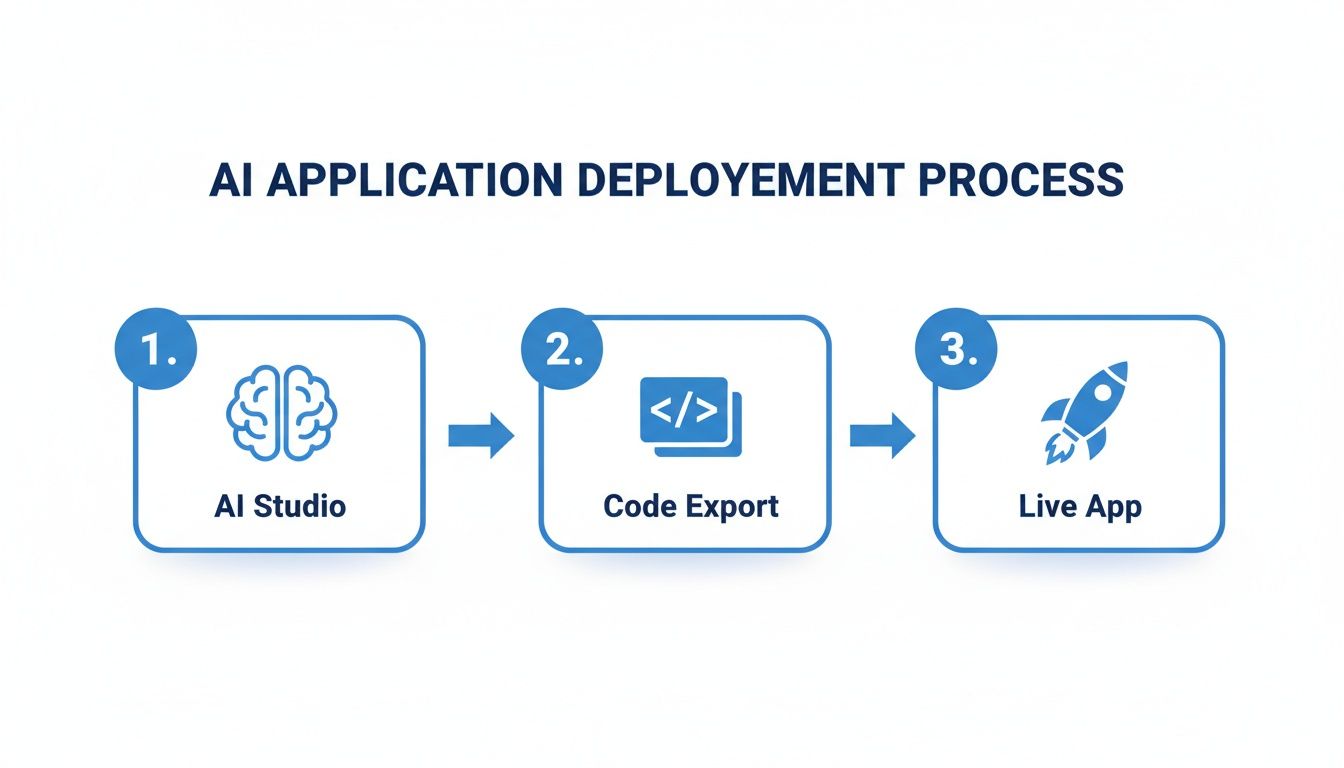
As the visual shows, this is a far cry from the lengthy, convoluted development cycles of the past.
From Idea to Live in Record Time
The speed at which you can go from concept to a live application is what makes tools like Google AI Studio so powerful. For freelancers and small teams, this isn't just a small improvement; it's a massive shift. Industry reports suggest that this rapid development approach can cut project timelines by as much as 70%.
This isn't about cutting corners; it's about efficiency. Faster deployment means faster feedback, quicker iterations, and getting your product in front of users sooner.
Picking Your Deployment Path
Before we dive into the "how-to," it's good to understand your options. Getting your app online can range from a simple drag-and-drop to a full-blown cloud engineering project.
Here’s a quick rundown of the main deployment paths you can take with an app exported from Google AI Studio. This table should help you figure out which route makes the most sense for your project and your current technical comfort level.
Google AI Studio Deployment Options Overview
| Deployment Method | Technical Skill Required | Best For | Time to Deploy |
|---|---|---|---|
| No-Code Hosting (e.g., Hostmora) | Minimal (drag-and-drop) | Prototypes, portfolios, simple internal tools, and quick client demos. | 5-10 minutes |
| Static Site Hosting (e.g., Netlify, Vercel) | Basic (Git, command-line) | Developers comfortable with version control who want CI/CD pipelines. | 30-60 minutes |
| Cloud Platforms (e.g., GCP, AWS) | Advanced (cloud architecture) | Scalable, production-grade applications with complex back-end needs. | Hours to days |
As you can see, the path we're focusing on—the no-code approach—is designed for maximum speed and simplicity.
While this guide zeroes in on the easiest method, it's useful to know that Google AI Studio is part of the massive Google Cloud Platform (GCP). Understanding its place in the wider cloud ecosystem can be helpful if you plan to scale up later. For a bigger picture, you can find a deep dive into AWS vs Azure vs GCP to see how the major cloud players differ.
For now, though, let's stick to the plan: getting your app ready for its public debut, fast.
Alright, you've got your AI app humming along nicely in Google AI Studio. Now comes the exciting part: getting it out of the sandbox and into the real world. This is where we move from a development prototype to a set of files that any web host can serve up to your users.
The magic button for this is "Get Code." Don't be fooled by the simple name—this is your export toolkit, designed to package up everything your app needs to function independently. Clicking it is the first step to liberation.

Picking the Right Export Format
When you go to export, AI Studio gives you a few different flavors of code. Your choice here really depends on your end goal and technical comfort level.
- Python: This is for the heavy lifters. If you're a developer planning to integrate your AI into a bigger backend system using something like Flask or Django, this is your ticket.
- cURL: Think of this as a quick-and-dirty test command. It’s not for building an actual app but is incredibly handy for firing off a quick API call from your terminal or embedding it into a script.
- JavaScript: This is our sweet spot. It bundles your app into a neat little package of HTML, CSS, and JavaScript. It’s perfect for launching quickly on modern hosting platforms, especially no-code ones.
For our purposes—a fast, straightforward deployment—we're all in on the JavaScript export. It gives us a self-contained web app that's ready to go.
What’s in the Box? A Look at the Exported Files
Once you choose the JavaScript option and download the files, you’ll get a tidy little project folder. This isn't just a jumble of code; it's the standard, universally recognized structure of a simple web application.
Here’s a quick rundown of what you'll find inside:
index.html: The backbone of your app. This file lays out all the elements the user sees—the text boxes, buttons, and places where the AI's response will show up.style.css: This is your app's wardrobe. It controls the colors, fonts, spacing, and overall visual vibe, making sure it looks good.script.js: The brains of the whole operation. This code listens for user actions, sends requests to the Google AI API, processes the response, and then updates the page for the user to see.
Getting familiar with this trio is essential. HTML builds the house, CSS paints it, and JavaScript makes the lights turn on.
Crucial Takeaway: I've seen this trip people up countless times: broken file paths. Before you zip everything up, double-check that your
index.htmlfile is linking to your CSS and JavaScript files correctly. Look for relative paths like./script.jsto ensure they can find each other after you upload them.
The Big Red Flag: Your API Key
Let’s talk about the most important part of this whole prep phase: security. Tucked away inside that script.js file is your Google AI API key. AI Studio puts it there so your app works right out of the box, which is great for testing. For a live website, however, it's a huge security hole.
Having your API key sitting in a client-side JavaScript file is like leaving your house key under the doormat. Anyone can find it just by right-clicking and selecting "View Page Source." If a bad actor gets your key, they can make calls on your behalf, which could rack up a nasty bill or get your service blocked.
For a quick prototype or an internal-only tool, you might decide the risk is acceptable. For anything public, you'll eventually need a better way to protect that key. This is a fundamental concept in web development, not just with Google's tools. For more on how other platforms handle this, you can see how Claude Artifacts manage code and outputs. For now, the most important thing is to be aware of where your key is and what it means to expose it.
Alright, you've built something cool in Google AI Studio, packaged it all up into a neat ZIP file, and now you’re ready to share it with the world. This is often where developers hit a wall—messing with server configurations, command-line tools, and all sorts of technical headaches. But with a no-code hosting platform like Hostmora, you get to skip all that.
The whole idea is to get you from a local file on your computer to a live, public URL in minutes, not hours. This is a game-changer for freelancers who need to spin up client prototypes fast or for creators who just want to get their work online without the fuss.

The Drag-and-Drop Workflow
It really is as simple as it sounds. You just drag that ZIP file you made right into the uploader. There’s no complicated dashboard or a long list of settings to figure out.
Once you drop the file, the platform does all the heavy lifting for you in the background. It’s an automated process that takes care of several crucial steps you’d otherwise have to handle manually.
- Instant Unpacking: Your ZIP file is immediately unzipped, and all your files—the
index.html, CSS, and JavaScript—are put exactly where they need to be on the server. - SSL Provisioning: A free SSL certificate is automatically installed. This gives you that secure HTTPS lock icon in the browser, which is non-negotiable for building trust with users today.
- Global Distribution: Your app’s files are pushed out to a global Content Delivery Network (CDN). This means your app loads incredibly fast for users no matter where they are in the world because it's served from a server close to them.
You’re basically getting an enterprise-level hosting setup without touching a single line of configuration code.
From Upload to Live Site in Seconds
This isn't just a technical shortcut; it's a massive productivity boost. In fact, this kind of rapid deployment can lead to a 50% reduction in time-to-market for new AI-powered tools. Think about it: you can dream up and build entire SaaS prototypes in AI Studio, then instantly publish them on a secure, globally-optimized platform. If you're curious about the impact, recent reports on AI development cycles show just how much speed is becoming a competitive advantage.
This speed also fuels rapid iteration. You can push a version live, get feedback from a client, jump back into AI Studio to make changes, re-export, and have the updated version live again in just a few minutes.
A Quick Tip for Agencies: Need to show a work-in-progress to a client without it being public? A great feature to look for is password protection. Before you share the link, you can lock the site with a simple password. It keeps the project private and adds a professional touch to your review process.
Connecting Your Custom Domain
A temporary URL is great for testing, but for any real project, you'll want to connect your own domain. This is what makes your app look legitimate and makes it easy for people to find and remember.
The process is usually painless. You'll just need to add a couple of records in your domain registrar's settings to point to the hosting platform. The platform then handles all the routing and automatically extends the SSL certificate to cover your new domain. It's a much more straightforward experience than managing DNS zones in bigger ecosystems, a common task when working with something like Firebase website hosting.
Sharing and Showcasing Your Work
Once your app is live on its own domain, you can finally show it off. A handy feature many modern hosting platforms include is an instant QR code generator. With one click, you can create a QR code that points straight to your live app.
This is perfect for things like:
- Adding a link to your portfolio on a business card.
- Powering interactive restaurant menus or product catalogs.
- Using at event displays so people can quickly access your tool.
It’s that final, simple step that closes the loop, turning your idea from Google AI Studio into a real, interactive experience for anyone with a smartphone.
Advanced Deployment and Customization Tips
Getting your app live is a huge milestone, but the work doesn't stop there. This is where you shift from just making it work to making it great. We're talking about the refinements that turn a functional prototype into a secure, fast, and insightful tool that people will actually trust and enjoy using.
These next steps are what separate a quick demo from a polished application ready for the real world. It's all about thinking ahead to protect your resources, understand your audience, and deliver the best possible experience.
Fortifying Your Application Security
First things first: your API key. If you've left it exposed in your client-side JavaScript, you've left the front door wide open. This is a major security risk for any public-facing app, and locking it down should be your absolute top priority.
The industry-standard solution is to get that key off the client and onto a secure, server-side environment. This doesn't mean you need to spin up a complex backend. A simple serverless function or a lightweight proxy server can act as a secure middleman.
Here’s how it works:
- Your front-end app makes a request to your proxy, not directly to the Google AI API.
- The proxy—which securely holds the API key—gets the request.
- It then forwards the request to the Google AI API, adding your secret key before sending it off.
- The response comes back to the proxy, which then passes it cleanly along to your front-end app.
This simple setup ensures your key is never visible to the public. Beyond just hiding your key, it's crucial to implement robust Security best practices for web applications to protect user data and maintain the trust you've earned.
Optimizing for Speed and Performance
Let's be honest, nobody waits for a slow app. A laggy experience is a surefire way to lose users. Thankfully, a few straightforward optimizations can make a world of difference.
Start with the low-hanging fruit: compressing your assets. Large images are almost always the biggest culprits behind slow load times. Use an online tool to shrink their file size without turning them into a pixelated mess.
Next up is browser caching. By setting the right headers on your server, you can tell a user's browser to store static files—like your CSS, JavaScript, and images—locally. The next time they visit, the browser loads these files from its local cache instead of downloading them all over again. The app will feel nearly instant. Many platforms that offer free static site hosting do a lot of this for you, but it never hurts to double-check.
Gaining Insights with Basic Analytics
How are people actually using your app? What features are they clicking on, and where are they getting stuck? Without data, you're flying blind.
Integrating basic analytics is surprisingly easy. You can add a simple script from a service like Google Analytics or a more privacy-focused alternative. This unlocks the ability to track essential metrics:
- User Sessions: See how many people are visiting and how often they come back.
- Interaction Events: Track specific actions, like button clicks, to see which features are a hit.
- Geographic Data: Get a sense of where your users are coming from.
This kind of data is gold. It helps you make informed decisions about future improvements and lets you focus your energy on what your users truly value.
Expert Insight: Don't get lost in vanity metrics. Focus on engagement. It's far more valuable to know that 100 users spent five minutes actively using your tool than to know 1,000 users bounced after three seconds.
The speed of modern AI tools is a massive advantage here. For instance, Vertex AI Studio enables such rapid prototyping that it has propelled 40% of new enterprise AI apps to production in under a week. For developers and startups using Hostmora, this means they can export AI Studio prototypes—like interactive catalogs or QR-linked menus—as a simple ZIP/HTML package for instant, no-code publishing. With SSL provisioning and edge caching across 35+ global locations, they get 99.99% uptime and average load times of 200ms. This lightning-fast cycle lets you deploy, gather data, and iterate far quicker than was ever possible with traditional methods.
Essential Post-Deployment Checklist
Once your app is live, it’s a good idea to run through a quick but thorough checklist. This ensures everything is running smoothly and is optimized for your users. Think of it as a final quality assurance pass before you share your project widely.
| Check Item | Purpose | Recommended Tool/Method |
|---|---|---|
| Verify API Key Security | Confirm the API key is not visible in client-side code. | Use browser developer tools (View Source, Network tab). |
| Test on Mobile Devices | Ensure the app is fully responsive and usable on various screen sizes. | Browser dev tools (Device Mode), real devices. |
| Check Page Load Speed | Analyze asset sizes, load times, and performance bottlenecks. | Google PageSpeed Insights, GTmetrix. |
| Review SSL Certificate | Confirm HTTPS is active and the connection is secure. | Check the lock icon in the browser's address bar. |
| Validate Analytics Tracking | Ensure page views and custom events are being recorded correctly. | Analytics platform's "Real-time" or "Debug" view. |
| Test All Core Functions | Click every button and test every input to catch last-minute bugs. | Manual user testing. |
Going through these steps might feel tedious, but taking a few minutes to verify your setup can save you from major headaches, security issues, and user complaints down the road.
Troubleshooting Common Deployment Issues
Even the most carefully planned deployment can hit a speed bump. When you're figuring out how to get your app from Google AI Studio out into the world, a few common problems tend to show up time and again. The good news? They're usually simple fixes once you know where to look. We're not talking about digging through complex server logs here; this is all about spotting and fixing the small stuff.
From my experience, most issues boil down to three main culprits: problems with your API key, broken file paths that mess up your app's appearance, and network errors that prevent your app from talking to Google's servers. Let's walk through how to diagnose and solve each one.

Unraveling API Key Errors
This is, without a doubt, the most common roadblock. The symptom is always the same: your app's interface loads, but any feature that relies on the Google AI model just... fails. You click a button, and either nothing happens, or you get a vague error message. This almost always points back to a problem with your API key.
First, check the obvious: did you copy and paste it correctly? A single typo or an extra space at the end is all it takes to break the connection. Head back to your Google AI Studio dashboard, copy the key again, and carefully replace the one in your script.js file.
If you're certain the key is correct, the next thing to investigate is its restrictions. For security, Google Cloud lets you restrict API keys so they only work on specific websites. If you set this up, you absolutely have to add your live domain to the "allowed" list.
- Symptom: The app loads, but the AI-powered features are dead in the water.
- Solution 1: Double-check that the API key in your
script.jsis an exact match to the one from your Google AI dashboard. No typos, no extra spaces. - Solution 2: If you restricted the key, make sure your live domain (like
yourapp.hostmora.comor your custom URL) is whitelisted in the key's settings in Google Cloud.
Fixing Broken Visuals and Styles
Okay, so your app is live, but it looks like a plain text file from 1998. The images are gone, the fonts are wrong, and the layout is completely busted. This is a classic file path issue. It simply means your index.html file has no idea where to find your CSS, JavaScript, or image files.
This happens because the file paths that worked perfectly on your own computer don't translate to a live web server. The key is to use relative paths.
Pro Tip: Your browser's developer console is your best friend here. Press F12 (or Ctrl+Shift+I) to open it. The "Console" tab will show you bright red "404 Not Found" errors, telling you exactly which file the browser failed to load. It’s like a treasure map to the problem.
For example, a path like C:/Users/YourName/Desktop/app/style.css will never work online. Instead, if your CSS file is in a styles folder, your link in the HTML must be relative to the HTML file itself, like this: <link rel="stylesheet" href="styles/style.css">.
Understanding and Resolving CORS Errors
The last big hurdle you might face is the dreaded CORS error. In the developer console, it'll look something like this: "Access to fetch at 'https://generativelanguage.googleapis.com/...' from origin '...' has been blocked by CORS policy."
It sounds complicated, but the concept is simple. CORS (Cross-Origin Resource Sharing) is a browser security feature. It stops a script on one website from making a request to a server at a completely different domain unless that server explicitly says it's okay.
This error is often just another symptom of an API key restriction. When your app tries to call Google's API, the browser sees the request is going to a different "origin" (Google's domain) than where your app is hosted (your domain). Adding your domain to your API key's allowed list is how you tell Google, "Hey, it's cool, requests from this specific origin are legitimate." Fixing this is often the exact same process as fixing the API key restriction problem we already covered.
Frequently Asked Questions
Once you start deploying apps from Google AI Studio, a few questions inevitably pop up. These aren't just hypotheticals; they're the real-world hurdles I’ve seen developers and creators hit time and time again. Let’s walk through the most common ones so you can sidestep them entirely.
Can I Deploy a Python Backend This Way?
This is a great question and gets to the heart of this deployment method. The short answer is no, not with the simple drag-and-drop hosting we've focused on. Platforms like Hostmora are built for what's called a static site.
That just means they're incredibly good at serving files directly to a user's browser—your HTML, CSS, JavaScript, and images. They aren't set up to run server-side languages like Python, Node.js, or PHP.
The process in this guide is perfect for client-side apps where your JavaScript code runs entirely in the user's browser and talks directly to the Google AI API. It's a surprisingly powerful and efficient way to build many AI tools.
If your project truly needs a Python backend—maybe to handle complex logic or connect to a database before calling the AI—you'll need a different kind of hosting. You'd be looking at options like:
- A Virtual Private Server (VPS) for full control.
- Platform-as-a-Service (PaaS) solutions like Google Cloud Run or Heroku.
- Serverless functions like AWS Lambda.
These are more advanced setups, but they're the right tools for a job that requires a full-fledged backend.
Is It Safe to Put My API Key in a JavaScript File?
Okay, let's talk security. For a quick internal demo or a private portfolio piece you're only sharing with a few trusted people, embedding the API key in your JavaScript is the fastest way to get up and running. It works, and it's simple.
However, for any app that will be public, this is a major security risk.
Exposing an API key in client-side code is like leaving the keys to your house under the doormat. Anyone with basic browser skills can open the developer tools, find your key, and start making API calls on your behalf. This could rack up charges on your account or get your service shut down.
The proper way to handle this is to hide the key on a server. As we touched on in the advanced tips, using a simple proxy server is the industry-standard solution. This middleman takes requests from your app, adds the secret key, and then calls the Google AI API. This ensures your key is never exposed to the public. It adds an extra step, but it's non-negotiable for a real-world application.
Why Does My Deployed App Look Broken?
This one's a classic. You upload the ZIP, click the live link, and… chaos. The layout is gone, the styles are missing, and images won't load. 99% of the time, this is a file path issue.
How your index.html file links to your other assets (like style.css or script.js) is absolutely critical. On your own computer, you might have used a path that works locally but breaks the second it hits a web server.
The fix is to use relative paths. This just means you're telling the browser where to find a file in relation to the HTML file's current location.
For instance, if your index.html is in the main folder and your CSS is in a subfolder called styles, the link in your HTML should look like this:
href="styles/style.css"
The easiest way to debug this is to open your browser's developer console (just press F12). Look for "404 Not Found" errors. The console will tell you exactly which files it tried and failed to load, pointing you right to the broken paths you need to fix.
How Do I Update My Live App?
This is where you'll really appreciate using a no-code hosting platform. Updating your app is just as easy as deploying it the first time. There's no complex command-line wizardry or downtime.
Once you've tweaked your project in Google AI Studio and exported the new code, just package the new files into a new ZIP archive. Head back to your hosting platform, like Hostmora, and simply upload this new ZIP file to the same project.
That's it. The platform handles everything else behind the scenes—it replaces the old files with the new ones, clears any necessary caches, and your updates are live for the world to see, usually in seconds. This lets you move incredibly fast, pushing out new features or fixes in minutes.
Ready to take your AI Studio creation live in seconds? With Hostmora, you can just drag and drop your exported ZIP file to get a secure, lightning-fast site instantly. No servers, no command lines—just your app, online. Start publishing for free.