
Converting Markdown to HTML is all about turning simple, human-readable text into the code that web browsers understand. It’s the essential step that takes your clean # Heading and transforms it into a proper <h1>Heading</h1> for everyone to see on the web.
Why Bother Converting Markdown to HTML?
If you write for the web, you know the constant push-and-pull between easy writing and powerful formatting. Markdown gives you a beautifully simple writing environment, but web browsers only speak HTML. Converting from one to the other is the trick that makes modern content workflows possible.
The real magic here is separating your actual content (the Markdown file) from how it looks (the styled HTML). This split unlocks some serious advantages.
- Content That Travels: Since
.mdfiles are just plain text, they're incredibly portable. You can move them between different computers, track changes with Git, or send them to a colleague without ever worrying about compatibility. - Easier Teamwork: Your team can jump in and write or edit without getting tangled up in HTML tags. They can focus entirely on the words and the message, which is what really matters.
- Automation is King: This conversion process is the engine behind static site generators and automated documentation systems, making it possible to manage huge amounts of content efficiently. Dive deeper into what Markdown files are and how they're used to see their role in modern development.
The core benefit is this: your content is no longer trapped by a specific design or platform. It becomes a flexible asset you can deploy anywhere, from a simple blog post to a complex knowledge base.
Since its creation back in 2004, Markdown's true potential was realized once developers started turning it into HTML for websites. This isn't just a niche skill anymore; it's becoming central to how we structure information online. In fact, by 2025, it's estimated that 85% of AI training datasets will be built on Markdown's clean structure, making this conversion skill more important than ever. You can read more about Markdown's growing influence at DevGenius.
Using Online Converters For Instant Results
Sometimes you just need to get the job done fast. You've written something in Markdown and need the HTML equivalent now, without firing up a terminal or installing a single piece of software. This is where online converters come in—they're the perfect tool for quick, one-off conversions.
Think about it. Maybe you're a student tidying up lecture notes, a freelancer putting the final touches on a proposal, or a blogger quickly drafting a post. For these kinds of tasks, a browser-based tool is unbeatable. You just paste in your Markdown, and it spits out clean HTML ready to be copied and pasted anywhere.
Choosing The Right Online Tool
On the surface, most online converters look the same, but the devil is in the details. Some are incredibly minimalist, offering a simple text box for your Markdown and another for the HTML output. Others provide a much richer experience with a side-by-side live preview, so you can see your formatted text take shape as you type.
When you're picking a tool, keep a few things in mind:
- Privacy is paramount. Be careful about pasting sensitive or proprietary information into a public web tool. If you're working with confidential data, it's always safer to use a local or programmatic method.
- Check the feature set. Do you need support for specific Markdown flavors like GitHub Flavored Markdown (GFM)? If your document relies on features like tables, footnotes, or task lists, make sure the converter you choose can handle them.
- The user interface matters. The best tools often have a split-pane view, with your Markdown on one side and the rendered HTML on the other. This immediate feedback loop is incredibly helpful. For a similar workflow, you can check out our guide to using an online HTML viewer.
This decision tree visualizes the straightforward path from your plain text file to web-ready content.
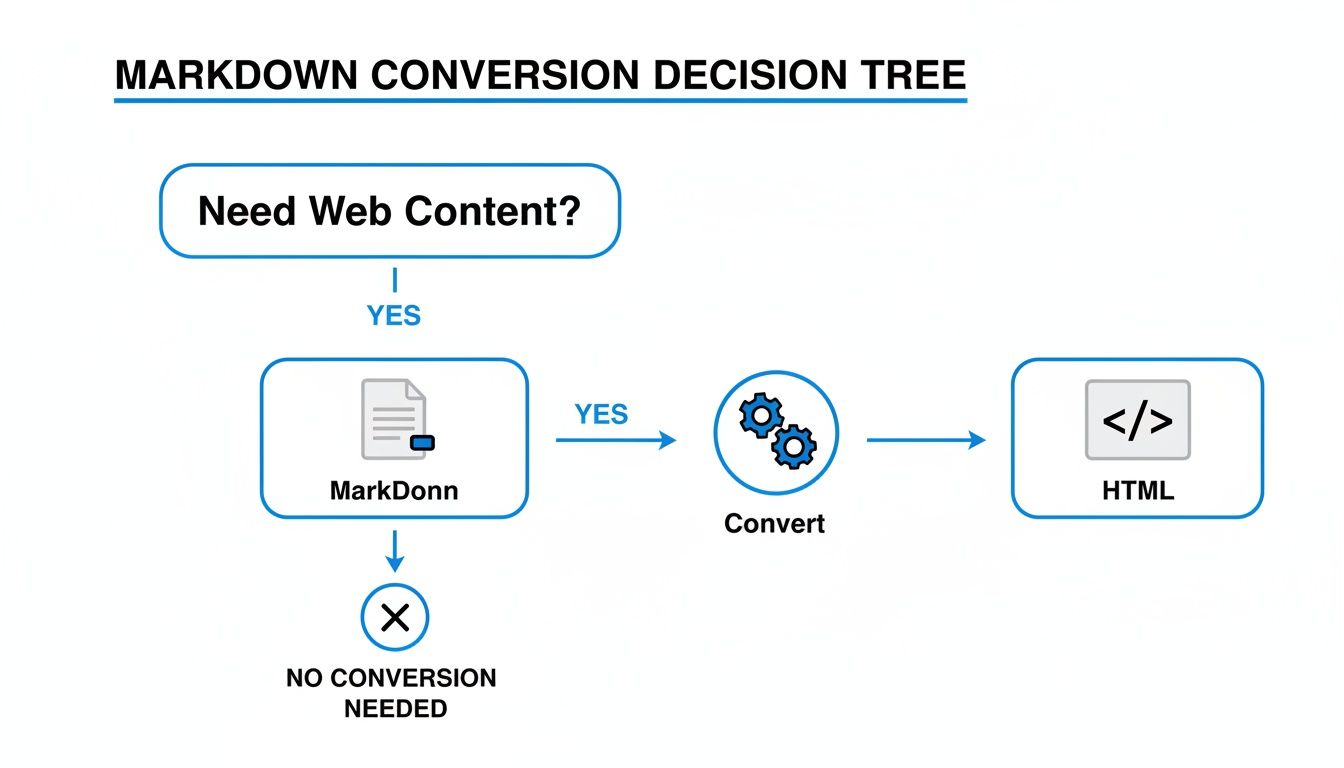
As the diagram shows, once your content is written in Markdown, a simple conversion is all that's left to get it into standard HTML for the web.
The popularity of this approach speaks for itself. The 'Markdown to HTML' extension in the Chrome Web Store, for example, has seen over 50,000 installs since 2020. This shows just how many people rely on these simple, browser-based tools for their daily work. You can check out its popularity on the Chrome Web Store.
Mastering Command-Line Conversion Tools
When you need serious power, repeatability, and fine-grained control over your content, nothing beats command-line interface (CLI) tools for converting Markdown to HTML. This is where you move beyond simple copy-paste web tools and step into the world of automation. For developers, technical writers, and anyone managing content at scale, these tools are the absolute standard. They’re the engine behind countless modern documentation sites and static blogs for a reason.
The real magic here is batch processing. Got a folder packed with .md files for your project's documentation? A single command can churn through all of them, spitting out a perfectly structured, ready-to-deploy website. That's the kind of efficiency that makes CLI tools a non-negotiable in professional workflows.
The Power Of Pandoc
If you’re going to learn one command-line conversion tool, make it Pandoc. It’s earned its reputation as the "swiss-army knife" of document conversion for a reason. While it can handle dozens of formats, its Markdown-to-HTML engine is exceptionally powerful and reliable.
Getting started is surprisingly simple. After you've installed it, just open your terminal and run this:
pandoc my-document.md -o output.html
That one line reads your Markdown file (my-document.md) and generates a clean HTML file (output.html). But that's just scratching the surface. The real power is unlocked with Pandoc's flags, which let you customize just about everything.
- Add a Table of Contents: The
--tocflag is a lifesaver. It automatically scans your headings (#,##, etc.) and builds a linked table of contents right at the top of your document. - Apply Custom Styling: Want your output to match your brand? Just use the
-c styles.cssflag to link your own stylesheet. - Create Standalone Files: Use
-s(or--standalone) to ensure Pandoc generates a full HTML5 document with<head>and<body>tags, not just a raw HTML fragment.
These concepts are the building blocks for more advanced systems. For a great real-world example, see how developers are using tools like Mkdocs to create polished documentation sites from Markdown.
My personal tip is to chain flags together into a powerful one-liner. I often use something like
pandoc -s --toc -c theme.css notes.md -o final.html. In one go, it creates a fully styled, easy-to-navigate webpage from a simple notes file. It’s perfect for quick project documentation.
While Pandoc is a fantastic all-rounder, the Node.js ecosystem has some great, speedy alternatives like marked-cli. If you're already working in a Node.js environment, marked might be a more natural and faster fit for straightforward conversions.
These tools give you a reliable, scriptable, and automated foundation for any content pipeline. It's a similar principle to how we handle other formats, which you can read about in our guide on converting Markdown to PDF.
Integrating Conversion Into Automated Workflows
One-off conversions are fine in a pinch, but the real magic happens when you build automation into your process. If you're running a blog, a documentation site, or any project that gets regular content updates, doing things by hand just doesn't scale. Treating your content like code—building a direct pipeline from your text editor to the web—is the key to efficiency.
Forget about dragging files into an online tool. A simple script can watch for changes in your Markdown files and convert them on the fly. This is the bedrock of modern development, especially when working with static site generators or setting up CI/CD (Continuous Integration/Continuous Deployment) pipelines.
Programmatic Conversion In Practice
Bringing a Markdown library into your project is a lot easier than it sounds. For example, if you're in a Node.js environment, you can install a battle-tested library like marked and have it converting files in minutes.
Here’s what a basic script looks like: import { marked } from 'marked'; import * as fs from 'fs';
// Read the content of your Markdown file const markdownContent = fs.readFileSync('input.md', 'utf8');
// Convert it to HTML const htmlContent = marked(markdownContent);
// Write the result to a new HTML file fs.writeFileSync('output.html', htmlContent);
console.log('Markdown converted to HTML successfully!');
This little script does exactly what you'd do manually: read a file, transform it, and save the output. Now, picture that script running automatically every time you save a .md file or push a commit to your repository. That's exactly how powerful publishing tools like Eleventy or Astro operate behind the scenes.
This type of integration is a core part of a much bigger picture. To get a better sense of how this fits into a larger publishing strategy, it's worth learning more about content automation.
Setting Up a Content Pipeline
The real power is unlocked when you hook this kind of script into your development workflow, often using a version control system like Git. A common approach is to create a GitHub Action that runs your conversion script every time you git push to your repository.
A typical workflow breaks down like this:
- Commit: You write your article or documentation in a Markdown file and commit it.
- Trigger: Pushing that commit to your repository kicks off the automated action.
- Build: A server spins up, pulls your latest code, installs any needed tools (like our
markedlibrary), and runs the conversion script. - Deploy: The newly generated HTML files are automatically pushed to your web host, making the content live.
This hands-off, automated approach isn't just a convenience; it's become a standard for modern web development. With teams working remotely, these pipelines ensure consistency and speed. The latest tools even watch for file changes in real-time, only rebuilding what's necessary and cutting down processing time by over 75% on large-scale documentation projects. For a deeper dive, check out these advances in real-time conversion from CocoIndex.
Publishing Your Markdown Instantly With Hostmora
Okay, you've written your content and seen all the different ways to turn it into HTML. But what about the final step—getting it live on the internet? While command-line tools are powerful and online converters are fast, platforms like Hostmora merge the best of both worlds into a dead-simple, no-code publishing experience.
This is, hands down, the fastest way to get from a .md file on your desktop to a secure, shareable URL without ever looking at a server.

The entire process is built for speed. You literally drag your Markdown file into the browser, and Hostmora handles the rest. It’s not just converting Markdown to HTML—it’s also hosting the file, adding a free SSL certificate for security, and pushing it out across a global content delivery network (CDN) so it loads quickly for everyone.
From File To Live URL In Seconds
This workflow is a game-changer for anyone who just needs to get something online now without the usual technical headaches. Forget about finding a hosting provider, messing with FTP clients, or figuring out SSL certificates.
I've seen this solve real problems for people in different fields:
- Freelancers: Need to share a portfolio, proposal, or resume? You can have a professional-looking webpage up in less than a minute.
- Agencies: Sending web copy or technical docs to a client for review? A password-protected link keeps it secure and looks way better than a plain text file.
- Educators: Post course notes or assignments that students can easily access on their phones or laptops.
Hostmora takes the entire technical backend off your plate. You can stay focused on writing great content instead of getting tangled up in deployment details. It’s the most direct path from an idea to a published page.
For small businesses and educators, this kind of speed is incredibly valuable. A simple Markdown resume can become a secure, QR-code-ready webpage with view tracking in seconds. With 70% of freelancers needing a way to prototype and share work quickly, this approach removes all the configuration friction. You just create, and the platform handles the optimization for global speed. If you're interested in why this is becoming so common, check out this great article on Markdown's role in modern publishing workflows.
And it's not just about one-off pages. You can even connect your own custom domain to brand your content or password-protect sensitive documents, all from the same simple interface.
Common Questions About Markdown To HTML Conversion
Once you start converting Markdown to HTML, you'll probably run into a few common questions. Sorting these out early on will save you a ton of headaches and help you produce clean, professional-looking web content.
So, How Do I Style My Converted HTML?
This is easily the most common question I hear. The good news is, yes, you can absolutely style the HTML that comes out of your Markdown files. The conversion process generates standard, semantic HTML with tags like <h1>, <p>, and <ul>.
From there, you just link an external CSS file to your final HTML document, and you can apply any branding or layout you need. If you're using an automated workflow, you can even wrap the converted content in a template that already includes your site’s header, footer, and styling. It’s pretty straightforward.
What About More Complex Content?
Things can get a little tricky when you venture beyond basic text formatting. People often get tripped up by the difference between standard Markdown and something more advanced like MDX.
- Markdown is fantastic for static content—articles, documentation, and blog posts.
- MDX is a completely different beast. It's a superset of Markdown that lets you embed interactive components, like those built with React, directly into your content.
You can't just run an MDX file through a standard Markdown converter. It needs a specific build process, usually within a framework like Next.js or Gatsby, to render those components correctly.
How Should I Handle Images and Other Assets?
Finally, let's talk about assets. Managing images, downloads, and other files requires a bit of planning. If you use a relative path in your Markdown like ``, you have to make sure that the images folder ends up in the right place relative to the final HTML file on your web server. One wrong move, and you've got broken images.
My go-to solution? Use absolute URLs for all your images, especially if they're hosted on a content delivery network (CDN). This approach completely sidesteps any issues with relative paths. Your images will load reliably no matter where the HTML file ends up.
Some platforms, like Hostmora, make this even easier. You can just upload a ZIP file with your Markdown file and all its assets, and it handles all the path management for you behind the scenes.
Ready to publish your Markdown file without the hassle? Hostmora turns your content into a live, secure webpage in seconds. Drag, drop, and publish for free.