
Turning a JPG into a PDF is one of those surprisingly useful skills you'll find yourself needing time and again. It's not complicated—you likely already have the tools on your computer, and if not, plenty of free online options exist. The real magic is what this simple conversion allows you to do: bundle multiple images into a single file, create polished documents, or just make sure your files look perfect, no matter who opens them or on what device.
Why Bother Converting a JPG to a PDF?
Before we get into the "how," let's talk about the "why." A JPG is fantastic for a single photo, but the PDF (Portable Document Format) is the undisputed champion of professional communication, archiving, and sharing. Think of it as a universal container that locks in your formatting, ensuring it looks the same everywhere.
For example, imagine you're a designer sending mockups to a client. Emailing a dozen separate JPGs is clunky and unprofessional. Combining them into a single, organized PDF tells a much clearer story. Or maybe you're a student with photos of textbook pages—a multi-page PDF is infinitely easier to submit and read than a folder full of image files.
The Big Advantages of Using PDF for Images
The benefits go way beyond just keeping things tidy. PDFs bring a level of control and polish that plain images just can't offer.
- Universal Compatibility: A PDF looks the same whether it's opened on a Windows PC, a Mac, or a phone. No surprises.
- Better Security: Need to keep something confidential? You can password-protect a PDF to control who opens, prints, or edits it.
- Searchable Text: If you've scanned a document, Optical Character Recognition (OCR) tools can make the text inside that image searchable. This is a game-changer for finding information later.
- Streamlined Sharing: One file is always easier to upload, email, and manage than many. You can even embed interactive elements, like linking to a QR code within a PDF.
The professional world runs on PDFs. Its ability to create a standardized, secure, and self-contained document makes it the default choice for everything from contracts and reports to official correspondence.
This is especially true when you're digitizing physical items. When you scan old documents or large photos, the resulting JPG files can be unwieldy. Converting them to a PDF makes them much easier to archive and share. If you're dealing with oversized prints, it's worth the time to Learn more about scanning large format photos to ensure you start with the best possible image quality.
The scale of PDF usage is massive. An incredible 98% of businesses rely on PDFs for their external communications. There are over 2.5 trillion PDFs floating around the world, with billions more created every year. This is exactly why knowing how to quickly convert a JPG is such a practical, everyday skill.
Using Online Converters for Quick Results
Sometimes you just need to get the job done, and fast. When you need to turn a JPG into a PDF right now, browser-based tools are your best bet. There's no software to download or install, which means you can handle the conversion in seconds from pretty much any device that's connected to the internet. This approach is absolutely perfect for quick, non-sensitive tasks where speed is everything.
The workflow is usually dead simple, no matter which site you land on. You'll see a big "upload" button, where you can grab the files from your computer. Once they're loaded, most tools let you add more images, drag the little thumbnails around to get them in the right order, and then hit a "convert" button to get your PDF.
A Practical Example: Expense Reports
Here’s a classic real-world scenario. You're back from a business trip, and your wallet is stuffed with paper receipts. You've already taken photos of them all with your phone, so you have a folder full of JPGs. Instead of firing off an email with a dozen messy attachments, you can package them into a single, professional-looking report.
With an online converter, you just:
- Upload all your receipt photos in one go.
- Drag and drop them into chronological order.
- Click "Convert" to merge everything into one clean PDF.
A single, multi-page document is way easier for the accounting team to handle. The whole thing probably takes you less than a minute.
Balancing Convenience and Security
The biggest win for online tools is their accessibility. No installs, no updates—just upload and go. But that convenience comes with a major catch: privacy. When you upload a file, you're sending your data to someone else's server.
For sensitive documents with personal info, financial data, or confidential company details, always use an offline method. Stick to your computer’s built-in features or trusted desktop software to keep your files from ever leaving your device.
It's always a good idea to glance at an online tool's privacy policy before uploading. The good ones will be clear about how they handle your data and for how long, often deleting your files automatically after a few hours.
Pros and Cons of Online Tools
To help you decide when to use a browser-based tool, here's a quick look at the trade-offs.
| Pros | Cons |
|---|---|
| No Installation Required | Requires an Internet Connection |
| Extremely Fast for Quick Jobs | Potential Security & Privacy Risks |
| Accessible From Any Device | May Have File Size or Usage Limits |
| Usually Free for Basic Use | Can Include Watermarks on Free Tiers |
Online converters are a fantastic resource for everyday, low-stakes tasks. They really shine when you need to bundle a bunch of images into a single, easy-to-share document without any headaches. This same principle applies to other web-based tasks, too—for instance, you can find tools that show you how to save an entire website as a PDF for offline reading.
Using the Tools Already on Your Computer
While online converters are handy, they aren't always the right tool for the job. If you're dealing with sensitive information or find yourself without an internet connection, turning to a third-party site isn't an option. The good news? You probably don't need to.
Your computer already has everything you need to convert JPG to PDF, baked right into the operating system. Using these native features gives you more control, better security, and the ability to work completely offline.
Converting on Windows with Print to PDF
One of the most overlooked features in Windows is its built-in "Print to PDF" function. It’s essentially a virtual printer that, instead of printing on paper, creates a perfectly formatted PDF file of whatever you send its way.
Imagine you've just scanned a stack of receipts and need to send them as a single file. Instead of uploading them one by one to a website, you can combine them right from your desktop.
- First, open the folder with your JPGs.
- Select all the images you want to include. A quick way to do this is to click the first file, hold down the Shift key, and then click the last one.
- Right-click on any of the selected images and choose Print.
- The "Print Pictures" window will pop up. From the "Printer" dropdown menu, select Microsoft Print to PDF.
- Here, you can also adjust the paper size, quality, and even how many images you want on each page.
- Once you click "Print," you’ll just need to choose a file name and save location for your new PDF.
The best part? Your files never leave your computer, which is critical when you're working with anything confidential.
Using Preview on macOS for Quick Conversions
If you're on a Mac, you have an equally powerful tool at your disposal: Preview. It’s much more than a simple image viewer—it’s a surprisingly robust editor that makes turning images into a PDF incredibly simple.
Let’s say you’re putting together a portfolio with several high-resolution mockups. Just select all the JPGs in Finder, right-click, and open them all with Preview. They’ll appear in a single window, with thumbnails of each image lined up in the sidebar.
The real magic of Preview is how intuitive it is. You can just drag and drop the thumbnails in the sidebar to reorder the pages before you even create the PDF. It gives you total control over the final document's flow.
Once you’re happy with the order, head to the "File" menu and select "Print." In the bottom-left corner of the print dialog, you'll see a small "PDF" button. Click it and choose "Save as PDF." That’s it—you've just merged multiple images into a polished, single-file document. This "print-to-PDF" trick is surprisingly versatile and works for more than just images; our guide on how to turn a DOCX file into a PDF dives into other uses.
When to Consider Dedicated Desktop Software
For most everyday tasks, these built-in tools are more than enough. But for heavy-duty work that requires more firepower, dedicated software like Adobe Acrobat is the gold standard. These programs unlock a whole other level of functionality.
- Optical Character Recognition (OCR): Turns the text within your scanned images into searchable, copy-and-pasteable content.
- Advanced Security: Lets you add robust passwords, restrict editing, or apply digital signatures.
- File Optimization: Gives you granular control over compression to find the perfect balance between file size and image quality.
There's a reason the PDF software market was valued at $1.85 billion in 2024 and is projected to grow at a CAGR of 12.40%. As more work goes digital, the demand for these advanced, secure features continues to climb.
Once you get the hang of converting images, you'll find the same skills apply to other formats. For instance, knowing how to properly convert Publisher files to PDF can be a real lifesaver in many professional settings.
Turning JPGs into PDFs on Your Phone or Tablet
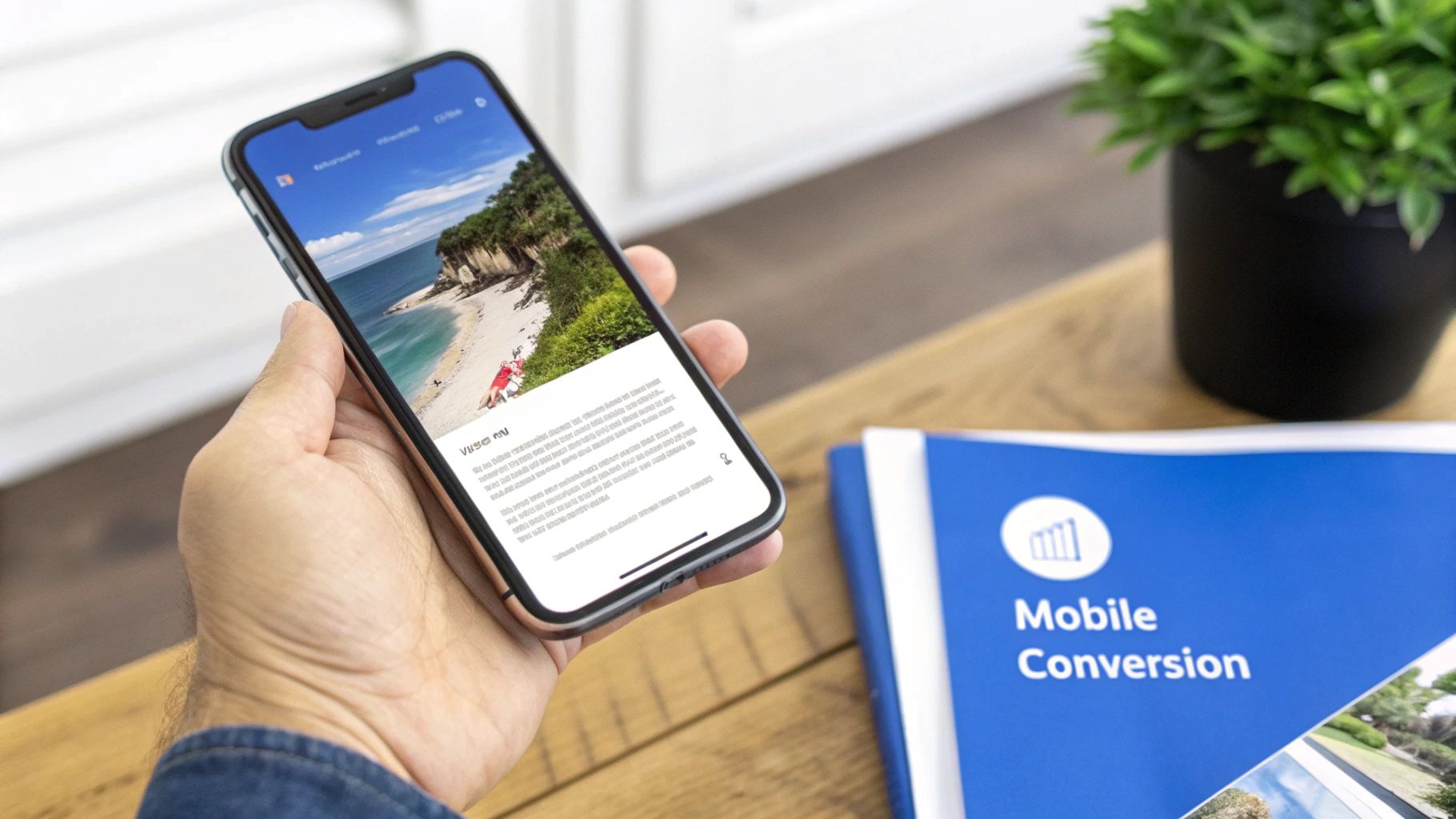
Let's face it, a lot of work gets done on the go. Your smartphone is probably your most accessible piece of tech, so knowing how to convert a JPG to a PDF right from your device is a game-changer. It's not just a neat trick; it's a critical skill for anyone from a field agent snapping a picture of a signed contract to a freelancer organizing receipts for an expense report.
The good news? You probably don't need another app. Both iOS and Android have slick, built-in features that handle this in just a few taps, turning a photo into a professional document without sending your data to a third-party service.
Use Your Phone's Built-In Tools
The quickest and most secure way to create a PDF is by using the tools already baked into your phone's operating system. It works offline and keeps your files right where they belong: on your device.
Here’s a real-world example: A real estate agent gets a document signed and needs to email it to the main office immediately. Instead of hunting for a scanner, they just take a clear photo.
- They open the image in their gallery (Photos on iOS or Google Photos on Android).
- Next, they tap the Share icon. This is where the magic happens.
- In the share menu, they look for the "Print" option. It sounds counterintuitive, but this is the key.
- Instead of choosing a printer, an Android user can simply select "Save as PDF." On an iPhone, a simple two-finger "zoom out" gesture on the print preview instantly creates a PDF.
- From there, the new PDF can be saved to their files or shared directly through email, Slack, or any other app.
The whole thing takes maybe 30 seconds. You've just turned a simple picture into a business-ready PDF without any extra software.
When You Need More Firepower: Scanner Apps
For quick, one-off conversions, the built-in method is perfect. But what if you need something a bit more polished? That’s where free, dedicated scanner apps like Adobe Scan or Microsoft Lens really shine.
Think of these apps as a scanner in your pocket. They don't just change the file type; they enhance the image, automatically finding the document's edges, correcting skewed angles, and boosting text clarity.
These tools are invaluable when you're digitizing a physical document. They can easily handle multi-page reports by letting you scan one page after another, compiling them all into a single, organized PDF. They're designed to remove shadows and fix perspective, so your "scan" looks like it came from a flatbed scanner, not a shaky hand.
If you’re archiving important papers, submitting a multi-page proposal, or just need a crystal-clear digital copy of a physical document, a dedicated scanner app is the way to go. It’s a definite upgrade from a basic conversion.
Automating Conversions for Power Users
When you’re dealing with a handful of images, a graphical interface is fine. But what happens when you need to process hundreds, or even thousands? Clicking and dragging becomes a massive time-sink.
For developers, system admins, or anyone managing serious document workflows, automation isn't just a nice-to-have; it's a necessity. This is where you roll up your sleeves and turn to powerful command-line tools like ImageMagick, which give you total control and blazing-fast efficiency.
This shift toward automation is more than just a niche trend. The global Image to PDF Converter market hit $1.12 billion in 2024 and is expected to more than double to $2.67 billion by 2033. That growth is largely driven by the demand for the exact kind of high-volume, scriptable solutions we're talking about here. You can see the data on image to PDF market trends for yourself; automation is at the core of it.
Mastering Single File Conversions
Before you can build a powerful script, you need to get the basics down. Let's start with a single file. You have an image named invoice-scan-01.jpg and you need it in PDF format. Simple.
Once you have ImageMagick installed, just pop open your terminal or command prompt and run the convert command:
convert invoice-scan-01.jpg invoice-scan-01.pdf That one line is all it takes. ImageMagick reads the input JPG and spits out a PDF with the same name. It's clean, fast, and perfect for slotting into a larger script.
Pro Tip: The real magic of the command line is the fine-grained control. You can set image quality, DPI, and page size right in the command itself. No more digging through settings menus to get your PDF just right.
Batch Processing an Entire Folder
Now for the fun part—where the real power of automation becomes obvious. Let's say you've got a folder full of images for a report, all named sequentially from report-page-01.jpg to report-page-50.jpg. The goal is to combine them into one multi-page PDF, in the correct order.
A single command can knock this out in seconds.
convert *.jpg -quality 90 -page letter final-report.pdf
So, what’s this command actually doing? Let’s break it down:
convert *.jpg: The asterisk is a wildcard that tells ImageMagick to grab every file ending in.jpgin the current folder.-quality 90: This little flag is super useful. It sets the compression quality for the JPEGs inside the PDF to 90%, which gives you a great balance between sharp images and a smaller file size.-page letter: This sets the page dimensions of the PDF document to standard US Letter.final-report.pdf: And finally, this is just the name of the output file you want to create.
By getting comfortable with a few commands, you can build incredibly powerful systems to convert JPG to PDF on a massive scale. It saves you an enormous amount of time and completely removes the chance of human error.
Once your automated workflow creates the PDF, you can publish it in seconds with Hostmora for secure hosting and instant sharing.
Answering Your Questions About JPG to PDF Conversion
When it comes to turning JPGs into PDFs, a few questions always seem to come up. Getting these sorted out will help you pick the right tool for the job and get the results you're after, whether you're compiling a professional report or just organizing old photos.
Will I Lose Image Quality?
This is probably the biggest concern, and for a good reason. Nobody wants a blurry, pixelated mess. The good news is that converting a JPG to a PDF doesn't have to ruin its quality. You're in the driver's seat.
Most conversion tools—whether online, on your desktop, or on your phone—give you control over the compression settings.
- If you choose a high-quality or lossless setting, your image will look just as crisp in the PDF as it did originally. The trade-off is a larger file size.
- For everyday tasks like emailing a document, a medium setting usually hits the sweet spot, balancing clarity and a manageable file size.
Ultimately, the quality of the final PDF is entirely up to the settings you choose.
How Do I Combine Multiple Images or Keep My Files Secure?
What about that whole folder of vacation photos or scanned receipts? Combining multiple JPGs into one multi-page PDF is a standard feature on almost any converter. Online tools often let you upload a batch of files at once and then simply drag and drop the thumbnails to get them in the right order.
Desktop methods, like the "Print to PDF" function on Windows or using Preview on a Mac, also make it easy to select a group of images and merge them into a single, organized document.
A quick word of advice on security: be smart about using online converters. While many reputable services are secure, you are uploading your files to someone else's server. For anything sensitive—like a signed contract, a copy of your ID, or confidential business plans—stick to an offline desktop method. This keeps your files on your computer and away from prying eyes.
Using an offline tool gives you total control and peace of mind when handling private information.
Once you've crafted the perfect PDF, you'll need a way to share it. Hostmora lets you publish your files and get a secure, live link in just a few seconds. Get started for free at Hostmora.com.