
Turning a DOCX file into a PDF is one of those everyday tasks we all do, but getting it right is what separates the pros from the amateurs. At its core, you're creating a digital snapshot of your document, freezing the layout, fonts, and images in place. This makes sure that what you see on your screen is exactly what everyone else sees, no matter what device they're using.
Why a Perfect DOCX to PDF Conversion is Non-Negotiable
We’ve all been there. You spend hours crafting the perfect resume or a killer proposal, send it off, and get a reply that it's a jumbled mess of broken text and misplaced images. This is exactly the headache a solid DOCX to PDF conversion workflow prevents. It's about more than just clicking "Save As"; it's about protecting your work and your professional image.
Think about sending a legal contract. A PDF version is crucial because it locks down the terms, making it difficult for anyone to make unauthorized changes. Or consider a company branding guide—a PDF ensures your carefully chosen fonts, colors, and logos look identical on a Mac, a Windows PC, or a smartphone. A standard DOCX file just can't make that promise.
The Real-World Benefits of Getting it Right
Once you master this, you'll see a few immediate benefits in how you work:
- Universal Compatibility: PDFs just work. They open correctly on any operating system or device, and you don't need Microsoft Word to view them. Your document's design stays exactly as you intended.
- Serious Security: You can lock down a PDF to prevent editing, printing, or even copying text. This is a must-have for sensitive documents like financial reports or confidential client proposals.
- Professional Polish: Sending a PDF signals that a document is final and ready for review. It feels polished and intentional, unlike an editable Word file that can feel like a work-in-progress.
At the end of the day, converting from DOCX to PDF is all about predictability. You eliminate all the variables—different software versions, missing fonts, weird operating system quirks—that can destroy a document's first impression.
Ultimately, knowing how to handle this conversion properly means your hard work always shows up looking its best. Whether you're using a simple built-in tool or a more advanced script, the goal is the same: to make the right impression, every single time. Let's walk through the best ways to do just that.
Your Go-To Methods for Everyday Conversions
When you just need to get a Word document into PDF format, chances are you already have the best tool for the job. You don't need to hunt down special software for most day-to-day conversions; Microsoft Word and your computer's operating system have you covered.
These built-in features are reliable, cost nothing, and get the job done quickly.
Using Word’s Built-in Export Feature
The most direct way to convert your file is right inside Word itself. Using the native Export function gives you a surprising amount of control over the final PDF, making it my first choice when quality and file size are important.
When you go to File > Export > Create PDF/XPS Document, you'll see a small but crucial "Options" button. Inside, you get to choose:
- Standard (publishing online and printing): This is your high-quality option. It keeps images sharp and clear, making it perfect for professional printing or any situation where visual fidelity is key.
- Minimum size (publishing online): Need to email a file or post it online? This setting is your friend. It smartly compresses the images to shrink the file size, making it much easier to share without a significant drop in on-screen quality.
Making the right choice here from the start saves a lot of headaches later. It’s the difference between a massive, un-emailable file and a sleek, professional document, or a crisp printed report versus a blurry one.
This simple flowchart nails the core reason we convert documents in the first place: for secure, professional sharing.
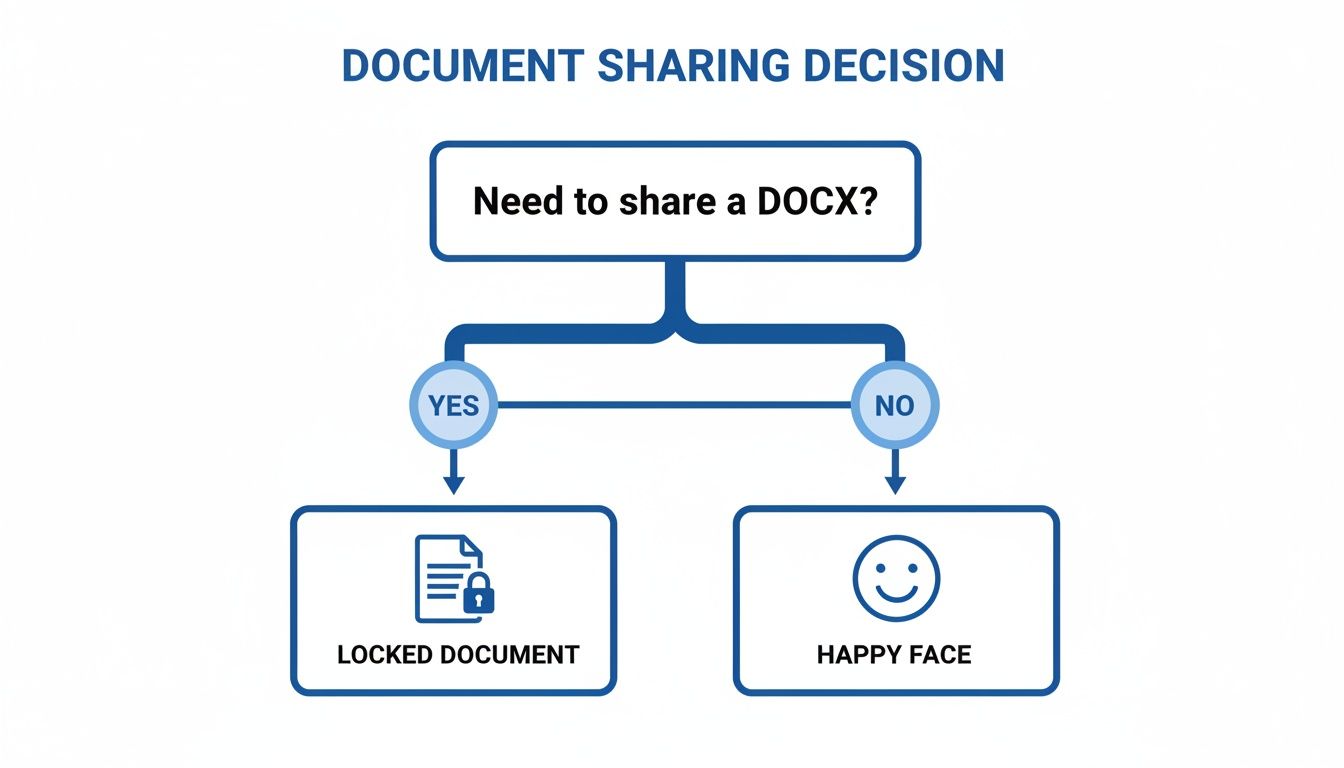
Locking down your document in PDF format is just good practice when you're sending it out into the world.
The Universal Print to PDF Method
But what if you're not using Word? Or you're in an application that doesn't have a built-in PDF export? That's where "Print to PDF" comes in. It’s a lifesaver.
This feature is built directly into both Windows and macOS and shows up as a "printer" in the print dialog of nearly any program. Its superpower is consistency. What you see in the print preview is exactly what you get in the PDF, preserving your layout perfectly.
This trick is incredibly handy for converting files from obscure or older programs. If you can print it, you can make it a PDF. For a closer look at various techniques, this a simple guide on how to convert Word to PDF offers some great perspectives. And if you ever need to capture an entire webpage, we've got a guide for that, too: https://hostmora.com/blog/site-to-pdf/.
Comparing Quick Conversion Methods
To help you decide at a glance, here’s a quick breakdown of these common, built-in methods.
| Method | Best For | Key Advantage | Potential Drawback |
|---|---|---|---|
| Word's Native Export | High-quality documents, professional printing | Control over image compression and file size | Requires Microsoft Word to be installed |
| Print to PDF | Universal compatibility, non-Word apps | Works from any application with a print function | Fewer optimization options; "what you see is what you get" |
| Cloud Platforms | On-the-go access, collaboration | Device-independent, no software installation needed | Requires an internet connection; potential for minor formatting shifts |
Each has its place, but knowing the trade-offs ensures you grab the right one for the task at hand.
Cloud Platforms for On-the-Go Conversions
So much of our work happens in the browser now, and document conversion is no different. Cloud-based suites like Google Docs and Microsoft 365 Online let you handle conversions from virtually anywhere, on any device.
The convenience factor has fueled a massive shift. In fact, 87% of remote workers say they prefer using cloud-based tools over desktop software for these tasks. This isn't surprising, considering that cloud systems now manage over 62% of all enterprise document workflows.
The process couldn't be simpler. Just upload your DOCX, open it in the editor, and find the download option—usually something like File > Download > PDF Document. It's fast, free, and perfect for when you're on a laptop or tablet without your usual software suite.
Choosing a Secure Online PDF Converter
Online converters are incredibly convenient. No software to install, just upload your DOCX, and you get a PDF back. It’s a lifesaver when you're on a machine without Microsoft Word. But that convenience comes with a catch: you're handing your document over to someone else's server.
Think about it. Are you converting a draft of a novel, a sensitive client contract, or a financial report? If that document leaked, it could be a disaster. This is why security isn't just a nice-to-have feature; it’s everything. Some "free" online tools are notorious for harvesting data or, even worse, bundling malware with your download.
What to Look For in a Trustworthy Converter
A trustworthy service won't hide its security practices. Before you even think about uploading a file, do a quick gut check. A few seconds of diligence can save you a massive headache later.
Here are the non-negotiables I always look for:
- HTTPS Encryption: Glance at the address bar. You absolutely must see
https://and a little padlock icon. This is the bare minimum, ensuring the connection between your computer and their server is encrypted. No padlock? No upload. - A Clear Privacy Policy: Reputable companies are upfront about what they do with your files. If their privacy policy is buried, hard to find, or written in confusing legalese, that's a huge red flag. Walk away.
- Automatic File Deletion: The best converters explicitly state how long they keep your files. I look for services that promise to permanently wipe your documents from their servers within a few hours, often as little as one hour.
The rule of thumb is simple: your document should only live on their server for the absolute minimum time needed to convert it. Any service that's vague about its deletion policy doesn't value your privacy.
Beyond Conversion: Secure Publishing and Sharing
Okay, so you've safely completed your conversion docx pdf. What’s next? Usually, you need to share it. Attaching it to an email is the default, but you immediately lose control. It can be forwarded, downloaded, and shared with anyone.
A much smarter workflow is to use a service that combines secure conversion with protected sharing. For instance, a platform like Hostmora not only handles your files securely but also gives you a secure link for the final PDF. You can then lock it down even further with password protection, making sure only the right people can open it.
This approach takes you from a private DOCX on your desktop to a securely shared, access-controlled PDF online. It turns a simple file conversion into a complete, professional, and safe document workflow, giving you peace of mind from start to finish.
Automating Conversions for Technical Workflows
When you're dealing with a handful of documents, converting them one by one is no big deal. But what about when you're facing a mountain of them? For developers, sysadmins, or anyone staring down hundreds of invoices, reports, or manuscripts, manual conversion just isn't an option. You need a workflow that scales.
This is where command-line tools step in, turning a mind-numbing manual task into a powerful, automated process. We're going to focus on two of the most reliable tools for the job: Pandoc and LibreOffice. These aren't your typical point-and-click programs; they run "headless" straight from your terminal, which makes them perfect for scripting and plugging into larger systems.
Automating the DOCX to PDF conversion is a huge win for business efficiency. By 2025, it's estimated there will be over 2.5 trillion PDFs in the world, so the need for high-volume conversion is only growing. Companies that switch to automated systems often see their workflow efficiency jump by 40-60% and slash manual errors by a whopping 75%.
Using Pandoc for Fast and Lightweight Conversions
I often call Pandoc the "Swiss Army knife" of document conversion. It’s incredibly fast and lightweight, especially for documents that are mostly text. It's a favorite in the technical community for a reason—it just works.
The command to convert a single file couldn't be simpler:
pandoc "MyReport.docx" -o "MyReport.pdf"
Here, MyReport.docx is the file you want to convert, and the -o flag tells Pandoc what to name the output file. Clean and direct. If you find yourself working with other text-based formats, our guide on converting Markdown to PDF might be useful, too: https://hostmora.com/blog/md-to-pdf/
Processing an Entire Folder at Once
This is where the magic really happens. Let's say you have a folder called Reports jam-packed with DOCX files. Instead of opening each one, you can use a simple script to convert them all in a single command.
For macOS or Linux users (in Bash):
mkdir -p ConvertedPDFs for file in Reports/*.docx; do pandoc "$file" -o "ConvertedPDFs/$(basename "$file" .docx).pdf" done
This little script first creates a new directory called ConvertedPDFs. Then, it loops through every DOCX file in your Reports folder, converts it, and saves the new PDF in the destination folder. The basename command is a neat trick that strips the old .docx extension and adds .pdf in its place.
For Windows users (in PowerShell):
New-Item -ItemType Directory -Force -Path ".\ConvertedPDFs" Get-ChildItem -Path ".\Reports*.docx" | ForEach-Object { pandoc $.FullName -o ".\ConvertedPDFs$($.BaseName).pdf" }
The PowerShell version does the exact same thing, just with slightly different syntax. This shows just how flexible these command-line tools are.
Once you get comfortable with these commands, you can build incredibly efficient systems for any bulk conversion task. For an even deeper dive into automating your document workflows, checking out the best document automation software tools can open up a world of possibilities, helping you save countless hours.
Fixing Common Document Conversion Problems
We’ve all been there. You nail the perfect layout in Word, run a conversion docx pdf, and open the PDF to find a funhouse mirror version of your document. The fonts are wrong, images have jumped to the next page, and your beautifully organized tables look like they’ve been through a blender.
It’s a frustratingly common experience. The good news is that these problems aren't random. They almost always trace back to how the original DOCX file was built and how the converter tries to interpret it. With a few preemptive tweaks, you can make these conversion headaches a thing of the past.
Solving Font Substitution and Formatting Errors
More often than not, font issues are the main villain. If the machine doing the conversion—whether it's your PC, a server, or an online tool—doesn't have the exact fonts you used, it's forced to guess. It will substitute your chosen font with whatever it thinks is a close match, and that’s when your spacing and entire layout get thrown completely out of whack.
The most reliable fix is to embed the fonts directly into the Word document before you even think about converting. This essentially packs the font files into your DOCX, so any converter has everything it needs to render your text perfectly.
- In Word, head to
File > Options > Save. - Look for the section "Preserve fidelity when sharing this document" and check the box for "Embed fonts in the file."
- You’ll see an option to embed only the characters used (which keeps the file size down) or the entire font set (better if someone else might need to edit the DOCX later).
Honestly, this one move solves the vast majority of text-related conversion problems. It's the secret to ensuring your typography looks exactly how you intended.
Preserving Image Quality and Placement
Blurry, pixelated images that refuse to stay put are another classic conversion problem. This is usually caused by two things: aggressive image compression during the conversion or a conflict with Word’s text-wrapping settings.
The best defense is a good offense. Always use the Insert > Pictures function in Word instead of just pasting images in. This creates a much more stable link to the image file. If image clarity is critical, start with high-resolution images. When you're ready to export, look for a quality setting like "Standard" or "Best for printing" in Word's native PDF converter to avoid unwanted compression.
For documents where the layout is absolutely non-negotiable—think legal contracts, formal proposals, or portfolios—I always recommend converting to a PDF/A (Archival) format. This specialized standard is designed for long-term preservation and locks everything down. Fonts, colors, and content are all self-contained, guaranteeing the document will look identical on any device, today or twenty years from now.
This kind of precision is vital in many professional fields. The legal and compliance sectors, for example, have made PDF the gold standard for document retention. HIPAA rules demand that patient records be stored in secure, unchangeable formats. In fact, compliance is a massive driver, accounting for 58% of all DOCX-to-PDF conversions in enterprise settings where an exact replica is the only acceptable outcome. You can dig deeper into these PDF conversion compliance standards and their importance.
Repairing Broken Hyperlinks and Tables
Finally, nothing makes a document look more amateurish than broken hyperlinks or mangled tables. Links usually fail because they're missing the full http:// or https:// prefix. It’s a simple thing, but always give them a quick click-test in Word before you convert.
Complex tables are another frequent point of failure, especially those with merged cells or custom borders. If a table just won’t cooperate during conversion, the easiest fix is to rebuild it in Word with a simpler design. If you're really in a bind, you can always take a screenshot of the table and insert it as an image before converting—a bit of a cheat, but it gets the job done.
From Conversion to Instant Document Sharing
You've nailed the conversion, and your DOCX is now a perfect PDF. But the job isn't done until that document is in the right hands. A successful conversion docx pdf process really comes full circle when you share it effectively. Let's be honest, just attaching a file to an email is old news and gives you zero control the second you click "send." A far better approach is to turn that new PDF into a secure, shareable online link.

This is where a dedicated publishing platform comes into play. For instance, a service like Hostmora lets you simply drag and drop your PDF to instantly generate a live link. This one small action opens up a whole world of possibilities for how you distribute your work.
Real-World Sharing Scenarios
Think about how this simple workflow could change things for different people:
- Freelancers: You could send a client proposal that's protected by a unique password.
- Agencies: Imagine distributing beautifully branded client reports that live on your own custom domain.
- Businesses: You can share marketing materials or product catalogs with a simple, scannable QR code at an event.
This shift from a static file to a live link fundamentally changes how you control and distribute your work. It's the difference between sending a file into the void and managing its accessibility with precision.
Ultimately, this completes your document’s entire lifecycle—from creation and conversion to global distribution in just a few clicks. It also guarantees the person on the other end can actually view it without a problem, a crucial point we cover in our guide on using an online PDF reader.
Frequently Asked Questions
When you're converting a DOCX to a PDF, a few common questions always seem to pop up. Let's get you some clear answers so you can nail the conversion every time, whether you're sending a file to a professional printer or just archiving a final draft.
How Can I Reduce the File Size of My Converted PDF?
This is a big one, especially for emailing or web sharing.
When you're exporting directly from Word, look for the option that says “Minimum size (publishing online).” This tells Word to smartly compress the images and other elements, often resulting in a dramatically smaller file. Most good online converters offer similar compression settings.
If you have an especially hefty file, you can run it through a dedicated PDF compressor after you’ve already converted it. Just be sure to double-check the final output—aggressive compression can sometimes make images look a little fuzzy.
Will My Comments and Tracked Changes Show Up in the PDF?
By default, no. The whole point of a PDF is to create a clean, final version of your document, so Word and other tools automatically hide all that behind-the-scenes markup.
But what if you want them included? You can do it. In Word, instead of exporting, go to the print menu. Make sure “Print Markup” is enabled in the settings. Once that's checked, just use the “Print to PDF” function, and all your comments and changes will appear right there in the final PDF.
A DOCX to PDF conversion is designed to produce a final, unchangeable artifact. That's why collaborative features like comments are stripped out unless you go out of your way to include them.
Can I Convert a PDF Back to a DOCX?
Yes, but you should manage your expectations.
Modern versions of Microsoft Word can actually open simple PDFs and do a decent job of converting them back into editable DOCX files. However, if your document has a complex layout, lots of images, or custom fonts, things can get messy fast. The formatting often breaks, and you'll probably spend a good bit of time manually cleaning things up. The reverse conversion is rarely perfect.
Ready to turn that freshly-made PDF into a secure, shareable link in just a few seconds? Hostmora makes it incredibly easy to publish your documents online, add password protection, and get them out into the world. Just drag, drop, and you're done. Try Hostmora for free today.